Clean Data
Overview
Clean a customer or transaction export in one step. Each week an export arrives with stray spaces, inconsistent capitalization, dates and amounts stored as text, blank rows, and several spellings of the same state. This template fixes those values automatically, removes blank and duplicate rows, and lists anything it cannot fix.
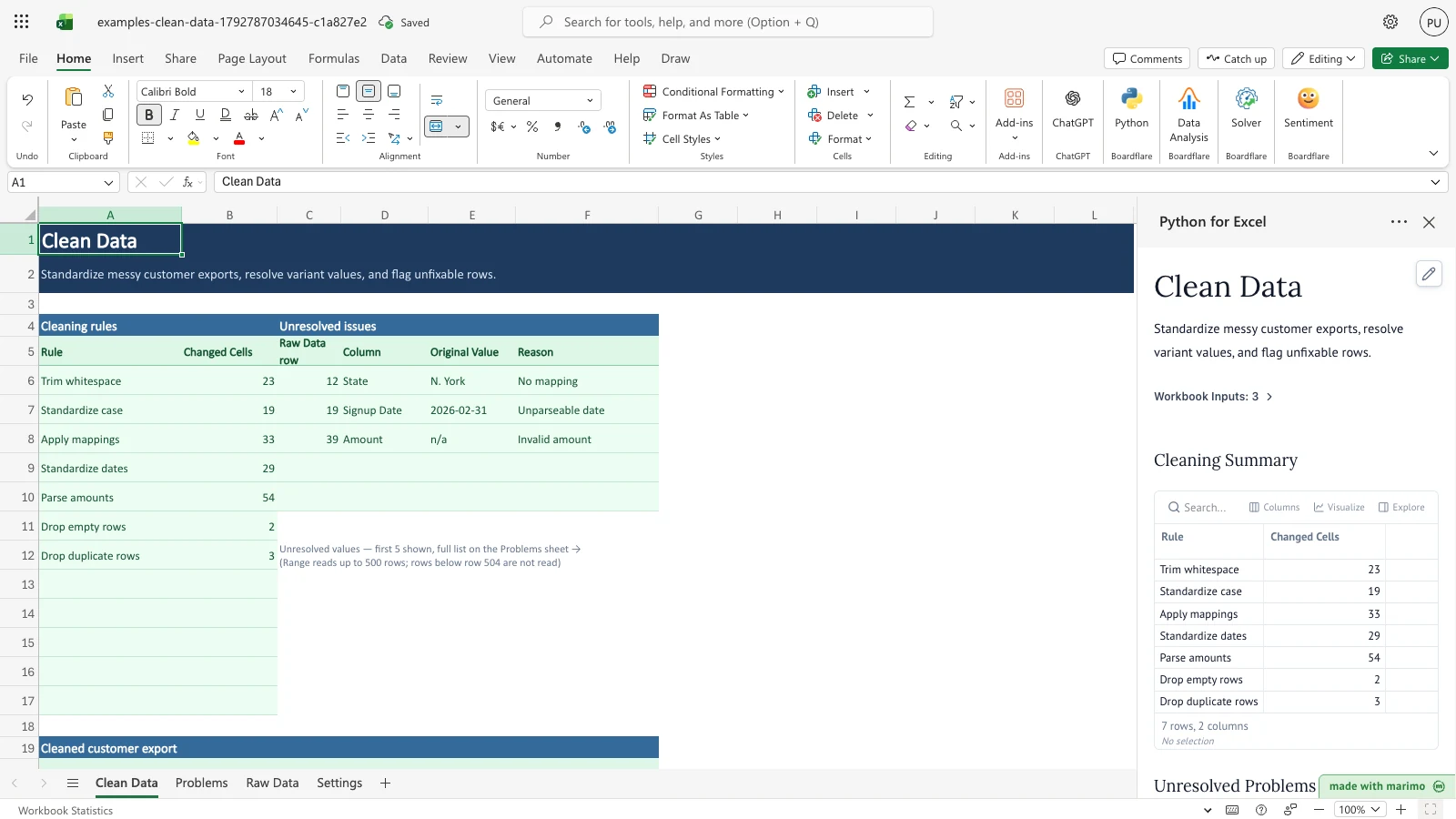
The outcome is on the Clean Data sheet. A Cleaning rules table counts the cells changed by each rule, an Unresolved issues preview shows the first five values that need a person, and a cleaned copy of the export fills the table below. The Problems sheet logs the flagged values, up to 100 entries, each with its Raw Data row.
Before you start
- Requirements: Excel with Python for Excel. For how to open the add-in, the task pane, and App mode, see the Boardflare Notebook Reference.
- Data shape: Paste the export into the Raw Data sheet with the column headers in row 4 and the data from row 5. The template reads up to 500 data rows (rows 5 to 504) and up to 12 columns (A to L). Each header name is used as the column name in the output.
- Column names the rules use: Customer, City, State, Signup Date, Amount, and Status. A rule that targets a column with a name not present in row 4 is skipped, and the Problems sheet notes it. Other columns are copied through unchanged.
- Sample data: The Raw Data sheet holds a sample export in rows 5 to 64. It includes two blank rows, at rows 24 and 46, so the blank-row rule has something to remove.
- Roles: The technical author maintains the Python source, including the rules. The workbook user pastes exports, toggles rules, adds mappings, and reviews flagged values without changing any Python.
Workbook tour
| Area | Cells | What it holds | Type |
|---|---|---|---|
| Settings: Rule switches | A4:B12 | The Rule and Enabled headers in row 5, then the seven rule switches in rows 6 to 12. | Editable input (B6:B12) |
| Settings: Value mappings | D4:E35 | The Variant and Standard headers in row 5, then mapping rows 6 to 35. | Editable input (D6:E35) |
| Raw Data | A4:L504 | The export. Headers are in row 4 and data starts at row 5. | Editable input (paste here) |
| Clean Data: Cleaning rules | A5:B12 | The Rule and Changed Cells headers, then one row per rule. | Output |
| Clean Data: Unresolved issues | C5:F10 | The Raw Data row, Column, Original Value, and Reason headers, then the first five flagged values. | Output |
| Clean Data: Cleaned customer export | A19:L520 | The cleaned rows under the headers in row 20. | Output |
| Problems | A4:D105 | The Raw Data row, Column, Original Value, and Reason headers, then up to 100 flagged values. | Output |
The task pane shows the same results as the Clean Data sheet, with the full summary, the unresolved problems, a sample of changed rows, and a preview of the first ten cleaned rows.
Using the template
Clean a new export
- On Raw Data, paste the export with its headers in row 4 and the data from row 5. Clear rows left over from the previous export, because the template reads every row down to the last non-blank row.
- Clean Data updates. Read the Cleaning rules table for the count of each change, and the Unresolved issues preview for the first flagged values.
- Open the Problems sheet to see every flagged value. Each entry gives the Raw Data row, so you can find the value and correct it.
Turn a rule off
- On Settings, change the rule’s Enabled cell in
B6:B12from TRUE to FALSE. For example, setB6(Trim whitespace) to FALSE. - The rule stops running. Its Changed Cells count reads 0, and the cleaned export keeps the original spacing.
Add a mapping
- On Settings, enter a variant in an empty row of the Variant column (
D6:D35) and its standard value in the matching Standard cell (E6:E35). For example, enterN. YorkinD30andNYinE30. - Clean Data updates. Apply mappings rises, and the matching value leaves the Unresolved issues list.
Flag a date with a missing part
- On Raw Data, enter a date that has no day, month, or year, such as
March, in the Signup Date cell for row 6 (D6). - Clean Data lists row 6 as an unparseable date, and Standardize dates drops by one.
Correct an impossible date
- On Raw Data, change the Signup Date in row 19 (
D19) from2026-02-31, which is not a real date, to2026-02-28. - Standardize dates rises by one, and row 19 leaves the Unresolved issues list.
Inputs and settings
| Name | Where | Allowed values | Default | Effect |
|---|---|---|---|---|
| Trim whitespace | Settings!B6 |
TRUE or FALSE | TRUE | Removes leading and trailing spaces and collapses repeated spaces in Customer, City, State, and Status. Also decides whether a mapping matches the value with its spacing trimmed. |
| Standardize case | Settings!B7 |
TRUE or FALSE | TRUE | Applies the capitalization rules to Customer, City, and Status. |
| Apply mappings | Settings!B8 |
TRUE or FALSE | TRUE | Replaces State values with their standard codes from the mapping table. |
| Standardize dates | Settings!B9 |
TRUE or FALSE | TRUE | Converts Signup Date values to YYYY-MM-DD. |
| Parse amounts | Settings!B10 |
TRUE or FALSE | TRUE | Converts Amount text to numbers. |
| Drop empty rows | Settings!B11 |
TRUE or FALSE | TRUE | Removes rows where every populated column is blank. |
| Drop duplicate rows | Settings!B12 |
TRUE or FALSE | TRUE | Removes a row identical to an earlier row after cleaning. The first copy is kept. |
Any value other than TRUE or FALSE, or 1 and 0, is logged as a Notice on the Problems sheet, and that rule is treated as FALSE.
| Name | Where | Effect |
|---|---|---|
| Variant and Standard | Settings!D6:E35 |
Each row maps a variant (for example, New York) to a standard value (for example, NY). Matching ignores capitalization. A variant that is listed twice is logged, and the first mapping is used. |
Editable columns in Raw Data:
| Column | Rules that apply | Effect |
|---|---|---|
| Customer | Trim whitespace, Standardize case | Spacing and capitalization are cleaned. |
| City | Trim whitespace, Standardize case | Spacing and capitalization are cleaned. |
| State | Trim whitespace, Apply mappings | Variants are replaced with standard codes. A value that is neither a variant nor a standard value is flagged. |
| Signup Date | Standardize dates | Dates become YYYY-MM-DD. Text that is not a complete date is flagged. |
| Amount | Parse amounts | Currency text becomes a number. Text that is not a number once currency symbols and codes are removed is flagged. |
| Status | Trim whitespace, Standardize case | Spacing and capitalization are cleaned. |
How results are calculated
The template works through each row in these steps:
- Blank rows. Rows after the last non-blank row are ignored. Within the data, rows that are blank in every populated column are removed when Drop empty rows is TRUE.
- Whitespace. When Trim whitespace is TRUE, runs of spaces become a single space and leading and trailing spaces are removed.
- Capitalization. When Standardize case is TRUE, LLC, INC, and LTD are set to uppercase. Words that start with a capital and contain another capital, such as McDonald or BlueSky, keep their spelling. Other words are set to a capital first letter followed by lowercase letters.
- Mappings. When Apply mappings is TRUE, each State value is matched against the mapping table ignoring capitalization, and replaced with its standard value. A value that is already a standard value is accepted as it is. Any other value is flagged as No mapping. With Trim whitespace FALSE, the value is matched exactly as it was entered.
- Dates. When Standardize dates is TRUE, each Signup Date is read as a date and written as
YYYY-MM-DD. Day and month are read month first, so03/04/2026is March 4, 2026. Text that is missing its day, month, or year, such asMarch, is flagged as an unparseable date, and so is a date that does not exist, such as2026-02-31. - Amounts. When Parse amounts is TRUE, currency symbols (Unicode category Sc, including $, €, £, and ¥) and ISO currency codes (such as USD and EUR) are removed, along with commas and spaces. Parentheses, such as
(250.00), and a leading or trailing minus sign make the amount negative. The result is a number. Text that is not a number once symbols, codes, commas, and spaces are removed is flagged as an invalid amount. - Duplicates. When Drop duplicate rows is TRUE, a row identical to an earlier row on every column after cleaning is removed, and the first copy is kept. Blank rows are not compared.
A value that is flagged is left as it was entered in the cleaned export, and the reason is logged.
Worked example (sample data): Raw Data row 5 holds Acme Corp, New York, N.Y., 2026-03-04, $1,250.00, and Active. With every rule on, the cleaned row reads Acme Corp, New York, NY, 2026-03-04, 1250 as a number, and Active. The sample export produces 23 whitespace fixes, 19 capitalization corrections, 33 mapping changes, 29 dates, 54 amounts, 2 blank rows, and 3 duplicates.
Reading the results
- Cleaning rules (
Clean Data!A5:B12): Each row is one rule. Changed Cells is the number of cells that rule changed. Drop empty rows and Drop duplicate rows count the rows removed, not cells. - Unresolved issues (
Clean Data!C5:F10): The first five flagged values. Raw Data row is the row number on the Raw Data sheet, Column is the column name, Original Value is the value as entered, and Reason gives the cause. Use the Problems sheet for the full list. - Cleaned customer export (
Clean Data!A20:L520): The headers are in row 20, followed by the cleaned rows in the same column order as Raw Data. Blank rows are left out when Drop empty rows is TRUE, and duplicate rows are left out when Drop duplicate rows is TRUE. A flagged value appears as it was entered. - Problems (
Problems!A5:D105): The same four columns as the Unresolved issues preview, for up to 100 rows. When more than 100 values are flagged, the sheet lists the first 99 and a Truncated line that counts the rest. Entries whose Column reads Notice describe a setting or input problem rather than a cell. - Task pane: Cleaning Summary, Unresolved Problems, Sample Changes (up to five rows, each showing the change from the original value to the cleaned value), and Cleaned Data Preview (the first ten rows).
If a value looks wrong, check the rule’s switch on Settings first. Then check the mapping table for the variant, and check that the header in Raw Data row 4 matches the column name the rule uses.
Saving, sharing and App mode
- Saving keeps the rule switches on Settings, the mappings, and the export on Raw Data. The output sheets are rebuilt from those inputs each time Python runs.
- Edit only the input ranges: Raw Data
A4:L504, the switches inSettings!B6:B12, and the mappings inSettings!D6:E35. Do not type over the Clean Data output or the Problems sheet. - App mode changes presentation only. For how App mode, sharing, and recovery work in Python for Excel, see the Boardflare Notebook Reference.
Errors, empty states and limits
| Message or state | Cause | Fix |
|---|---|---|
| Unparseable date | The Signup Date is missing a day, month, or year, or is not a real date, such as 2026-02-31. |
Correct the date on Raw Data. |
| Invalid amount | The Amount is not a number after currency symbols, ISO codes, commas, and spaces are removed. | Correct the amount on Raw Data. |
| No mapping | The State value is neither a variant nor a standard value in the mapping table. | Add a row to the mapping table on Settings, or correct the State value. |
| Column ‘name’ configured for rule ‘rule’ not found in raw data headers | A rule is on, but no column in Raw Data row 4 has that name. | Restore the header name, or turn the rule off on Settings. |
| Unrecognized rule name ‘name’ in Settings | A name in Settings A6:A12 does not match a rule. |
Use the rule name exactly as listed in the Inputs and settings table. |
| Unrecognized switch value for ‘rule’; expected TRUE or FALSE | The Enabled cell holds something other than TRUE, FALSE, 1, or 0. | Enter TRUE or FALSE. The rule is off until you do. |
| Duplicate variant mapping ‘variant’ on Settings row n | The same variant appears twice in the mapping table. | Remove the repeated row. The first mapping is used. |
| Input range limit reached (500 rows); rows below row 504 were not read | The export fills the range through row 504, so rows beyond it may not have been read. | Split the export into batches of 500 rows or fewer. |
| Truncated: n more | The Problems sheet shows the first 99 entries and a line that counts the rest. | Correct the first entries, then clean again to see the rest. |
Empty state: With no data on Raw Data, the counts read 0. The Unresolved issues preview and the Problems sheet are empty, and the task pane shows No issues and No changes.
Limits: Up to 500 data rows and 12 columns. The Unresolved issues preview shows five entries, the Problems sheet lists up to 100 rows, and the task pane preview shows ten cleaned rows.
Limitations and when to use this
- Duplicates are removed only when every cleaned value matches. Similar names, such as
Acme CorpandACME Corporation, are not treated as duplicates. - The template does not join tables or look up values in other sheets. Do those steps before or after cleaning.
- The template reads 500 rows. Split a larger export into batches.
- Use this template for recurring imports from CRM, billing, or ERP systems that have formatting inconsistencies. It replaces manual edits with rules you can see and adjust.
Developer reference
Notebook implementation
The Python for Excel notebook binds the raw data range, rule settings, and value mappings:
inputs = bf.inputs(
    raw=bf.ref("Raw Data!A4:L504"),
    settings=bf.ref("Settings!A5:B12", headers=True),
    mappings=bf.ref("Settings!D5:E35", headers=True),
)
The cleaning pipeline inspects active switches, normalizes text with regular expressions, parses dates with python-dateutil, and publishes results back to the worksheet:
publication = bf.publish(
    outputs={
        "changes": changes,
        "issues": issues_out,
        "clean": clean_out,
        "problems": problems_out,
    }
)
The changes, issues, clean, and problems outputs fill the Clean Data A5:B17, C5:F10, and A20:L520 ranges and the Problems A5:D105 range.
How the calculation/model works
- Filtering and deduplication:
clean_whitespace,clean_case,clean_date, andclean_amountrun throughCELL_RULESin order for each row. Blank rows are dropped only when the switch is on, and deduplication uses the cleaned values of the row. Blank rows are excluded from the duplicate check so that the two drop switches work independently. - Text normalization:
format_wordkeepsLLC,INC, andLTDin uppercase and leaves words with an internal capital unchanged. Other words are passed throughcapitalize(). - Value mapping: The
Apply mappingsrule usesmappings, keyed bycasefold()of the variant and of the standard value. With Trim whitespace off, the value is not stripped before lookup. Values that are neither a mapping key nor a standard value are logged asNo mapping. - Data type parsing:
clean_dateparses each value with two different default dates and rejects any value whose result changes with the default, which catches text with a missing part.clean_amounthandles Unicode currency symbols, ISO codes, parentheses, and leading or trailing minus signs. - Exception logging: A failed conversion adds a row to
problemswith the Raw Data row number, the column name, the original value, and the reason.issues_outholds the first five entries, andproblems_outholds up to 100.
Validation / expected results
| Metric / Check | Expected baseline |
|---|---|
| Whitespace adjustments | 23 |
| Capitalization fixes | 19 |
| Value mappings applied | 33 |
| Dates standardized | 29 |
| Numeric amounts parsed | 54 |
| Blank rows dropped | 2 |
| Duplicate rows dropped | 3 |
| Unresolved issues | 3 |
Key input adjustments produce these expected outcomes:
- A capitalized internal word, such as McDonald, keeps its spelling.
- A partial date is flagged and not counted as a standardized date.
- Turning off each of the seven rule switches sets that rule’s Changed Cells count to 0.
- A lowercase variant such as
new yorkmaps toNY. - A new row in the mapping table resolves its flagged value.
- Correcting an impossible date removes it from the unresolved issues.
Architecture
- Rule extension: Cell-level cleaning rules are the entries of
CELL_RULESin the# --- Edit these rules ---cell ofnotebook.py. Each rule gets a Changed Cells counter. A rule not listed on Settings runs by default. The Settings switches are read fromA5:B12, so a switch for a new rule needs a row inside that range. - Header alignment: Blank header cells in Raw Data are skipped, and the columns after them keep their own headers and rules.
- Toggle independence: Deduplication compares cleaned values and ignores all-blank rows, so Drop empty rows and Drop duplicate rows work independently.
Changelog
2026-10-23
- Completed standards review and heading hierarchy audit under Developer reference, verified Markdown table currency escaping, removed internal tooling terminology, and refreshed release artifacts.
2026-10-22 (#143)
- Clarified when blank and duplicate rows are left out of the cleaned export, and that the Problems sheet lists up to 100 rows (99 entries and a Truncated line when more are flagged).
- Corrected the description of the Parse amounts rule: a value is flagged when it is not a number after currency symbols and codes are removed.
- Stated that turning off a rule sets its Changed Cells count to 0.
2026-10-21
- Reorganized the page into the user guide layout (Issue #143).
2026-10-17
- Compact task pane tables by disabling column types, summary charts, and downloads.