Combine Files
Overview
Monthly reports often arrive as several exports with the same meaning and different layouts: one customer column is called “Cust ID” in one file and “Customer ID” in another, columns come in a different order, and a header is typed twice. Combine Files stacks those exports into one table with one set of column names, and reports what it did with each file, column and value.
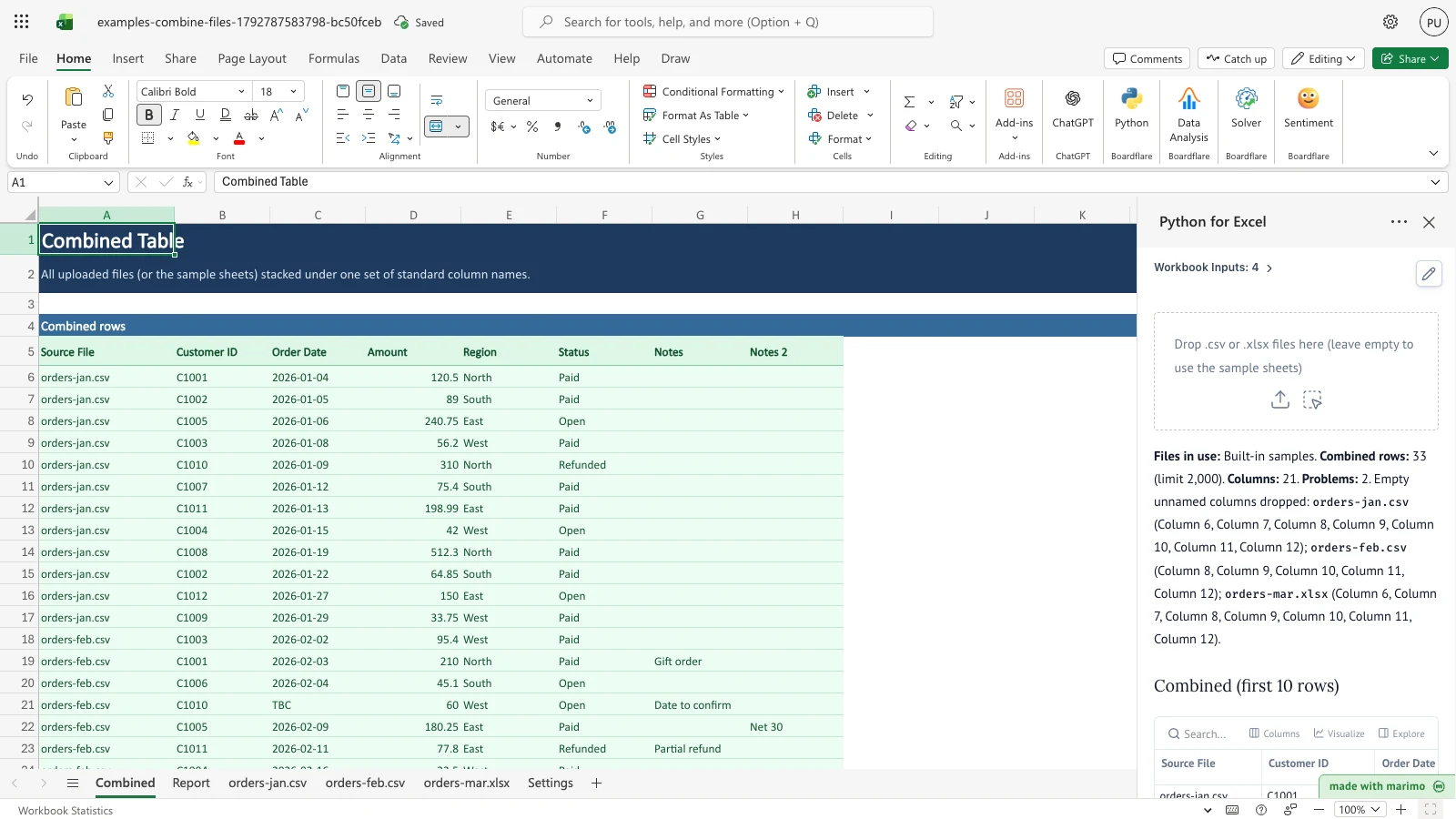
In the workbook, Combined holds the stacked table, with a Source File column that names the file each row came from. Report holds three tables: Files, Columns and Problems. The task pane shows the first 10 combined rows and the same three reports.
Before you start
- Requirements: Excel with Python for Excel, through the Boardflare add-in. For installing and opening the add-in, and for Edit and App mode, see the Boardflare Notebook Reference.
- Data shape: each file has its column names in its first row, and its data below. Upload
.csvfiles (read as UTF-8; a byte-order mark is allowed) or.xlsxfiles (only the first sheet is read). Each uploaded file can be up to 25 MB, and up to 20 files are read in one run. - Value types: a value is read as a number, a date or text.
- A number is a plain number, and commas are allowed (
1,234). A value with a currency symbol or a percent sign, such as$12, is text. - A date is an Excel date, or text in the exact form
YYYY-MM-DD. Other forms, such as03/02/2026, are text.
- A number is a plain number, and commas are allowed (
- Sample data: the workbook includes three sample exports and a Settings sheet.
orders-jan.csvhas 12 data rows,orders-feb.csvhas 11, andorders-mar.xlsxhas 11, one of them blank. The samples are used whenever no file is uploaded. - Roles: the technical author maintains the Python source in
notebook.py, including the rules in its “Edit these rules” section. The workbook user drops files into the task pane, maintains the Column map on Settings, and reads Combined and Report. The workbook user does not need to change any Python.
Workbook tour
| Sheet | Range | What it holds | Type |
|---|---|---|---|
| Combined | A5:H2005 (headers in row 5) | Combined: the Source File column, then up to seven standard columns, with one row for each kept source row | Output |
| Report | A5:G25 (headers in row 5, section name Files in A4) | Files: one row for each file read, with File, Format, Status, Rows read, Blank rows skipped, Rows kept and Columns | Output |
| Report | I5:L305 (headers in row 5, section name Columns in I4) | Columns: one row for each standard column in each file, with Standard column, File, Original header and Status | Output |
| Report | N5:R205 (headers in row 5, section name Problems in N4) | Problems: one row for each value, file or limit that needs a look, with File, Row, Column, Value and Reason | Output |
| orders-jan.csv | A1:E13 | Sample export: header in row 1, 12 data rows | Editable input |
| orders-feb.csv | A1:G12 | Sample export: header in row 1, 11 data rows | Editable input |
| orders-mar.xlsx | A1:E12 | Sample export: header in row 1, 11 data rows, one of them blank | Editable input |
| Settings | D4:E24 (table ColumnMap, headers Variant and Standard) | Column map: header spellings that the matching rule does not join. Rows 5 to 60 are read. | Editable input |
| Settings | A4:B10 | The “How to use” note | Label |
The output ranges are written each time the notebook runs. Change the sample sheets, the Column map or the uploaded files, not the output ranges.
Using the template
Combine your own files
- In the task pane, drop one or more
.csvor.xlsxfiles on the upload area, labelled “Drop .csv or .xlsx files here (leave empty to use the sample sheets)”. - The notebook reads the files, matches their columns and recalculates. Combined and Report update, and the summary line in the task pane lists the files in use.
- To go back to the samples, remove the uploaded files from the task pane.
Uploaded files replace the samples for the run. A file’s name appears in Source File. If two uploads have the same name, the second is shown as name.csv (2). The template does not copy uploaded files into the workbook’s sheets.
Rename a header
- On orders-jan.csv, select D1, which holds Region, and type Territory.
- The notebook recalculates. Combined column E is headed Territory, and the Columns table shows Territory for orders-jan.csv only, with the status extra, because no other file has that header.
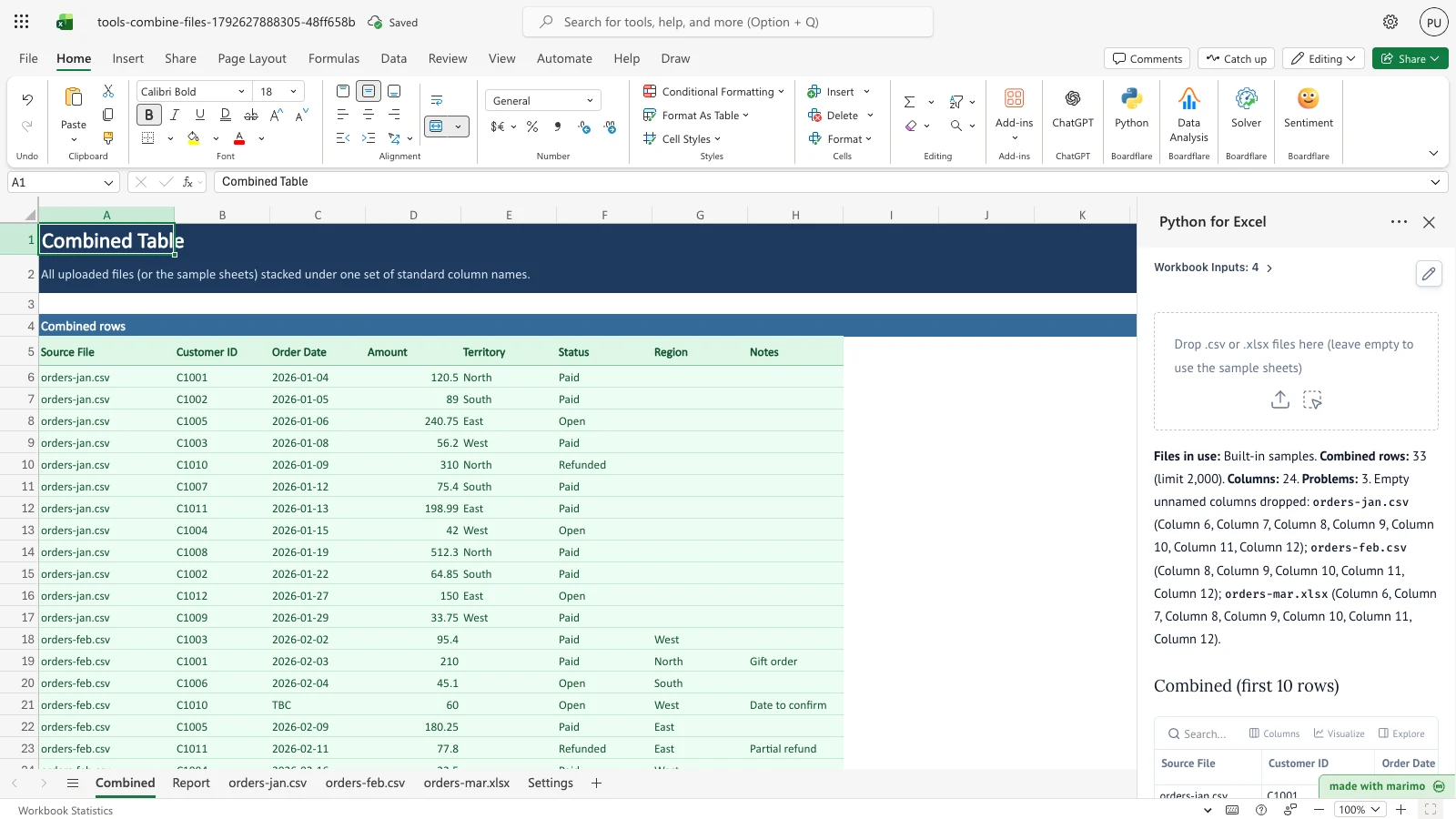
Territory takes column E. Region and Territory are now two standard columns, so Combined holds seven: Notes 2 is not written there, and Problems gains a row about the column limit.
Map a header to a standard column
- On Settings, in the first empty row of the Column map (row 7 in the workbook as shipped), type
territoryin Variant andRegionin Standard. - The notebook recalculates. Territory now joins the Region column from the other files. Combined column E is headed Region, the Columns table shows the orders-jan.csv column as mapped, and Notes 2 is back in Combined.
Variant is compared without regard to letter case, punctuation and extra spaces, so territory also matches “Territory” and “TERRITORY”. A Column map row is needed only when the spelling is not already matched by the rule in How results are calculated.
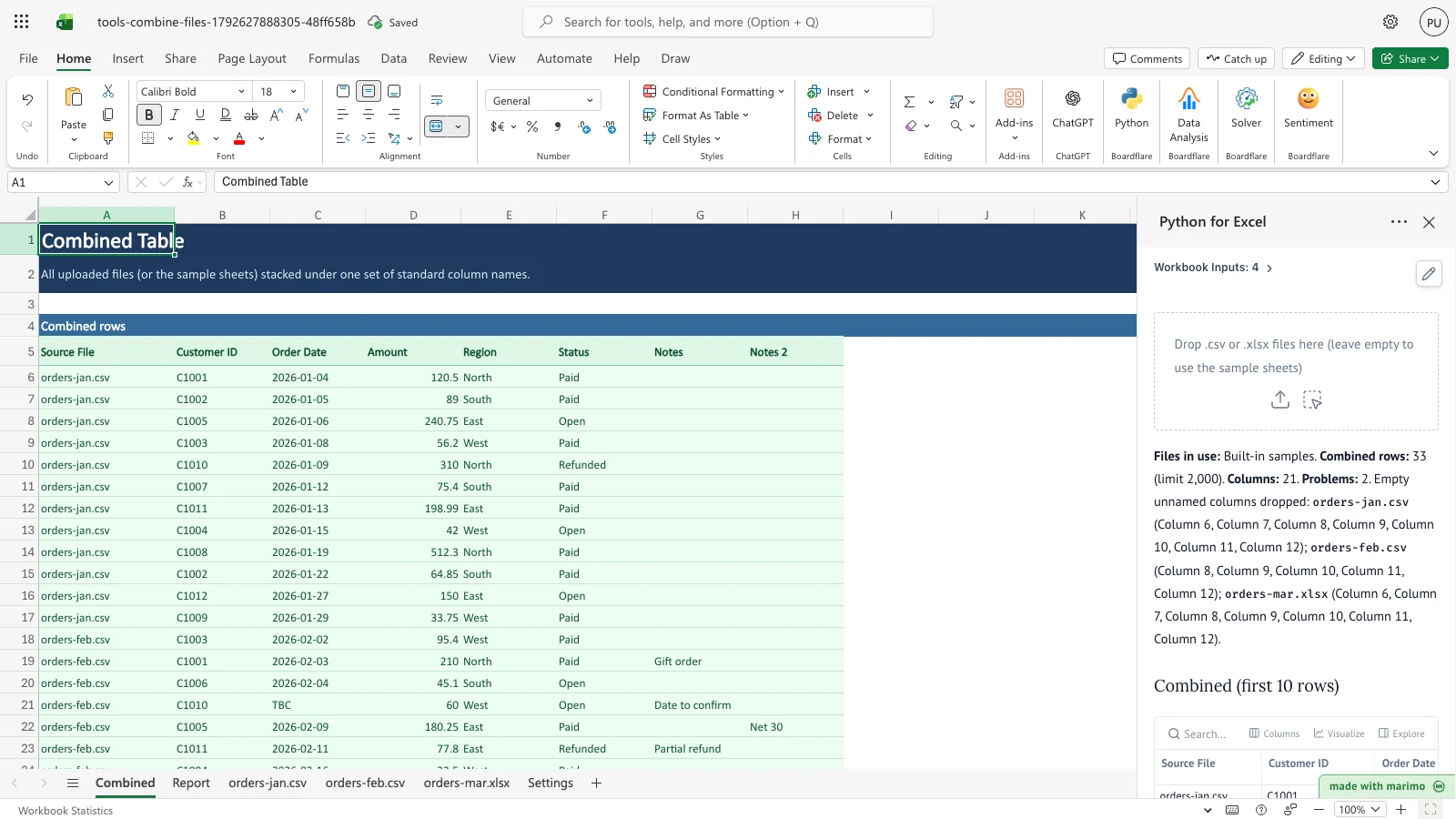
The Column map sends territory to Region, so the Territory header joins the Region column in Combined, and Notes 2 appears again.
Fix a value flagged in Problems
- Read the Problems table. The row for orders-feb.csv, Row 5, Column Order Date, shows the value TBC with the reason “text in a date column”.
- On orders-feb.csv, change cell C5 to a date in the form
2026-02-03. - The notebook recalculates. The value is written to Combined in the form
YYYY-MM-DD, and the Problems table no longer lists it.
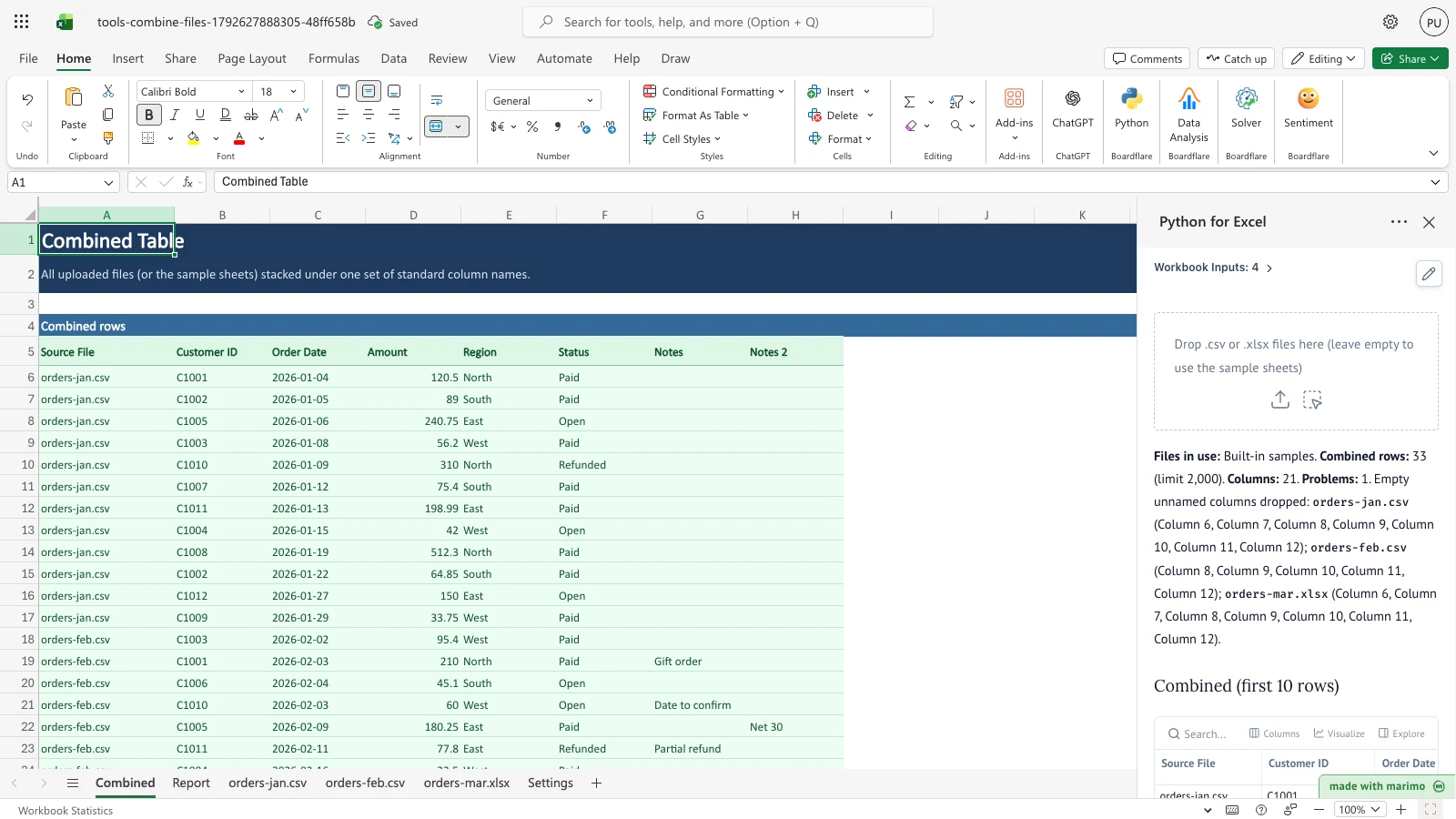
The corrected date is in Combined. Problems keeps only the Amount value n/a from orders-mar.xlsx.
Check a file with no data rows
- On orders-mar.xlsx, clear the data rows, cells A2 to E12, and leave the header in row 1.
- The notebook recalculates. The Files table shows orders-mar.xlsx with the status empty, and Problems gives the reason “empty file” with the value “no data rows”. Combined ends with the orders-feb.csv rows, and no rows from orders-mar.xlsx appear.
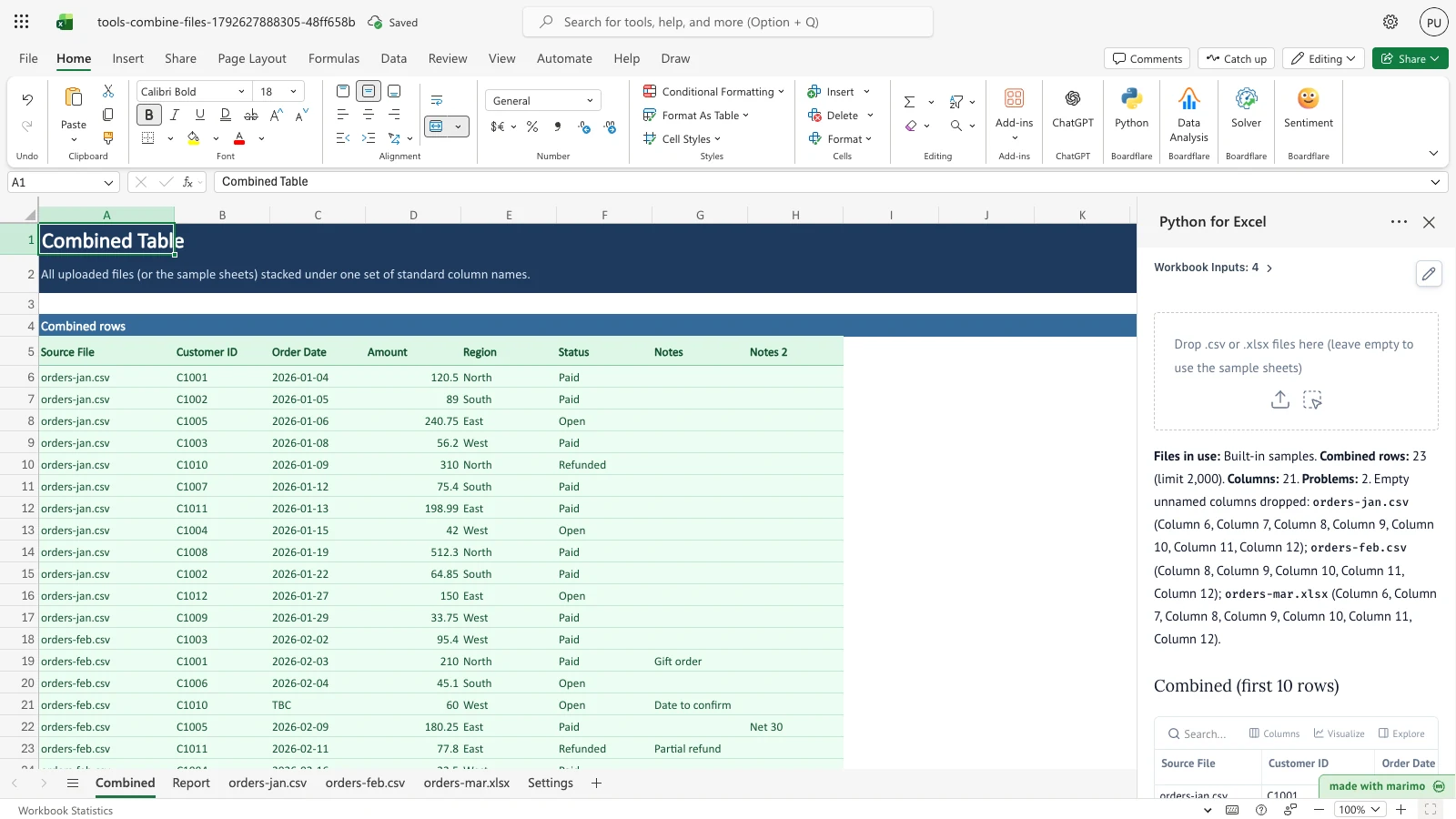
orders-mar.xlsx is listed as empty in Files, and Combined ends with the orders-feb.csv rows.
Inputs and settings
| Input | Where | Allowed values | Default | Effect |
|---|---|---|---|---|
| Upload area | Top of the task pane | .csv or .xlsx files, up to 25 MB each, up to 20 files read |
Empty | Replaces the samples for the run. Removing the files brings the samples back. |
| orders-jan.csv, orders-feb.csv, orders-mar.xlsx | Sample sheets, A1:L170 on each | Exports with the header in row 1; up to 169 data rows and 12 columns are read | Sample data | Stacked into Combined in this order, when no file is uploaded. Editing a cell changes the matching row in Combined. |
| Column map | Settings D4:E60 (table ColumnMap spans D4:E24) | Variant: a header spelling. Standard: the standard column name it should join. | Two rows filled in: cust id to Customer ID, and date to Order Date |
Joins a header to a standard column. Rows 5 to 60 are read. |
Column map rows that have only one of the two cells, or a cell that is not text, are ignored. Their Settings row numbers are listed in the summary line in the task pane.
How results are calculated
- Read each file. Uploaded files are read in full, and the sample sheets are read from A1:L170. The first row of each file is its header.
- Name each column. The header is lower-cased, and every run of characters that are not letters or digits becomes one space. “Cust ID” becomes
cust id, “customer_id” becomescustomer id, and “Amount ($)” becomesamount. If the result is a Variant in the Column map, the Standard name is used instead. - Join columns across files. Headers with the same name after step 2 form one standard column. The standard columns appear in Combined in the order they are first seen, starting with the first file.
- Rename a repeated header. A second header in the same file with the same standard name is named with the number 2, then 3, and so on. In the sample, the two “Notes” headers in orders-feb.csv become Notes and Notes 2. A header called Source File becomes Source File 2, because Source File is the first column of Combined.
- Classify values. Each value is a number, a date or text. Blank cells have no type. A column’s type is the most common type among its values, and a tie makes it text. A value of the other type in a number or date column is listed in Problems. Text in a text column is never listed.
- Write values. A number in a number column is written as a number, so “1,234” becomes 1234. A date is written as text in the form
YYYY-MM-DD, in any column. Other text is kept exactly as it is. - Skip blank rows. A row where every kept column is blank is not stacked, and it is counted in Blank rows skipped on the Files table. Blank rows at the bottom of a file are ignored and not counted.
- Handle unnamed columns. A column without a header that holds a value is named Column N, where N is its column number in the file, and it is listed in Problems. A column without a header and without values is dropped, and the summary line in the task pane says which columns were dropped. The sample sheets are read to column L, so their empty columns to the right of the data are dropped this way.
- Stack the rows. Rows are stacked in file order, then in row order. Each row’s Source File value is the file’s name.
Worked example, the sample data. Row 5 of orders-feb.csv holds a Cust ID, Amount “60.00”, and Date “TBC”. Its headers are matched like this:
- Cust ID joins Customer ID through the Column map, and Amount ($) joins Amount by its normalised name.
- Date joins Order Date through the Column map.
- The two Notes headers become Notes and Notes 2.
The amount is written as the number 60. The date TBC is kept as text, and Problems lists it as “text in a date column”. The row is Combined row 21, the fourth row from orders-feb.csv. The whole run gives 33 rows in Combined: 12 from orders-jan.csv, 11 from orders-feb.csv and 10 from orders-mar.xlsx, because one blank row is skipped. Combined has seven standard columns, and Problems lists two rows.
Reading the results
Combined
Combined starts at A5 with the header row. The first column, Source File, names the file for each row. The other columns are the standard columns, in the order described in How results are calculated. A blank cell in the source file is blank in Combined.
Report: Files
The Files table has one row for each file the notebook looked at.
- File: the sample sheet name, or the uploaded file’s name.
- Format:
csvorxlsx, as the file was read. A file that is not one of those types showsother. - Status:
readfor a file that gave rows,emptyfor a file with no data rows,unsupportedfor a file type that cannot be read, andunreadablefor a file that failed to open. - Rows read: the data rows in the file, including blank rows that are not at the bottom.
- Blank rows skipped: the rows left out because every kept column was blank.
- Rows kept: the rows stacked into Combined.
- Columns: the headers the file contributes, not counting dropped unnamed columns.
Report: Columns
The Columns table has one row for each standard column in each file. It lists every standard column, including any past the seven that Combined can hold. Files that are unsupported or unreadable have no rows here.
- Standard column: the name the column has in Combined.
- File: the file the row describes.
- Original header: the header as it appears in the file. It is blank if the file does not have the column.
- Status:
matchedwhen the column appears under the same name in more than one file,extrawhen only one file has it,mappedwhen the Column map joined it,duplicate renamedfor a repeated header, andmissingwhen the file does not have the column. A missing column is blank for that file’s rows in Combined.
Report: Problems
Each row in Problems names the file (or “All files” for a limit that applies to the whole run), the Row in that file, the standard Column, the Value and the Reason. For file-level and limit reasons, the Value holds the message.
- text in a number column or text in a date column: the value is text where most of the column is numbers or dates. The value is kept as it is.
- number in a date column or date in a number column: the value is the other type. A date in a number column shows as its
YYYY-MM-DDtext. - extra unnamed column: a column has values but no header. It is named Column N in Combined.
- unsupported file type, unreadable file and empty file: the file adds no rows. The Value says why.
- file limit, column limit, output row limit and problem limit: a limit was reached, and the Value says how many items were left out.
What to check if a value looks wrong
- Check the Original header in the Columns table. If a header is spelled differently from the others and has the status extra, add a Column map row for it.
- Check the Problems table for the file and row.
- If Combined has fewer rows than expected, compare Rows read, Blank rows skipped and Rows kept on the Files table. A sample sheet is read only to row 170 and column L.
- If a number shows as text, the source value probably has a currency symbol, a percent sign, or other text in it.
Saving, sharing and App mode
- Saved with the workbook: the sample sheets, the Column map on Settings, and the last results on Combined and Report.
- Uploaded files: the template does not copy them into the workbook’s sheets. Once the uploads are removed, the samples are read again.
- Shared: a workbook opened by someone else shows the saved sample sheets, the Column map and the last results.
- App mode: how Edit and App mode work, and how the add-in saves and recovers, is in the Boardflare Notebook Reference.
Errors, empty states and limits
Messages
Messages appear in the Problems table. The Reason column names the kind of problem, and the Value column holds the value or the message.
| Reason | Value shows | Cause | Fix |
|---|---|---|---|
| text in a number column | The text value | A value in a number column is not a number, for example n/a or $12 |
Correct the value in the source file |
| text in a date column | The text value | A value in a date column is not an Excel date or YYYY-MM-DD text, for example TBC or 03/02/2026 |
Enter the date as an Excel date, or as YYYY-MM-DD text |
| number in a date column | The value | A number sits in a column that is mostly dates | Check the value and the column’s header |
| date in a number column | The date as YYYY-MM-DD |
A date sits in a column that is mostly numbers | Check the value and the column’s header |
| extra unnamed column | Blank; the column is named Column N | A column has values but no header | Add a header in the first row |
| unsupported file type | The file extension, or “no extension” | The file is not .csv or .xlsx |
Save the file as .csv or .xlsx |
| unreadable file | The error name and its message | The file could not be opened as CSV or XLSX | Export the file again, or save it as UTF-8 CSV |
| empty file | “no data rows” | The file has a header but no data rows, or no data at all | Add the data rows |
| file limit | “Only the first 20 files are read; N more ignored.” | More than 20 files were uploaded | Upload at most 20 files per run |
| column limit | “Only the first 7 standard columns fit the Combined output; N ignored.” | The files have more than seven standard columns | Map header spellings to existing names with the Column map |
| output row limit | “N rows, first 2000 written” | The result has more than 2000 rows | Split the input across runs |
| problem limit | “N more problems not shown” | More than 200 problems were found | Fix the problems listed first, then check again |
The summary line in the task pane also reports Column map rows that were ignored, and empty unnamed columns that were dropped.
Empty states
- No data rows in any file: Combined has no data rows. Each file is listed in Files with the status empty, and Problems lists each one.
Hard limits
- Files: up to 20 uploaded files per run, each up to 25 MB.
- Sample sheets: A1:L170 on each sheet. That is 169 data rows and 12 columns. Rows and columns beyond that are not read.
- Column map: Settings rows 5 to 60.
- Combined: up to 2000 rows, and seven standard columns after Source File.
- Files: up to 20 rows. Columns: up to 300 rows. Problems: up to 200 rows.
Limitations and when to use this
Use this template when several exports describe the same thing with different column names or layouts, and you want one table with a record of what matched.
It is not the right tool for:
- Joining files on a key, such as matching orders to customers. It stacks rows; it does not match rows across files.
- Removing duplicate rows. Use Remove Duplicates after combining.
- Cleaning values. Values are not converted beyond the number and date rules above.
n/a, currency symbols andTBCstay as text and are listed in Problems. For broader clean-up, see Clean Data. - Matching headers by meaning. Headers are matched by their normalised names and the Column map. A header that is spelled very differently needs a Column map row.
- Files whose header is not in the first row, or workbooks where the data is on a sheet other than the first one in an
.xlsxfile. - Very large inputs. Files over 25 MB cannot be uploaded, and the output is limited as described above.
Developer reference
Notebook implementation
The first input cell reads the three sample sheets and the Column map:
inputs = bf.inputs(
    jan=bf.ref("orders-jan.csv!A1:L170"),
    feb=bf.ref("orders-feb.csv!A1:L170"),
    mar=bf.ref("orders-mar.xlsx!A1:L170"),
    settings=bf.ref("Settings!D4:E60", headers=True),
)
The comment above that cell notes that inputs over about 10,000 cells in total exceed the add-in’s snapshot limit. Uploaded files are not affected.
The “Edit these rules” cell holds the constants listed under Customizing as an author. SAMPLE_SHEETS pairs each sample sheet name with its bf.inputs key. The python_calamine import is kept beside the other imports because the runtime loads packages from static imports, and pandas uses it for engine="calamine".
The upload control is mo.ui.file with the accepted extensions, multiple files, the area layout, and the upload size limit. When files are uploaded, read_upload reads each one: .csv through csv.reader on UTF-8 with a byte-order mark allowed, and .xlsx through pd.read_excel with header=None and the calamine engine, which reads the first sheet. Without uploads, table_from builds the sample sources from inputs.
The matching cell builds column_map_from(...) from the Column map rows, then runs match(sources, column_map). That function returns the combined, files, columns and problems tables, along with their totals, which the task pane summary uses.
The results are published with:
publication = bf.publish(
    outputs={
        "combined": combined_df,
        "files": files_df,
        "columns": columns_df,
        "problems": problems_df,
    }
)
The publish step writes each table to the spill anchor set in workbook.py: Combined A5, Report A5, Report I5 and Report N5.
How the calculation/model works
This is deterministic stacking, not a statistical model. Columns are joined by normalised header name, or by the Column map. Each value is classified as a number, a date or text, and each column takes the most common type among its values. Numbers are written as numbers only in number columns. Dates are written as YYYY-MM-DD text wherever they appear. Everything else is kept as text, and the mismatches are listed in Problems.
Read the output as an audit trail. The Files, Columns and Problems tables say what the stacking did, and Combined holds the result.
Validation / expected results
| Check | Expected outcome |
|---|---|
| Sample run | Combined has 33 rows. Files shows 12 rows kept for orders-jan.csv, 11 for orders-feb.csv and 10 for orders-mar.xlsx, with one blank row skipped in orders-mar.xlsx |
| Sample columns | Combined has seven standard columns, Customer ID through Notes 2. The second Notes header in orders-feb.csv is Notes 2, with the status duplicate renamed |
| Sample Problems | Two rows: orders-feb.csv row 5 (Order Date TBC, text in a date column) and orders-mar.xlsx row 3 (Amount n/a, text in a number column) |
| Rename Region to Territory in orders-jan.csv | Combined column E is headed Territory, the Columns table shows Territory as extra for orders-jan.csv, Notes 2 is no longer written to Combined, and Problems gains a column limit row because eight standard columns exist |
| Map territory to Region in an empty Column map row | Combined column E is headed Region, the Territory column is mapped, and Notes 2 is back in Combined |
| Change orders-feb.csv C5 to 2026-02-03 | Combined C21 shows 2026-02-03. Problems keeps only the Amount n/a row from orders-mar.xlsx |
| Clear the data rows of orders-mar.xlsx | Files shows orders-mar.xlsx as empty, Problems gives the reason empty file, and Combined ends with the orders-feb.csv rows. Combined then has 23 rows |
Architecture
- Output ranges are fixed in
workbook.py. Combined is A5:H2005, Files is A5:G25, Columns is I5:L305 and Problems is N5:R205. The notebook constantsSTANDARD_COLUMN_LIMIT,OUTPUT_ROW_LIMIT,FILE_LIMIT,COLUMN_LIMITandPROBLEM_LIMITmust match them. When a limit is reached, the notebook adds a limit row to Problems, and the cut rows in Columns and Problems end in a note row. A mismatch between the constants and the ranges would hide a cut. - Sample data is built in
workbook.py. The sample sheets and the Column map rows are written from that file into the committed.xlsx. Change sample data there and regenerate the workbook. Do not edit the.xlsxby hand. - Input ranges are fixed in
notebook.py. The sample ranges, A1:L170, and the Column map range, D4:E60, are set in thebf.inputscell. Widening them adds cells to the add-in snapshot, and the comment in that cell gives the snapshot limit.
Changelog
2026-10-23
- Standards audit: corrected developer reference heading hierarchy, verified table escaping and download link syntax, and refreshed release artifacts through the acceptance gate.
2026-10-21 (#143)
- Rewrote the guide to the user-guide layout. Every input, output table, column and message is documented, and four steps that rename, map, correct and empty a file have screenshots.
- No change to the workbook or to its results.
2026-10-20 (#131)
- Initial release.