Compare Sheets
Overview
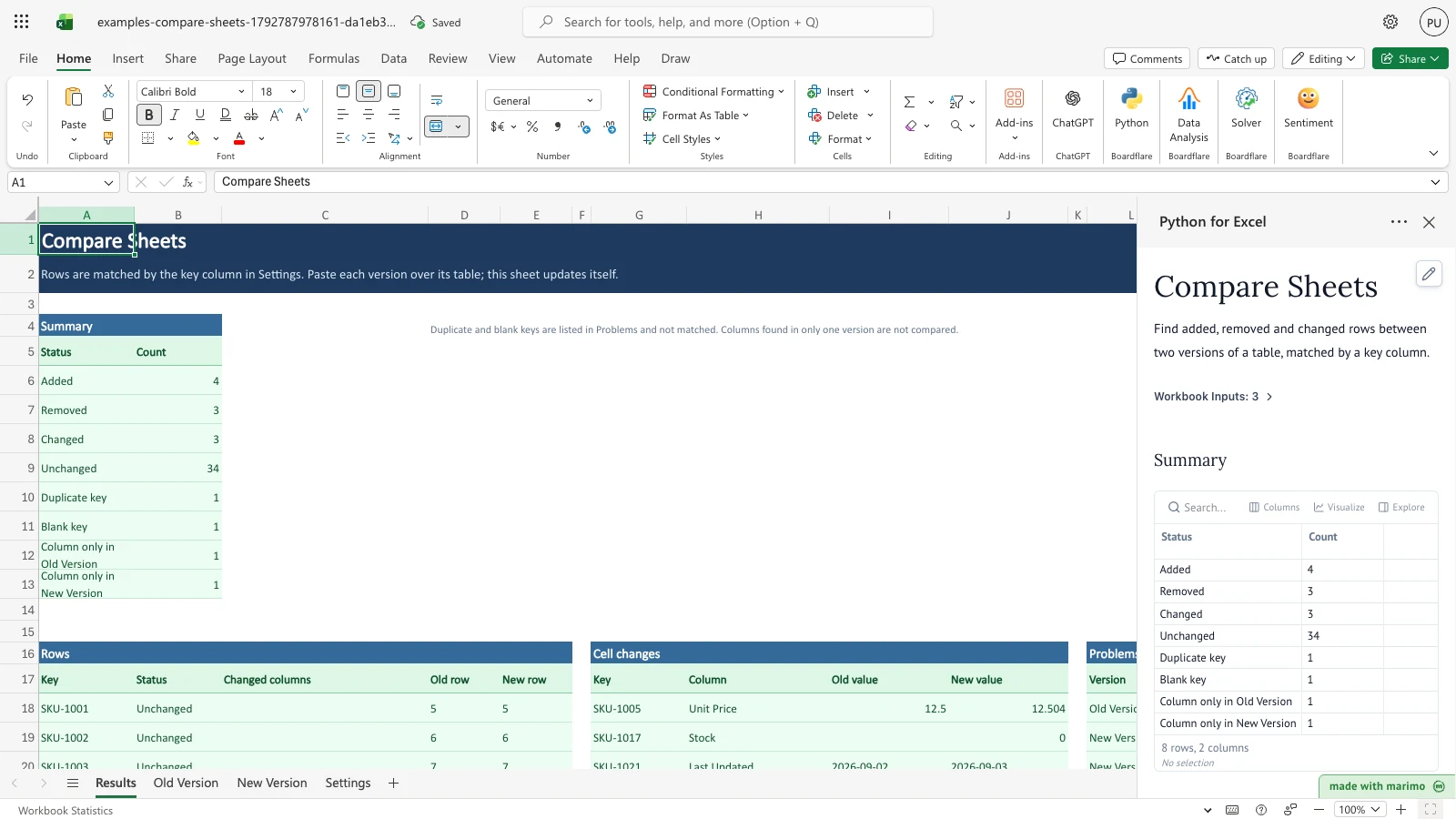
Compare two versions of the same list, such as an inventory export from one month and the next, and see what changed. Rows are matched by a key column (SKU by default). The Results sheet lists the status of every key, every changed cell with its old and new value, and every problem found in the data.
Before you start
- Requirements. Excel with Python for Excel. Installing the add-in, opening the task pane and saving are covered in the Boardflare Notebook Reference. No sign-in is needed.
- Data shape. Each version is one table with its header in row 4 and data from row 5. Each version holds up to 250 data rows and 12 columns (columns A to L). Both versions need a column with the key header, which is
SKUin the sample. Column headers are matched by name, ignoring upper and lower case and spaces at the start or end. The columns can appear in a different order in each version. - Sample data. The workbook includes both versions. The Old Version table has 41 data rows (A5:G45) and the New Version table has 44 data rows (A5:G48). The sample is built to show each result: added, removed and changed rows, a duplicate key, a blank key, a column found in only one version, and a key that differs only in case.
- Roles. The technical author maintains the Python source and the generated package. The workbook user pastes the two exports, sets the options on Settings and reads the Results sheet. The workbook user does not need to change any Python.
Workbook tour
| Sheet | What it holds | Editable |
|---|---|---|
| Results | The four outputs: Summary (A4:B13), Rows (A16:E1017), Cell changes (G16:J2017) and Problems (L16:O517). Each output has a header row at row 5 or row 17. | No. The sheet updates itself. |
| Old Version | The earlier list. Header in row 4, data from row 5. | Yes. Paste the earlier export over the table. |
| New Version | The later list. Header in row 4, data from row 5. | Yes. Paste the later export over the table. |
| Settings | Key column (B6), Numeric tolerance (B7) and Ignore case and extra spaces (B8). Labels are in column A. | Yes, the values in B6:B8 only. |
Keep the labels in column A of Settings as they are. If a label changes, its setting is not read and a default is used (see Errors, empty states and limits).
Using the template
Compare two versions
- Select the Old Version sheet and paste the earlier export over the table, with its header in row 4.
- Select the New Version sheet and paste the later export over its table, with its header in row 4.
- Select the Results sheet. The Summary, Rows, Cell changes and Problems outputs update after the paste. There is no run step.
The two tables and the Settings values are saved with the workbook.
Change how values are compared
- On Settings, enter a number in Numeric tolerance (B7). Two numbers that differ by no more than this amount count as equal. The sample uses 0, so any difference is a change. A value of 0.01 treats a difference of one cent as equal.
- On Settings, enter
TRUEin Ignore case and extra spaces (B8). Text is then compared without regard to upper and lower case and extra spaces, in the key column and in every other column. The default isFALSE.
Check the settings
- If you type a key column that is not a header in either version, such as
Item, nothing is compared. Every count in Summary is zero, and Problems shows the key column name with the reason. - If you clear Numeric tolerance, the comparison uses 0 and Problems adds a note.
Inputs and settings
| Setting | Cell | Meaning | Allowed values | Default | Effect of changing it |
|---|---|---|---|---|---|
| Key column | Settings!B6 | The header whose values identify a row. | Any header text in both versions. Case is ignored. | SKU |
Rows are matched by this column. If the header is not found in one version, nothing is compared. A blank value uses SKU and adds a note. |
| Numeric tolerance | Settings!B7 | The largest difference between two numbers that still counts as equal. | 0 or more. | 0 | A larger value gives fewer Changed rows. A blank, negative or non-numeric value uses 0 and adds a note. |
| Ignore case and extra spaces | Settings!B8 | Whether text is compared without regard to case and extra spaces. | TRUE or FALSE |
FALSE |
TRUE matches keys and text cells that differ only in case or spacing. Any other value uses FALSE and adds a note. |
Every column in Old Version and New Version is an editable input. The comparison uses the columns that appear in both versions, under the key column.
| Column | Old Version | New Version |
|---|---|---|
| SKU | A | A |
| Product | B | B |
| Category | C | C |
| Unit Price | D | D |
| Stock | E | E |
| Supplier | F | not present (reported in Problems) |
| Last Updated | G | F |
| Lead Time (days) | not present | G (reported in Problems) |
How results are calculated
The rules, in the order the comparison applies them:
- Each version’s header row (row 4) is read. Blank headers are ignored. A column that appears in only one version is listed in Problems and is not compared.
- Each data row is read. A row where every cell is blank is skipped and is not reported. A row with a blank key is listed in Problems and not matched.
- A key that appears more than once in one version is a duplicate. Every occurrence is listed in Problems, and the key is not matched.
- Each remaining key is classified. It is Added if it appears only in New Version, Removed if it appears only in Old Version, and Changed or Unchanged if it appears once in each version.
- For a matched pair, each shared column is compared. Two numbers are equal when they differ by no more than the numeric tolerance. Date-formatted cells compare as dates, so a date equals the same date typed as ISO text (
YYYY-MM-DD, optionally with a time). A blank cell equals only another blank cell, so a blank never equals 0. A number stored as text is a different value from the same number stored as a number, so it is counted as changed. - Each changed cell is listed in Cell changes with its old and new value.
Worked example with the sample data. SKU-1005 has a Unit Price of 12.5 in Old Version and 12.504 in New Version, a difference of 0.004.
- With a tolerance of 0, SKU-1005 is Changed, and Cell changes lists Unit Price with the old value 12.5 and the new value 12.504.
- With a tolerance of 0.01, the difference is within tolerance, so SKU-1005 is Unchanged.
Two other changed rows in the sample show the other rules. SKU-1017 has a blank Stock in Old Version and 0 in New Version, which is a change. SKU-1021 has a Last Updated of 2026-09-02 in Old Version and 2026-09-03 in New Version, which is a change. With the defaults, the sample gives 3 Changed rows: SKU-1005, SKU-1017 and SKU-1021.
Reading the results
- Summary (A4:B13). The header is in row 5, with a count for each status: Added, Removed, Changed, Unchanged, Duplicate key, Blank key, Column only in Old Version and Column only in New Version. The two column counts are numbers of columns, not rows.
- Rows (A16:E1017, header in row 17). One line for each key, in Old Version order, followed by keys that appear only in New Version. The columns are Key, Status, Changed columns, Old row and New row. Unchanged keys are listed too. Old row and New row are the sheet row numbers in each version. A duplicate key can show more than one row number.
- Cell changes (G16:J2017, header in row 17). One line for each changed cell, with the columns Key, Column, Old value and New value. Dates appear in
YYYY-MM-DDform. - Problems (L16:O517, header in row 17). One line for each issue, with the columns Version, Sheet row, Key or column and Reason. The Version is Old Version, New Version, Old Version and New Version (when the key column is missing from both), Settings or Results.
A note in cell D4 repeats that duplicate and blank keys are listed in Problems and not matched.
What to check if a value looks wrong:
- Read Problems first. A duplicate key, a blank key or a column note explains many unexpected counts.
- If too many rows are Changed, check Numeric tolerance, and check that dates are dates, not text, in both versions. A number stored as text shows as changed.
- If a key you expect is Added and Removed, check for a case or spacing difference, and consider turning on Ignore case and extra spaces.
Saving, sharing and App mode
- The two version tables and the three Settings values are saved with the workbook. The Results sheet is calculated from them, so reopening the workbook shows the comparison of the saved tables.
- Nothing is per-user. Everyone who opens the workbook sees the same comparison.
- Sharing the workbook shares the tables, the settings and the results.
- App mode changes presentation rather than permissions, source access, or workbook trust. The two version tables and the three Settings values are the cells an operator edits. The comparison rules are in the notebook and are changed only by the author (see Customizing as an author).
Errors, empty states and limits
Messages appear in Problems on the Results sheet. Each row names the version or Settings and the key or setting it refers to.
| Message | Cause | Fix |
|---|---|---|
| Setting label ‘…’ not found in its row; default used. | A label in Settings column A was changed or moved. | Restore the label text in column A. |
| Key column is blank; ‘SKU’ used. | Settings!B6 is empty. | Enter the key header, or leave it blank to use SKU. |
| Numeric tolerance must be a number of 0 or more; 0 used. | Settings!B7 is blank, negative or not a number. | Enter a number of 0 or more. |
| Value must be TRUE or FALSE; FALSE used. | Settings!B8 is neither TRUE nor FALSE. |
Enter TRUE or FALSE. |
| Key column ‘…’ is not a header in Old Version, New Version, or Old Version and New Version; nothing compared. | The key header is missing from row 4 of one or both versions, or it is spelled differently. | Check the header in row 4, or change Key column to the header name. |
| Column found only in Old Version (or New Version): not compared. | A column header is in one version only. | Add the column to the other version if it should be compared. |
| Blank key: row not matched. | A data row has no key value. | Enter a key for the row. |
| Duplicate key: not matched. | The same key appears more than once in one version. | Make each key unique in that version. |
| Showing the first N of M changed cells, or Showing the first N of M problems. | The result has more rows than the sheet lists. | Filter or fix the source data, then compare again. |
Empty state. When the key column is not found in row 4 of a version, nothing is compared, the key column message appears in Problems, and every Summary count is zero.
Limits.
- Each version holds 250 data rows and 12 columns. The table is read from A4:L254.
- Rows below row 254 and columns after L are not read. The workbook shows no message for them, so a row past row 254 is not reported as added, removed or changed.
- Results lists up to 2,000 changed cells and 500 problems. When there are more, the first ones are listed, and a note in Problems gives the total.
- For add-in limits, see the Boardflare Notebook Reference.
Limitations and when to use this
- The template matches rows on one key column. A key must match exactly, apart from case and spacing when that option is on. Two keys that differ in another way, such as
SKU-1005andSKU 1005, are not matched. - It compares two versions. It does not compare three or more.
- It reads at most 250 rows per version. Use Clean Data first if the lists need standardizing, and Remove Duplicates if the key repeats.
- It does not fuzzy-match. It does not link a renamed key to its old row.
Developer reference
Notebook implementation
The notebook reads three ranges with bf.inputs:
inputs = bf.inputs(
    old=bf.ref("Old Version!A4:L254"),
    new=bf.ref("New Version!A4:L254"),
    settings=bf.ref("Settings!A5:B8", headers=True),
)
old and new are the two version tables, with the header in row 4 of each. settings is the Settings label and value block. The notebook reads Settings by label position: the label in column A must match the expected text, or the default is used and a note is added.
The comparison builds an index of each version by its key column, where the key is the text value with case and spacing folded when the option is on. It then classifies each key. The cell comparison uses the numeric tolerance, or the per-column tolerance from TOLERANCE_BY_COLUMN. Columns in IGNORE_COLUMNS are left out of the comparison.
The publish step sends four outputs to the Results sheet:
publication = bf.publish(
    outputs={"summary": summary_out, "rows": rows_out, "cells": cells_out, "problems": problems_out},
)
Each output is a list of rows with a header row first. The Results sheet places the outputs at fixed anchors, and the lists are capped at 2,000 cell changes and 500 problems.
How the calculation/model works
The model is a two-way match on one key. Each version is reduced to a dictionary from key to row, and a key is then given one of the statuses Added, Removed, Changed, Unchanged or Duplicate key. A key that appears more than once in either version is never matched, so its rows are reported as duplicates and not compared.
Matched rows are compared column by column over the columns that appear in both versions, excluding the key and any column in IGNORE_COLUMNS. A value is typed before it is compared: blank, boolean, date, number or text. Values of different types are not equal, and a blank equals only a blank. Numbers are equal when their difference is within the tolerance, which is the column’s entry in TOLERANCE_BY_COLUMN or else the Settings value. Dates are compared as naive date-times, and an ISO text value such as 2026-09-02 is read as a date. Text is compared exactly, or with case and runs of spaces folded when the option is on.
Row numbers in the outputs are sheet row numbers, starting at 5 for the first data row.
Validation / expected results
With the sample data and the default settings, the Summary shows:
| Status | Count |
|---|---|
| Added | 4 |
| Removed | 3 |
| Changed | 3 |
| Unchanged | 34 |
| Duplicate key | 1 |
| Blank key | 1 |
| Column only in Old Version | 1 |
| Column only in New Version | 1 |
The Problems sheet lists the Supplier column as found only in Old Version, the Lead Time (days) column as found only in New Version, the blank key at New Version row 48, and the duplicate key SKU-1032 at New Version rows 34 and 35.
Changing the settings gives these results:
| Change | Result |
|---|---|
| Numeric tolerance 0.01 | Changed 2, Unchanged 35. SKU-1005 is Unchanged. |
| Ignore case and extra spaces TRUE | Added 3, Removed 2, Unchanged 35. The key ab-100 matches AB-100. |
Key column sku with tolerance 0.01 |
Added 4, Removed 3, Changed 2, Unchanged 35, Duplicate key 1, Blank key 1, and one column in each version only. The header sku is found in both versions. |
Key column Item |
Nothing is compared, and every count is zero. Problems names the key column. |
| Numeric tolerance cleared | Changed 3, with a note that the tolerance is 0. |
Ignore case set to yes |
Added 4, Unchanged 34, with a note that the value must be TRUE or FALSE, and FALSE is used. |
Changelog
2026-10-23
- Documentation audit and heading hierarchy remediation under Developer reference.
- Verified Markdown table currency formatting and escaping standards.
- Refreshed generated workbook package and listing preview artifacts.
2026-10-22 (#143)
- Corrected the Problems Version column: it also reads Old Version and New Version when the key column is missing from both versions.
2026-10-21
- Reorganized this guide into the user-guide layout (Issue #143).
2026-10-19
- Initial release, version 0.1.0 (Issue #133): key matching, numeric tolerance, date-aware comparison, and duplicate and blank key reporting.