Customer Details
Overview
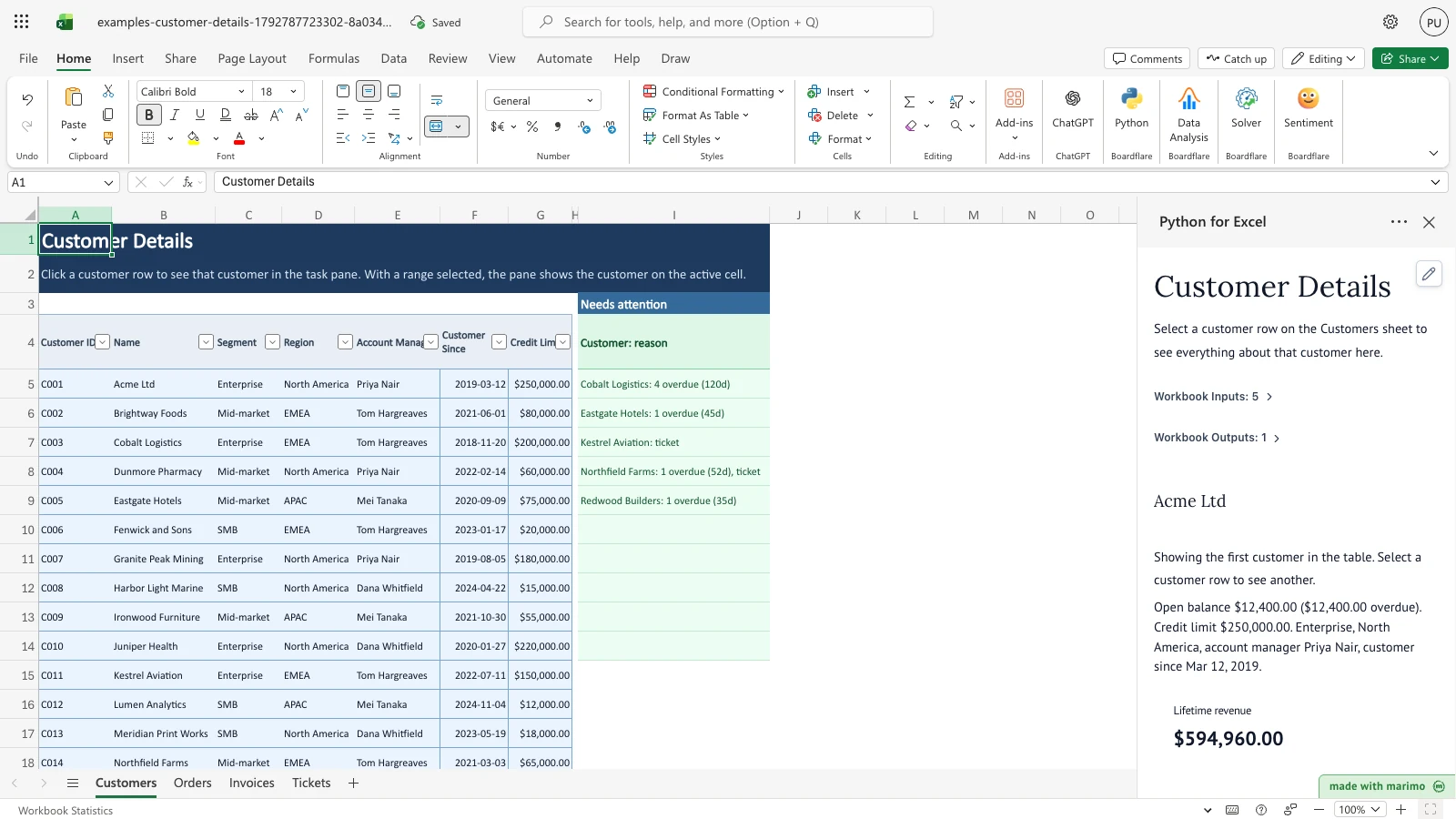
Customer Details answers “what is going on with this customer?” before a call. Keep customers, orders, invoices, and support tickets in separate sheets, click a customer row, and the task pane shows that customer’s lifetime revenue, open balance, overdue amounts, open tickets, recent orders, open invoices, and a monthly revenue chart.
The Customers sheet also has a Needs attention list. It names each customer with an invoice more than 30 days overdue or an open high-priority ticket, and the reason.
With the sample data and nothing selected, the pane shows the first customer, Acme Ltd, labelled as the default, with $12,400.00 of open balance, all of it overdue. Selecting Cobalt Logistics shows $76,950.00 open and overdue across four invoices. The Needs attention list names five customers.
Before you start
- Requirements: Excel with Python for Excel. Installing the add-in and opening the task pane are covered in the Boardflare Notebook Reference. No sign-in is needed beyond Excel.
- Data shape: four tables, each with a Customer ID column that links it to the Customers table.
- Customers (header row 4): Customer ID, Name, Segment, Region, Account Manager, Customer Since (a date), Credit Limit.
- Orders (header row 4): Order ID, Customer ID, Order Date (a date), Product, Amount, Status.
- Invoices (header row 4): Invoice ID, Customer ID, Issued (a date), Due (a date), Amount, Paid.
- Tickets (header row 4): Ticket ID, Customer ID, Opened (a date), Priority, Subject, Status.
- Sample data: included. It covers 25 customers, with their orders, invoices, and tickets.
- Roles: the technical author maintains the Python source and the generated package. The workbook user selects customers and edits the tables, such as marking an invoice paid, without maintaining the Python.
Workbook tour
| Sheet and range | What it holds | Editable |
|---|---|---|
Customers A1:A2 |
Title and instructions | No |
Customers A4:G29 |
One row per customer, with the columns listed above | Yes, all cells |
Customers I3:I14 (Needs attention) |
The title is in I3. The attention list is filled by Python from the attention output, starting at I4 with the header Customer: reason |
No, output |
Orders A4:F314 |
One row per order. Add rows at the bottom | Yes |
Invoices A4:F163 |
One row per invoice. Set Paid to mark an invoice paid | Yes, especially Paid |
Tickets A4:F64 |
One row per support ticket | Yes |
| **_BOARDFLARE** | Very hidden sheet the add-in uses to run the template | No. Do not edit |
The task pane is not a sheet. It shows the customer you select on Customers.
Using the template
Select a customer
- On Customers, click any cell in a customer’s row, columns A to G.
- Read the task pane. The header shows the customer’s name, and the pane shows the open balance, the overdue amount, the credit limit, and the customer’s segment, region, account manager, and customer since date.
- Scroll the pane for Recent orders, Open invoices, Open tickets, and the monthly revenue chart.
Work with a range selection
- Select a range that covers several customer rows, such as
A5:G7, and place the cursor on one of them. - The pane shows the customer on the active cell, not the whole range.
Selecting a range does not change the Needs attention list.
Check a customer with no orders
- Select a customer who has no orders that count as revenue. For example, Yarrow Textiles.
- The pane shows a message that the customer has no orders yet, and the panels below it show “None” where there are no rows to list.
Mark an invoice paid
- On Invoices, find the invoice you want to mark paid.
- Set its Paid cell equal to its Amount. For example, Eastgate Hotels’ only overdue invoice, INV-7140, is $6,400.
- Return to Customers and select the customer. The open balance drops by the amount paid.
- Check the Needs attention list. A customer leaves the list when none of their invoices are more than 30 days overdue and none has an open high-priority ticket.
A customer with a second reason stays on the list. For example, when Northfield Farms’ overdue invoice INV-7137 is marked paid, Northfield still appears because it has an open high-priority ticket.
Inputs and settings
Every value the workbook user can edit is a table cell. Nothing else is a setting.
Customers
- Customer ID: the key that links the other tables. Must match the Customer ID used on orders, invoices, and tickets.
- Name, Segment, Region, Account Manager: shown in the pane.
- Customer Since: a date, shown in the pane.
- Credit Limit: shown in the pane. It does not change any calculation.
Orders
- Order ID, Customer ID, Order Date, Product, Amount, and Status.
- Orders with the status Cancelled do not count as revenue, and they are excluded from the last order date. Any other status counts.
Invoices
- Invoice ID, Customer ID, Issued, Due, and Amount.
- Paid: the amount paid so far. A blank value counts as zero. Set it equal to Amount to mark the invoice paid.
- The open balance is Amount minus Paid. An invoice with an open balance below half a cent is treated as paid.
Tickets
- Ticket ID, Customer ID, Opened, Priority, Subject, and Status.
- A ticket is open unless its Status is Closed. A ticket with Priority set to High puts its customer on the Needs attention list while it is open.
How results are calculated
The rules, in the order the pane applies them:
- Lifetime revenue is the sum of Amount on orders that are not cancelled. Last order is the latest Order Date among those orders.
- Open balance is the sum of each invoice’s Amount minus Paid.
- Days overdue is the reference date minus the invoice’s Due date, and it is never less than zero. The reference date is 2026-09-30 in the sample. An invoice with more than zero days overdue is overdue, and its open balance counts toward overdue.
- Open invoices lists invoices with an open balance, oldest due date first, with their days overdue.
- Open tickets counts tickets whose status is not Closed.
- Needs attention lists a customer when an overdue invoice is more than 30 days past due, or when the customer has an open high-priority ticket. The reason text reads “N overdue (Wd)”, where N is the number of overdue invoices and W is the longest days overdue, followed by “ticket” when there is a high-priority ticket.
- Quarter drop is a watch flag in the pane only. It appears when orders in the last three months total less than half of the three months before. The callout shows the percentage drop.
Worked example (Cobalt Logistics, sample data): Cobalt has four overdue invoices, totaling $76,950.00. The worst is 120 days past due. The Needs attention list therefore shows Cobalt Logistics: 4 overdue (120d). Its pane shows the same $76,950.00 as both the open balance and the overdue amount.
Reading the results
The task pane
- Header: the customer’s name, with “Showing the selected customer” or, when nothing is selected, “Showing the first customer in the table”.
- Summary line: open balance, overdue amount, credit limit, segment, region, account manager, and customer since.
- Stats: Lifetime revenue, Last order, and Open tickets.
- Callouts: one per attention reason, plus any quarter-drop flag, and a data check line when some orders have a Customer ID that matches no customer.
- Recent orders: the five most recent orders, with Order ID, Order Date, Product, Amount, and Status. Cancelled orders appear here with their status, but they do not count toward revenue.
- Open invoices: up to 20, with Invoice ID, Due, Open Balance, and Days Overdue.
- Open tickets: up to 20, with Ticket ID, Opened, Priority, Subject, and Status.
- Monthly revenue chart: revenue by month for the last 18 months, for the customer shown.
The Needs attention list (Customers I4:I14)
- Shows Customer: reason and one row per customer who qualifies, in the order Python found them.
- Holds up to ten rows. If more than ten customers qualify, the tenth row reads “+N more”, where N is the number of customers not shown.
- Does not change when you select a customer.
If a value looks wrong, check the record in its table first. The pane recalculates from the tables, not from the selection.
Saving, sharing and App mode
- Edit records in the tables, not in the pane. The pane only displays the selected customer.
- To share the workbook or run it in App mode, follow the Boardflare Notebook Reference.
Errors, empty states and limits
Messages you can see in the pane:
- “The Customers table has no rows to show.” Cause: Customers has no customer rows. Fix: add a customer row.
- “No orders yet for
. Orders, invoices and tickets appear here once they exist.” Cause: the customer has no orders that count as revenue, either because none exist or because all are cancelled. Fix: add orders, or change a cancelled order’s Status. This is an informational message, not an error. - “Data check: orders with a Customer ID that matches no customer:
.” Cause: an order’s Customer ID matches no customer. Fix: correct the Customer ID on the order, or add the missing customer to Customers. - “None” under a panel heading: the customer has no rows for that panel, such as no open tickets.
Empty states and limits:
- With nothing selected, the pane shows the first customer in Customers, labelled as the default.
- Rows with a blank Customer ID are ignored.
- Dates that are not real dates are treated as missing. A missing Due date means the invoice is not overdue, and a missing Order Date cannot count toward the last order.
- The pane shows up to five recent orders, 20 open invoices, and 20 open tickets. The Needs attention list shows up to ten rows.
- The reference date for days overdue is fixed in the sample at 2026-09-30. Changing it is an author task.
Runtime errors from the add-in are covered in the Boardflare Notebook Reference.
Limitations and when to use this
- The pane shows one customer at a time, the row at the active cell.
- Changes are made in the tables, not in the pane.
- The Needs attention list shows at most ten rows.
- The reference date is fixed in the sample. The four tables are kept in the workbook and are not linked to other systems.
Use this approach when people ask about one customer at a time and the answer spans several tables exported from different systems.
Developer reference
Notebook implementation
One bf.inputs(...) call reads the Customers table, the Orders, Invoices, and Tickets tables, and the current selection on Customers. The related tables are listed in a TABLES mapping in the notebook, so each one is read the same way.
inputs = bf.inputs(customers=bf.ref("Customers", headers=True), picked=bf.selection("Customers"), **_related)The selection is bf.selection("Customers"). When nothing is selected, the first customer is shown and labelled. When a range is selected, the customer on the active cell is shown. Python converts the date columns listed in DATE_COLUMNS into dates in every table that has them, and it computes each customer’s figures in one pass.
The marked # --- Edit these rules --- block holds the reference date (AS_OF, a fixed date in the sample; the source comment shows pd.Timestamp.today() as the alternative), the overdue threshold (OVERDUE_DAYS), the high-priority label (HIGH_PRIORITY), the number of recent orders (RECENT_ORDERS), the quarter-drop ratio (DROP_BELOW), the date columns (DATE_COLUMNS), and the TABLES and PANELS definitions. A new related table needs an entry in TABLES, a PANELS line, and any filtering the data cell applies to the open-invoice and open-ticket tables.
The attention list is built from the figures of every customer, not the selection. It is padded to a fixed 11-row spill, and the publish step sends it to the workbook:
publication = bf.publish(outputs={"attention": attention})The pane itself is not published. It is an interactive view of the selected customer.
How the calculation/model works
For each customer, the notebook computes lifetime revenue and the last order date from orders that are not cancelled. Open balance is the sum of Amount minus Paid on invoices. Overdue is the open balance on invoices past their due date. Open tickets are tickets that are not Closed.
A customer is flagged on the attention list when an invoice is more than the overdue threshold past its due date, or when the customer has an open ticket with the high-priority label. The quarter-drop flag compares revenue in the last three months with revenue in the three months before, and it appears in the pane only.
Orders whose Customer ID matches no customer are reported in a data check line in the pane.
Validation / expected results
With the sample data, the workbook shows:
| Check | Expected outcome |
|---|---|
| Customers on the Needs attention list | 5 (Cobalt Logistics, Eastgate Hotels, Kestrel Aviation, Northfield Farms, Redwood Builders) |
| Nothing selected | Acme Ltd, open balance $12,400.00, all overdue |
| Cobalt Logistics selected | Open balance $76,950.00, all overdue |
| Yarrow Textiles selected (no orders that count) | “No orders yet” message |
| Range selected, active cell on Brightway Foods | Brightway Foods, open balance $0.00 |
Marking Eastgate Hotels’ only overdue invoice as paid sets its open balance to $0.00 and removes Eastgate from the Needs attention list, which leaves four customers. Marking Northfield Farms’ overdue invoice as paid keeps Northfield on the list, with the reason “ticket”, because it has an open high-priority ticket.
Architecture
- Selection and attention list are separate: the selection affects only the task pane. The published
attentionoutput covers every customer and never writes selection-dependent values to the sheet. - Fixed spill size: the
attentionoutput is padded to 11 rows (a header and ten data rows), so the list always fills the same area. When more than ten customers qualify, the notebook shows nine and a “+N more” row. The padding and the nine-plus-more rule are in the attention cell ofnotebook.py.
Changelog
2026-10-23
- Audited documentation to standard two-part structure with H3 developer reference sections.
- Embedded overview poster thumbnail and corrected download link.
- Escaped currency values and removed errant front-matter tag in body copy.
- Refreshed release workbook and thumbnail.
2026-10-22 (#143)
- Corrected the Needs attention rule in the overview: the list names a customer with an invoice more than 30 days overdue or an open high-priority ticket, not any overdue invoice.
- Corrected the header rows of the Orders, Invoices, and Tickets sheets (row 4) in the workbook tour and data shape.
2026-10-21
- Rewrote the guide in the standard layout: workbook tour, step-by-step use, inputs, result definitions, errors, and limits. (#143)
- Moved the implementation detail out of the user guide and into the developer reference. (#143)