Fuzzy Match
fuzzy_match and fuzzy_lookup functions for worksheet formulas.
Overview
Fuzzy Match finds the reference record that each source record most likely refers to when two lists spell the same entity differently. Use it when vendor invoices must be matched to an approved vendor master, or customer lead lists to a CRM, and exact lookups fail on abbreviations (“St” vs “Street”), missing suffixes (“Inc”, “LLC”), swapped word order, or typos.
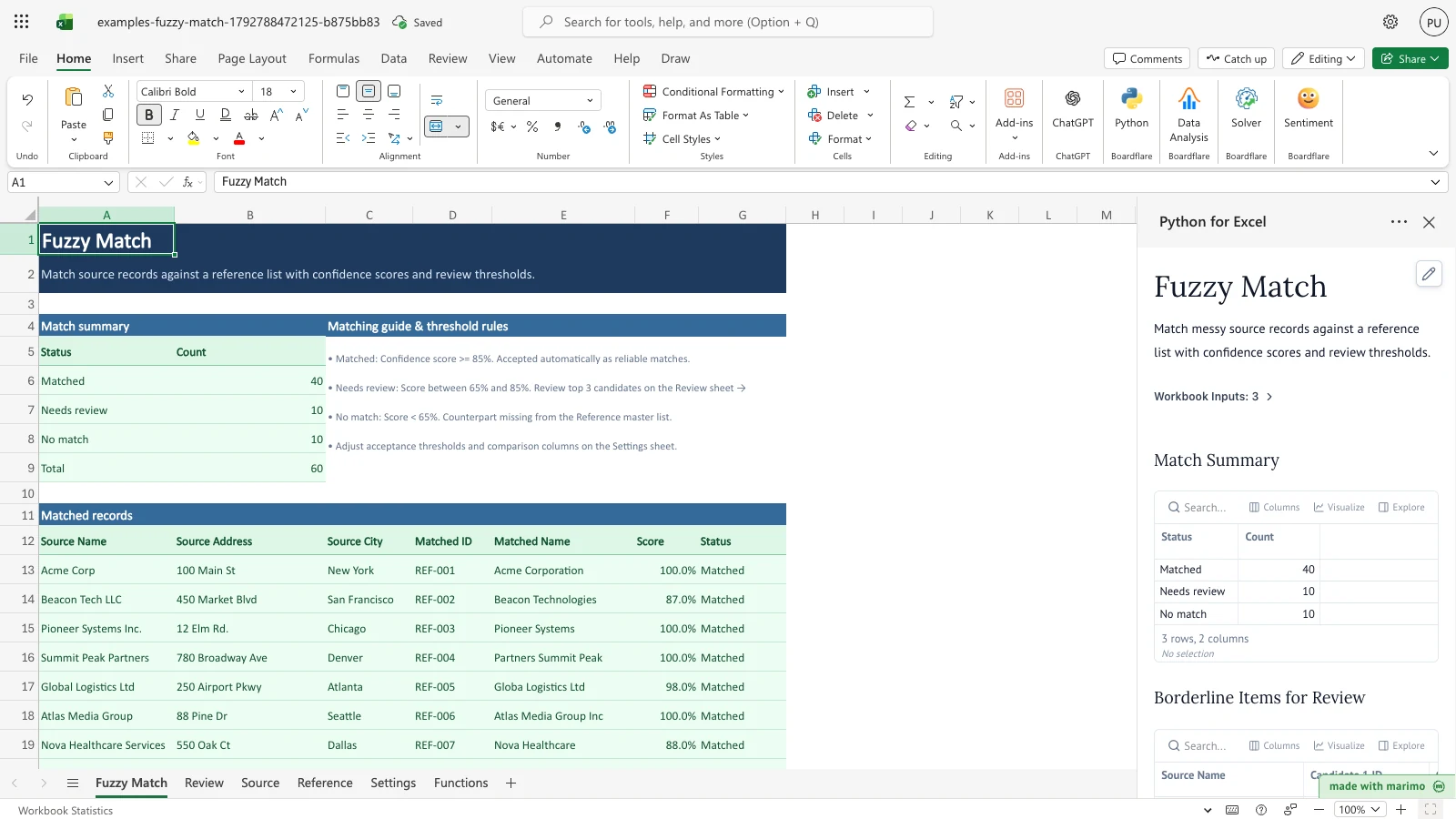
The workbook scores each source record against every reference record, gives it one of three statuses (Matched, Needs review or No match), and lists the borderline records with their three best candidates on the Review sheet. The workbook opens with 60 source records: 40 Matched, 10 Needs review and 10 No match. Two worksheet functions, fuzzy_match and fuzzy_lookup, run the same kind of matching against any list in the workbook.
Before you start
Requirements. Excel with Python for Excel. The template reads only the sheets in this workbook, so it needs no sign-in and no external data. To install and open the add-in, and for how Edit and App mode work, see the Boardflare Notebook Reference.
Data shape. The sample lists are included in the workbook: 60 records on the Source sheet and 100 on the Reference sheet. To use your own lists, paste them over the Source and Reference tables and keep the header names in row 4. The template reads rows 5 to 504 of each table, and it finds each column by its header name.
| Sheet (table) | Columns | Type and rule |
|---|---|---|
Source (Source) |
Name, Address, City | Text. One row per record to match. A row with every cell blank is ignored. |
Reference (Reference) |
ID, Name, Address, City | Text. One row per master record. The ID is shown as the Matched ID. |
A blank cell in a compared column scores 0 for that column.
Roles. The technical author maintains the Python source and the generated workbook. The workbook user pastes the lists, sets the thresholds and comparison columns on the Settings sheet, and reviews the Review sheet. The workbook user does not need to change the Python source.
Workbook tour
| Sheet or range | What it holds | Kind |
|---|---|---|
| Fuzzy Match, summary (A4:B9) | Match summary: Status and Count for Matched, Needs review, No match and Total | Output |
| Fuzzy Match, guide (C4:C8) | Text that explains the three statuses and where to change the thresholds | Text |
| Fuzzy Match, Matched records (A11:G512) | One row per source record: Source Name, Source Address, Source City, Matched ID, Matched Name, Score and Status | Output |
| Review, Borderline matches (A4:J105) | One row per Needs review record: Source Name, then Candidate 1, Candidate 2 and Candidate 3, each with ID, Name and Score | Output |
Source, table Source (A4:C504) |
The records to match: Name, Address and City | Editable input |
Reference, table Reference (A4:D504) |
The master list: ID, Name, Address and City | Editable input |
| Settings (A4:B10) | Accept threshold (B6), Review threshold (B7), Compare Name (B8), Compare Address (B9) and Compare City (B10) | Editable input |
| Functions | Worked examples of fuzzy_match and fuzzy_lookup. Lookup value (B12), threshold (B13) and algorithm (B14) are inputs; candidates and return values in A6:B9, and the lookup values in A23:A26 and A30:A33, are inputs too. All other cells are formulas. |
Editable input and formulas |
The task pane is not part of the workbook. It shows the match summary, the borderline items and the first ten matches. For how the task pane opens, see the Boardflare Notebook Reference.
Using the template
Review the matches
- Open the Fuzzy Match sheet. The summary at A5:B9 counts the source records in each status.
- Read the Matched records list from row 12. Matched ID and Matched Name give the reference record that the source record was matched to. Score shows how alike the two records are, as a percentage. Status says what to do with the record.
- The Matched records list has one row for every source record in the same order as the Source table.
Review the borderline records
- Open the Review sheet. Each row is one record with the status Needs review.
- Candidate 1 is the reference record with the highest score. Candidate 2 and Candidate 3 are the next two, each with its own Score.
- Compare the candidates with the source record and decide which one is right. The Review sheet does not record a decision, and the Fuzzy Match sheet does not change when you pick a candidate. To change a result, edit the Reference table, the Source table or the thresholds on Settings.
Change a threshold
- On the Settings sheet, change the Accept threshold in B6 or the Review threshold in B7. Enter a percentage, such as 90%. The Accept threshold starts at 85% and the Review threshold at 65%.
- The status of each record follows the bands in Inputs and settings: Matched at or above the Accept threshold, Needs review at or above the Review threshold but below the Accept threshold, and No match below the Review threshold. Keep the Review threshold at or below the Accept threshold.
- The summary, the Matched records list and the Review sheet recalculate. For example, raising the Accept threshold to 90% moves 11 records from Matched to Needs review: Matched falls from 40 to 29, Needs review rises from 10 to 21, and No match stays at 10.
Turn a comparison column off
- On the Settings sheet, set Compare Name, Compare Address or Compare City to FALSE to leave that column out of the score.
- The score uses only the columns that are switched on. The weights of the columns that remain are rescaled so they still add to 100%. Name has a weight of 50%, Address 30% and City 20%.
- For example, with Compare Address set to FALSE, the source record Apex Tech at 500 Industrial Pkwy, Denver matches REF-041 Apex Tech at 100% and is Matched. With all three columns on, it matches REF-075 Apex Tech Solutions at 82% and is Needs review.
Add a reference record
- Type the new record in the next empty row of the Reference table: ID, Name, Address and City. In the sample workbook, the next empty row is row 105.
- Recalculate by changing nothing else: the summary, the Matched records list and the Review sheet update from the table.
- For example, adding REF-101 Zephyr Logistics LLC, 800 Northway Drive, Phoenix changes the source record Zephyr Logistics from No match to Matched, with a Score of 100%. Matched rises from 40 to 41 and No match falls from 10 to 9.
Use the worksheet functions
fuzzy_match and fuzzy_lookup work in any cell, and they do not use the Settings sheet.
- On the Functions sheet, type the value to look up in B12. The sample value is
martha. - Enter the threshold in B13 and the algorithm in B14. The sample threshold is 0.7. A blank B13 uses the default of 0.6. The algorithm is a dropdown of the nine algorithms listed under Algorithms.
- The candidate list is A6:A9, and each candidate’s return value is in B6:B9. The sample candidates are
marhta(10),apply(20),banana(30) and a blank cell. - B18 holds
fuzzy_matchand B19 holdsfuzzy_lookupfor the lookup value in B12. With the sample inputs, both showno match.marhtais two edits away frommartha, so its score of 0.67 is below 0.7. - Type
Damerau-Levenshteinin B14. The algorithm name is not case-sensitive, and a hyphen works in place of an underscore. That algorithm counts the swap of two adjacent letters as one edit, so the score is 0.83. B18 then shows 1 (the position ofmarhtain the candidate list) and B19 shows 10 (its return value).
The rest of the Functions sheet repeats the calls for ranges, error cases and named functions. Each is described under Worksheet function reference.
Worksheet function reference
Syntax
=BF.FUNCTION("fuzzy_match", lookup_value, lookup_array, [threshold], [fuzzy_algo])
=BF.FUNCTION("fuzzy_lookup", lookup_value, lookup_array, return_array, [threshold], [fuzzy_algo])
The workbook also defines two named functions with the same arguments: FUZZY.MATCH(lookup_value, lookup_array, [threshold], [fuzzy_algo]) and FUZZY.LOOKUP(lookup_value, lookup_array, return_array, [threshold], [fuzzy_algo]). Each one calls the matching BF.FUNCTION call, so =FUZZY.MATCH(A2, Candidates, 0.7, "jaro_winkler") returns the same rows as the direct call. Optional arguments may be left out, and a blank optional argument is treated as left out. Section 9 of the Functions sheet (rows 59 to 68) shows each named call beside the direct call it wraps.
Arguments
| Argument | Description |
|---|---|
lookup_value |
Text to match: one cell or a range. Each cell is matched separately. |
lookup_array |
The candidate list to search, such as $A$6:$A$9. Required. |
return_array |
fuzzy_lookup only. The values returned for the matched candidate. It must have the same dimensions as lookup_array. |
threshold |
Optional number from 0 to 1. The default is 0.6. A candidate qualifies when its score is greater than or equal to the threshold. |
fuzzy_algo |
Optional algorithm name from the table below. The default is levenshtein. |
Algorithms
Algorithm names are not case-sensitive, and hyphens work in place of underscores, so Jaro-Winkler is accepted.
| Algorithm | What it measures | Distance returned |
|---|---|---|
levenshtein |
Single-character insertions, deletions and substitutions needed to turn one string into the other, scored against the longer string. | Yes |
damerau_levenshtein |
The same as levenshtein, except that swapping two adjacent characters counts as one edit. |
Yes |
jaro |
Characters that match within a sliding window, adjusted for transpositions. | No |
jaro_winkler |
jaro, with a bonus for a shared start of up to four characters. |
No |
hamming |
Positions where the characters differ. Strings of different lengths score 0. | Yes |
token_set_ratio |
Word overlap between the two strings, so extra words in either string lower the score less. | No |
token_sort_ratio |
Similarity after the words of each string are sorted alphabetically, so word order does not matter. | No |
partial_ratio |
The best similarity between the shorter string and any part of the longer string of the same length. | No |
ratio |
The similarity of the two whole strings. | No |
Return values
fuzzy_matchspills one row per lookup cell:[index, score, match, distance].indexis the 1-based position of the matched candidate inlookup_array, counted row by row.matchis the candidate text.distanceis blank for algorithms without a distance.fuzzy_lookupspills one row per lookup cell:[result, score, match].resultis thereturn_arrayvalue at the matched position, or blank if that cell is blank.- When no candidate reaches the threshold, the first column shows
no matchand the other columns are blank. - A blank lookup cell returns a blank row.
Matching rules
- Arrays are read row by row, so
lookup_arrayandreturn_arrayare paired in the same order. - Blank candidate cells are skipped, but they still count toward the position used for
indexand forreturn_array. - When two candidates share the highest score, the first one in
lookup_arraywins. levenshtein,damerau_levenshtein,jaro,jaro_winklerandhammingcompare text as entered. They do not lowercase, trim or remove punctuation.- The four ratio algorithms (
ratio,partial_ratio,token_sort_ratioandtoken_set_ratio) lowercase the text, replace punctuation with spaces and collapse repeated spaces as part of the algorithm. - The abbreviation and suffix list used by the Source and Reference matching is not applied by these functions.
- Each emoji or other character outside the Basic Multilingual Plane counts as one character.
Inputs and settings
Source table (Source). Every cell is editable.
| Column | Meaning | Allowed values | Effect |
|---|---|---|---|
| Name | The name of the source record | Text | Compared with each reference Name. Weight 50% when Compare Name is on. |
| Address | The street address | Text | Compared with each reference Address. Weight 30% when Compare Address is on. |
| City | The city | Text | Compared with each reference City. Weight 20% when Compare City is on. |
Reference table (Reference). Every cell is editable.
| Column | Meaning | Allowed values | Effect |
|---|---|---|---|
| ID | The identifier of the master record | Text | Shown as Matched ID and Candidate ID. Use a unique value for each record. |
| Name | The master name | Text | Compared with each source Name. |
| Address | The master address | Text | Compared with each source Address. |
| City | The master city | Text | Compared with each source City. |
Settings. The values are in B6:B10, under the Setting and Value headers.
| Setting | Cell | Allowed values | Default | Effect |
|---|---|---|---|---|
| Accept threshold | B6 | A percentage, from 0% to 100% | 85% | A score at or above this value is Matched. |
| Review threshold | B7 | A percentage, from 0% to 100% | 65% | A score at or above this value, and below the Accept threshold, is Needs review. A lower score is No match. |
| Compare Name | B8 | TRUE or FALSE | TRUE | Includes Name in the score. |
| Compare Address | B9 | TRUE or FALSE | TRUE | Includes Address in the score. |
| Compare City | B10 | TRUE or FALSE | TRUE | Includes City in the score. |
If all three Compare settings are FALSE, every score is 0. The workbook does not check the threshold values, so enter them as percentages between 0% and 100%.
Functions inputs. The lookup value is in B12, the threshold in B13 (0.7 in the sample, a number from 0 to 1, or blank for the default of 0.6) and the algorithm in B14 (default levenshtein). The candidates are in A6:B9, and the lookup values for the range examples are in A23:A26 and A30:A33. The rules for these inputs are in Worksheet function reference.
How results are calculated
- Read the lists. Rows with every cell blank are dropped, from the Source and the Reference tables separately. Only rows 5 to 504 are read.
- Standardize the text. Each value is lowercased and split into words, and punctuation is removed. Street abbreviations are expanded: St becomes Street, Ave becomes Avenue, Rd becomes Road, Blvd becomes Boulevard, Dr becomes Drive, Ln becomes Lane, Ct becomes Court, Pkwy becomes Parkway, Ste becomes Suite, Apt becomes Apartment, Dept becomes Department and Hwy becomes Highway. The company words Co, Corp, Corporation, Inc, LLC, Ltd and Group are removed.
- Compare each column. For each active column, the template compares the standardized source value with the standardized reference value and keeps the higher of two measures: a character-by-character similarity, and the same similarity after the words are sorted alphabetically. A blank cell scores 0.
- Combine the columns. The column scores are averaged with their weights: Name 50%, Address 30% and City 20%. With a column switched off, the other weights are rescaled to add to 100%.
- Pick the best reference record. Each source record is compared with every reference record, and the reference record with the highest combined score is the best match. On a tie, the record that comes first in the Reference table wins.
- Assign the status. A score at or above the Accept threshold is Matched. A score at or above the Review threshold, and below the Accept threshold, is Needs review. Any other score is No match.
Worked example. The sample source record Acme Corp, 100 Main St, New York becomes “acme”, “100 main street” and “new york” after step 2, because Corp is removed and St is expanded. REF-001 Acme Corporation, 100 Main Street, New York becomes the same three values, so every column scores 100% and the record is Matched at 100%.
The source record Apex Tech, 500 Industrial Pkwy, Denver is Needs review. Its best reference record is REF-075 Apex Tech Solutions, 500 Industrial Parkway, Denver, at 82%. The next two candidates are REF-041 Apex Tech, 12 Maple Ave, Denver at 78%, and REF-090 Apex Digital Systems, 500 Industrial Parkway, Denver at 74%.
Reading the results
Fuzzy Match, summary (A5:B9). Matched, Needs review, No match and Total, with the number of source records in each status. Total is the number of source records that were read.
Fuzzy Match, Matched records (A12:G512). One row for each source record, with the columns below. The area holds up to 500 rows.
| Column | Meaning |
|---|---|
| Source Name, Source Address, Source City | The values from the Source table |
| Matched ID | The ID of the best reference record |
| Matched Name | The Name of the best reference record |
| Score | How alike the two records are, shown as a percentage and rounded to two decimal places |
| Status | Matched, Needs review or No match |
Review, Borderline matches (A5:J105). One row for each Needs review record. Source Name is followed by Candidate 1, Candidate 2 and Candidate 3, each with its ID, Name and Score. The area holds up to 100 rows.
Functions results. Each spilled row shows the values listed under Return values. Check the score and the match columns before you use a result in a formula.
If a value looks wrong, check these first:
- The header names in the Source and Reference tables are unchanged.
- The Compare settings are on for the columns you want to match.
- The record’s Name, Address and City are filled in. A blank column scores 0.
- The Reference table includes the record you expect. A No match status often means the counterpart is missing.
- The abbreviation and suffix list in the notebook covers the words in your data. A word not on the list is compared as written.
Saving, sharing and App mode
What persists. The Source and Reference tables, and the values on the Settings sheet and the Functions sheet, are stored in the workbook and kept when it is saved and reopened. The summary, the Matched records list, the Review sheet and the task pane are recalculated from these values each time the template runs. None of them is stored as a typed value.
Shared or per-user. The lists and settings belong to the workbook. Anyone who opens the same copy sees the same records and settings.
App mode. App mode changes presentation rather than permissions, source access or workbook trust. This template does not define App mode settings of its own. For how App mode opens and runs the workbook, see the Boardflare Notebook Reference.
Errors, empty states and limits
Empty states. Before any records are entered, the summary shows 0 in each status. If the Source table has no records, the task pane shows “No matches” in place of the matches preview. If no record is Needs review, the task pane shows “No review items”. If the Reference table is empty, every source record has no candidate and shows No match.
Worksheet function messages. An invalid call returns #VALUE! in its cell. The error text describes the fix:
| Message | Cause | Fix |
|---|---|---|
threshold must be a number between 0 and 1. |
The threshold is text, or a number outside 0 to 1 | Enter a number from 0 to 1, or leave the argument blank for the default of 0.6 |
fuzzy_algo must be one of: levenshtein, damerau_levenshtein, jaro, jaro_winkler, hamming, token_set_ratio, token_sort_ratio, partial_ratio, ratio. |
The algorithm name is not in the list | Choose one of the nine names. Case and hyphens do not matter. |
lookup_array is required. |
The candidate list is blank | Give a range of candidates, such as $A$6:$A$9 |
return_array is required. |
The return list is blank in fuzzy_lookup |
Give a range of return values |
lookup_array and return_array must have the same dimensions. |
The two ranges have different sizes | Use ranges with the same number of rows and columns |
Hard limits.
- The Source table is read for up to 500 records (rows 5 to 504). The Reference table is read for up to 500 records (rows 5 to 504). Rows below row 504 are not read.
- The Matched records list holds up to 500 source records.
- The Review sheet holds up to 100 borderline records.
- The task pane previews the first ten matches only. The full list is on the Fuzzy Match sheet.
- The Accept and Review thresholds are not range-checked on Settings.
Limitations and when to use this
- Matching uses text similarity only. Phonetic matching (such as Soundex) and geographic distance are not checked.
- Each source record is compared with every reference record, so very long lists take longer to match. Every source record is compared with every reference record, so the work grows with both list sizes, up to the limits listed under Errors, empty states and limits.
- The abbreviation and suffix list covers the common street and company words in the sample data. Other words must match as written.
- A Needs review record needs a person to decide. The template ranks candidates but does not choose among them.
- The template never writes to the Source or Reference tables. Results appear only on the Fuzzy Match and Review sheets.
Use this template when reconciling vendor invoices against an accounts payable vendor master, deduplicating customer lead lists against a CRM, or combining third-party lists whose names differ slightly.
Developer reference
Notebook implementation
The notebook reads three inputs with bf.inputs(...): the Source table, the Reference table, and the Settings sheet with headers.
inputs = bf.inputs(
    source=bf.ref("Source!A4:C504"),
    reference=bf.ref("Reference!A4:D504"),
    settings=bf.ref("Settings!A5:B10", headers=True),
)
The Settings values are read as name and value pairs. TRUE and FALSE become booleans, and numbers are parsed. The notebook reads “Accept threshold” (default 0.85), “Review threshold” (default 0.65) and the three “Compare” toggles (default on). clean_table takes the headers from the first row and drops rows with every cell blank.
The batch pipeline normalizes each value with the NORMALIZATION_MAP and COLUMN_WEIGHTS rules in the “Edit these rules” cell. similarity returns the larger of a difflib.SequenceMatcher ratio on the normalized strings and the same ratio on the token-sorted strings.
def similarity(s1, s2):
    if not s1 or not s2:
        return 0.0
    r1 = difflib.SequenceMatcher(None, s1, s2).ratio()
    s1_sort, s2_sort = " ".join(sorted(s1.split())), " ".join(sorted(s2.split()))
    r2 = difflib.SequenceMatcher(None, s1_sort, s2_sort).ratio() if s1_sort != s1 or s2_sort != s2 else r1
    return max(r1, r2)
The output lists are padded to fixed sizes, 500 rows for the matches and 100 rows for the review items, and then published with bf.publish. The worksheet functions are passed in the same call:
publication = bf.publish(
    outputs={"summary": summary_out, "matches": matches_pad, "review": review_pad},
    functions={"fuzzy_match": fuzzy_match, "fuzzy_lookup": fuzzy_lookup},
)
The task pane shows the summary, the borderline table and the first ten matches with mo.ui.table, and it shows “No matches” and “No review items” when those lists are empty.
How the calculation/model works
The batch score is a weighted average of column similarities. For each source record and reference record, the score is the sum of COLUMN_WEIGHTS[c] * similarity(source[c], reference[c]) over the active columns, divided by the sum of the active weights. The best candidate is the one with the highest score, with the first candidate in the reference order winning ties. Status is then assigned from the rounded score (four decimals) against the two thresholds. The output Score is the score rounded to two decimals.
The worksheet functions use separate measures, implemented in the fuzzy_match and fuzzy_lookup cell:
levenshteinanddamerau_levenshteinscore1 - distance / longer length. The Damerau variant uses the optimal string alignment distance, so an adjacent swap costs one edit.jaroandjaro_winkleruse the standard Jaro similarity, and Winkler adds0.1per shared leading character, for up to four characters, weighted by1 - jaro.hammingscores1 - differences / lengthfor equal-length strings and returns no score for unequal lengths.- The four ratio algorithms reproduce the fuzzball 2.2.6 ratios as integers from 0 to 100, with a substitution cost of 2 and the fuzzball text processing.
partial_ratiocompares the shorter string with each matching block of the longer string.
Validation / expected results
| Check | Expected result |
|---|---|
| Matched records, sample data | 40 |
| Needs review records, sample data | 10 |
| No match records, sample data | 10 |
| Total source records, sample data | 60 |
| Accept threshold set to 90% | Matched 29, Needs review 21 |
| REF-101 Zephyr Logistics LLC added | Matched 41, No match 9; Zephyr Logistics matches REF-101 at 100% |
| Compare Address set to FALSE | Apex Tech matches REF-041 at 100% |
| Functions sheet, default inputs | fuzzy_match and fuzzy_lookup both show no match |
Functions sheet, damerau_levenshtein |
fuzzy_match shows 1 and fuzzy_lookup shows 10 |
| Functions sheet, error cases | #VALUE!, or error with IFERROR |
Architecture
The worksheet functions are a port of the Boardflare add-in’s fuzzy matching. Their text lengths and positions count Python code points, where the add-in counts JavaScript UTF-16 code units, so the two differ only for characters outside the Basic Multilingual Plane. The workbook defines FUZZY.MATCH and FUZZY.LOOKUP as LAMBDA names that call the BF.FUNCTION calls, so the named functions and the direct calls return the same results.
The batch pipeline and the worksheet functions are independent. The Settings thresholds and Compare toggles affect only the Fuzzy Match and Review outputs, and the Functions sheet inputs affect only the function examples.
Changelog
2026-10-23
- Standards review and documentation remediation: corrected developer reference heading hierarchy to H3/H4, verified currency escaping in tables, and refreshed workbook release artifacts.
2026-10-22 (#143)
- Settings threshold text now gives the starting values: the Accept threshold is 85% and the Review threshold is 65%.
- Corrected the Functions threshold default: a blank threshold in B13 uses 0.6. The 0.7 in B13 is the sample value.
2026-10-21
- Guide rewritten as a user guide: the sheets, inputs, settings, worksheet functions, results and limits are documented (Issue #143).
2026-10-19
- Added
FUZZY.MATCHandFUZZY.LOOKUPfunctions, which take the same arguments and return the same results asfuzzy_matchandfuzzy_lookup(Issue #107). - Added
fuzzy_matchandfuzzy_lookupworksheet functions for single-cell and range lookups, with nine selectable similarity algorithms, a configurable threshold and a Functions sheet with worked examples (Issue #102).
2026-10-17
- Initial release of the Fuzzy Match template, with multi-column text similarity scoring, a review queue and configurable confidence thresholds (Issue #19).