Demand & Inventory Planner
Overview
Demand & Inventory Planner turns SKU demand, demand variability, lead times, unit cost, and open purchase orders into a replenishment plan that stays within one cash budget. Orders are planned in whole case packs, and the planner decides which SKUs to fund together rather than one row at a time.
The workbook’s Dashboard shows the plan’s key figures, a safety-stock calculator, and the recommended order for each SKU. Everything recalculates from the blue input cells on SKU Inputs and the calculator inputs on Dashboard.
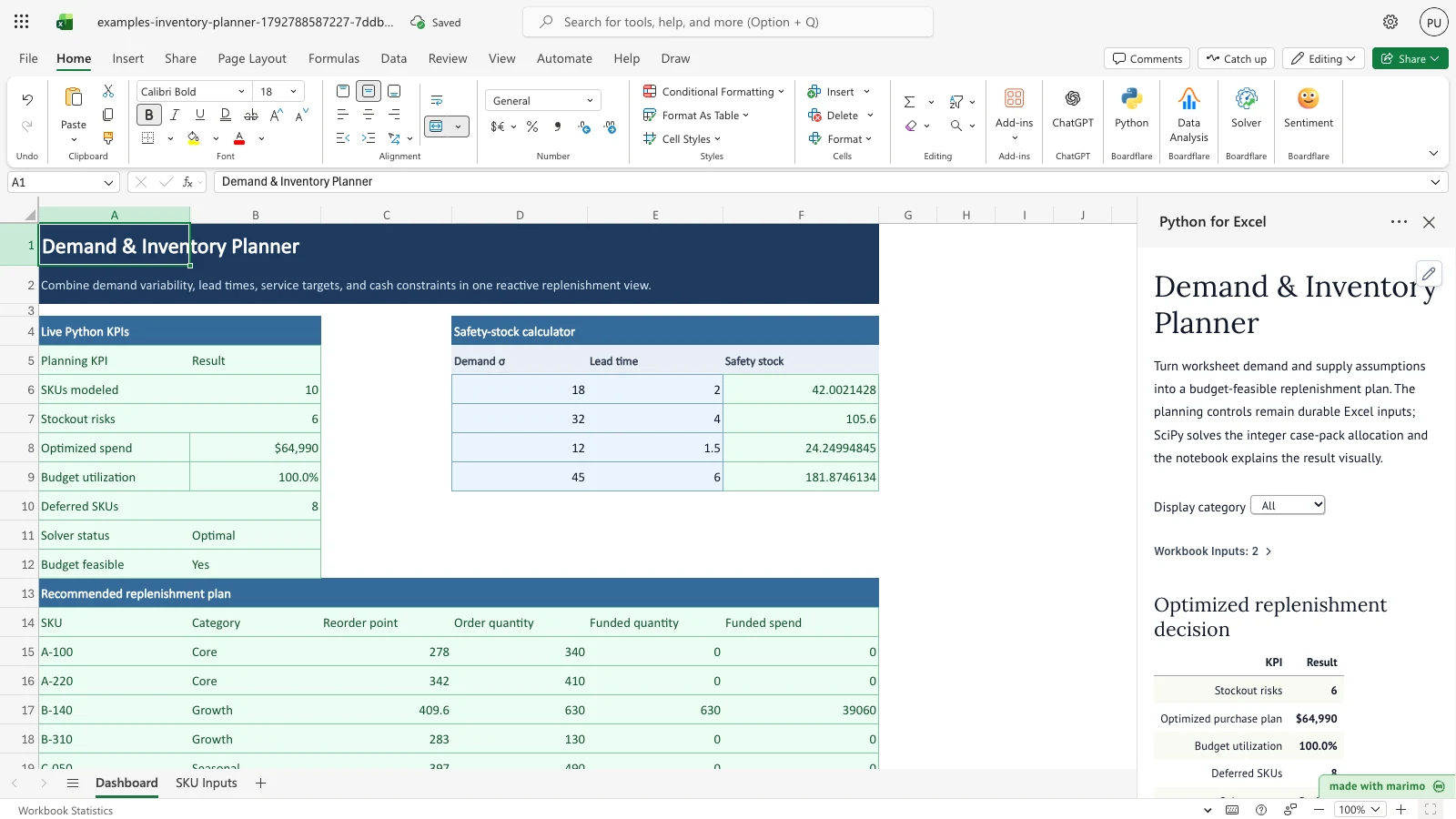
With the sample data and the default planning controls ($65,000 budget, service z-score 1.65, 4-week horizon, 10-unit case pack), the planner reaches Optimal status, confirms the plan is within budget, funds $64,990 of purchases, and leaves $10 unspent. Six SKUs start below their reorder point, and eight receive less than their full order quantity.
Before you start
- Requirements: Excel with Python for Excel. Installing the add-in and opening the task pane are covered in the Boardflare Notebook Reference. App mode is optional; see Saving, sharing and App mode. No sign-in is needed beyond Excel.
- Data shape: one row per SKU in the table at SKU Inputs
A4:H14. The planner reads exactly ten SKU rows (rows 5 to 14). Each row needs a SKU code, a category (Core, Growth, or Seasonal in the sample), and six numbers: on-hand units, weekly demand in units, demand standard deviation in units per week, lead time in weeks, unit cost in dollars, and open purchase order units. - Sample data: included. The workbook holds ten SKUs (A-100 through E-330) and the default planning controls, so the template runs as soon as it opens.
- Roles: the technical author maintains the Python source and the optimization model. The workbook user changes SKU values and planning controls, then reviews the plan without editing Python.
Workbook tour
| Sheet and range | What it holds | Editable |
|---|---|---|
Dashboard A1:B2 |
Title and subtitle | No |
Dashboard A4:B12 (Live Python KPIs) |
The planning summary: Planning KPI and Result columns, filled by Python from the summary output |
No, output |
Dashboard D4:F9 (Safety-stock calculator) |
Demand σ and Lead time in D6:E9; Safety stock in F6:F9 |
D6:E9 are inputs; F6:F9 is a formula |
Dashboard A13:F24 (Recommended replenishment plan) |
One row per SKU with SKU, Category, Reorder point, Order quantity, Funded quantity, and Funded spend, filled by Python from the detail output |
No, output |
Dashboard A29 |
A note describing how to try the template | No |
SKU Inputs A4:H14 |
The SKU table: SKU, Category, On hand, Weekly demand, Demand std, Lead time (weeks), Unit cost ($), Open PO | Yes, all cells in A5:H14 |
SKU Inputs J4:K8 (Planning control and Value) |
Cash budget ($), Service z-score, Planning horizon (weeks), Case pack (units) | Yes, K5:K8 |
| **_BOARDFLARE** | Hidden sheet the add-in uses to run the template | No. Do not edit |
Using the template
Change the cash budget
- Select the SKU Inputs sheet and select
K5, the Cash budget ($) cell. - Type
40000and press Enter. Python reruns the plan from the new value. - Select the Dashboard sheet. The Live Python KPIs table updates, and the Recommended replenishment plan table shows the lower funded quantities. The new value is saved with the workbook.
Update SKU demand or lead time
- On SKU Inputs, change any value in
A5:H14, such as Weekly demand or Lead time (weeks). - Return to the Dashboard. The reorder points, order quantities, and funded amounts recalculate. The Stockout risks and Deferred SKUs counts update with them.
Filter the chart by category
- In the Python for Excel task pane, open the Display category dropdown.
- Choose All, Core, Growth, or Seasonal.
The dropdown changes only the notebook chart, Inventory position versus reorder point. It shows the top 10 SKUs by priority within the selected category. It does not change the Dashboard tables or the summary figures.
Check a safety-stock value
- On the Dashboard, enter a demand standard deviation in
D6:D9and a lead time in weeks inE6:E9. - Read the result in
F6:F9. It equals the service z-score in SKU InputsK6multiplied by the standard deviation and by the square root of the lead time.
The calculator is a standalone check. Its values do not feed the replenishment plan.
Inputs and settings
Planning controls (SKU Inputs K5:K8):
- Cash budget ($) (
K5, default 65000): the most the plan may spend on purchases. Must be zero or more. Lower values fund fewer cases and increase Deferred SKUs. - Service z-score (
K6, default 1.65): the safety-stock multiplier. Must be greater than zero. Higher values raise safety stock and reorder points. The value 1.65 is the common normal-approximation choice for about a 95% service level. It is an input, not a guaranteed fill rate. - Planning horizon (weeks) (
K7, default 4): the number of weeks of forecast demand each SKU must cover. Must be greater than zero. Forecast demand is weekly demand multiplied by the horizon. - Case pack (units) (
K8, default 10): the units in one case. Must be a positive whole number. Every order quantity is rounded up to a multiple of this value.
SKU table (SKU Inputs A5:H14):
- SKU and Category: identifiers. The category drives the Display category filter. Use Core, Growth, or Seasonal to match the dropdown.
- On hand: units in stock. Non-negative.
- Weekly demand: average units sold per week. Non-negative.
- Demand std: standard deviation of weekly demand, in units per week. Non-negative.
- Lead time (weeks): weeks from order to receipt. Must be positive.
- Unit cost ($): cost per unit. Must be positive.
- Open PO: units already on order. Non-negative.
Safety-stock calculator (Dashboard D6:E9):
- Demand σ: the demand standard deviation to test. Each row is independent.
- Lead time: the lead time in weeks to test.
Display category (task pane dropdown): All, Core, Growth, or Seasonal. Affects the chart only.
How results are calculated
The planner applies these rules to each SKU, in order:
- Forecast demand = weekly demand × planning horizon.
- Safety stock = service z-score × demand std × √(lead time).
- Reorder point = weekly demand × lead time + safety stock.
- Net available = on hand + open PO.
- Raw order = the larger of zero and (reorder point + forecast demand − net available).
- Order quantity = raw order rounded up to the next multiple of the case pack. This is the most the plan could order for that SKU before the budget is applied.
- Priority = raw order ÷ reorder point, with the reorder point treated as at least 1.
Then the planner chooses a whole number of cases for every SKU, from zero up to its order quantity. It picks the combination that keeps total spend within the cash budget and favors high-priority SKUs. Funded quantity is the chosen cases multiplied by the case pack.
The summary figures follow from the funded plan:
- Stockout risks: the number of SKUs whose net available units are below their reorder point.
- Optimized spend: total funded spend.
- Budget utilization: optimized spend ÷ cash budget.
- Deferred SKUs: the number of SKUs whose funded quantity is less than their order quantity.
- Budget feasible: Yes when optimized spend is within the cash budget.
Worked example (B-140, default controls): B-140 is a Growth SKU with 85 units on hand, 76 units of weekly demand, a demand standard deviation of 32, a 4-week lead time, a $62 unit cost, and no open PO.
- Forecast demand = 76 × 4 = 304 units.
- Safety stock = 1.65 × 32 × √4 = 105.6 units.
- Reorder point = 76 × 4 + 105.6 = 409.6 units.
- Raw order = 409.6 + 304 − 85 = 628.6 units.
- Order quantity = 628.6 rounded up to the next 10 units = 630 units.
- At the default $65,000 budget, all 630 units are funded: 63 cases, or $39,060 of spend. The Recommended replenishment plan shows 409.6 as the reorder point, 630 as the order quantity and funded quantity, and $39,060 as the funded spend.
Reading the results
Live Python KPIs (Dashboard A5:B12):
- SKUs modeled: the number of SKU rows the plan covers. Ten in the sample.
- Stockout risks: how many SKUs begin below their reorder point. A higher count means more replenishment is needed.
- Optimized spend: total funded purchases in dollars.
- Budget utilization: the share of the cash budget used, shown to one decimal place.
- Deferred SKUs: how many SKUs receive less than their full order quantity because of the budget. Review these first when the budget is tight.
- Solver status: Optimal when the optimizer finds a plan. If it cannot, the task pane shows an error message instead of a status (see Errors, empty states and limits).
- Budget feasible: Yes when optimized spend does not exceed the cash budget.
Recommended replenishment plan (Dashboard A13:F24), one row per SKU, sorted by SKU:
- SKU and Category: as entered on SKU Inputs.
- Reorder point: units, rounded to one decimal place.
- Order quantity: units needed before the budget is applied, rounded up to the case pack.
- Funded quantity: units the budget covers. Zero means the SKU is fully deferred.
- Funded spend: funded quantity × unit cost, in dollars.
If a result looks wrong, check the Planning control values first, then the SKU row’s on-hand, open PO, and lead time values. A funded quantity smaller than the order quantity is expected when the budget is tight, not an error.
Saving, sharing and App mode
- The SKU table, planning controls, and calculator inputs are worksheet cells. They are saved with the workbook and reproduce the same plan when the workbook is reopened.
- The Display category dropdown is a task pane control. It affects only the chart.
- The plan is shared: everyone who opens the workbook with the same inputs sees the same results.
- In App mode, operators can change the SKU table, the planning controls, the calculator inputs, and the Display category dropdown. App mode changes the presentation, not permissions, source access, or workbook trust. For how to save and open a workbook in App mode, see the Boardflare Notebook Reference.
Errors, empty states and limits
Messages from the task pane:
- “Budget must be non-negative; service z, horizon, and integer case pack must be positive.” Cause: the cash budget is negative, or the service z-score, planning horizon, or case pack is zero or negative, or the case pack is not a whole number. Fix: correct the value in
K5:K8. - “
must contain non-negative numbers. Check: Cause: a blank, non-numeric, or negative value in the named column for the listed SKUs. Fix: correct those cells in” A5:H14. - “Unit cost and lead time must be positive.” Cause: a zero or negative unit cost or lead time in any SKU row. Fix: correct those cells.
- “Inventory optimization failed:
” Cause: the optimizer could not return a plan for the current inputs. Fix: check the planning controls and SKU values against the messages above, then recalculate.
Empty states and limits:
- The planner reads exactly rows 5 to 14 of SKU Inputs. A blank, non-numeric, or negative value in one of the six numeric columns (On hand through Open PO) triggers the non-negative-numbers message, which names the affected SKUs. A zero or negative Unit cost ($) or Lead time (weeks) triggers the positive-values message. Blank SKU or Category cells do not trigger a message. The table cannot have fewer or more than ten rows without an author change (see below).
- All SKUs share one case pack and one cash budget.
Limitations and when to use this
This teaching model uses one common case pack for all SKUs. It does not include supplier-specific minimum order quantities, order timing, truck or container capacity, holding cost, shortage cost, quantity discounts, or correlated demand. The service z-score is an input, not a guaranteed fill rate.
A production replenishment model should calibrate demand and service assumptions from historical data and add the constraints that govern your purchasing.
Use this approach when several replenishment decisions compete for one budget and orders must be whole case packs. If cash is not a constraint, or replenishment can be continuous, a simpler calculation may be enough.
Developer reference
Notebook implementation
The notebook reads the SKU table and the planning controls as two named inputs. It converts the controls into a lookup by label, then validates every value before optimizing.
inputs = bf.inputs(
    skus=bf.ref("SKU Inputs!A4:H14", headers=True),
    controls=bf.ref("SKU Inputs!J4:K8", headers=True),
)
The optimizer is scipy.optimize.milp. Each SKU has an integer decision variable for its number of cases, with bounds from zero to its order quantity divided by the case pack. One linear constraint limits total case cost to the cash budget.
solution = milp(
    c=-(priority * case_cost),
    integrality=np.ones(len(frame)),
    bounds=Bounds(np.zeros(len(frame)), max_cases),
    constraints=LinearConstraint(case_cost, -np.inf, cash_budget),
)
The Display category dropdown is a mo.ui.dropdown. It filters only the frame used for the chart, so it does not affect the published outputs.
The publish step sends the two tables and a reusable function to the workbook:
publication = bf.publish(outputs={"summary": summary, "detail": detail}, functions={"safety_stock": safety_stock})summary feeds the Live Python KPIs range, and detail feeds the Recommended replenishment plan range. safety_stock(demand_std, lead_time, service_z=1.65) returns the service z-score times the standard deviation times the square root of the lead time, and the calculator cells call it with the Service z-score from K6.
How the calculation/model works
For each SKU, the notebook computes forecast demand, safety stock, reorder point, net available supply, and a raw order. The raw order is rounded up to the case pack to give the order quantity. Priority is the raw order divided by the reorder point, with the reorder point floored at 1.
The optimization chooses an integer number of cases for each SKU, between zero and its order quantity divided by the case pack. The objective maximizes priority-weighted case cost (the solver minimizes its negative), subject to a single budget constraint: total case cost must not exceed the cash budget. Because the decision variables are integers, the plan always uses whole cases.
The notebook sets Solver status to Optimal only when the solver reports success; otherwise it raises the optimization error. Budget feasible is a separate check that funded spend is within the budget, with a one-millionth tolerance.
The SciPy references are the milp documentation and the LinearConstraint documentation.
Validation / expected results
With the default controls and sample data, the workbook shows:
| Output | Expected result |
|---|---|
| SKUs modeled | 10 |
| Stockout risks | 6 |
| Optimized spend | $64,990 |
| Budget utilization | 100.0% |
| Deferred SKUs | 8 |
| Solver status | Optimal |
| Budget feasible | Yes |
Setting the cash budget in SKU Inputs!K5 to 40000 recalculates the plan, rather than returning the earlier result. The expected outcome is optimized spend of $39,970, budget utilization of 99.9%, and 10 deferred SKUs.
Architecture
- Fixed ranges: the SKU input range (
SKU Inputs!A4:H14), the planning controls (SKU Inputs!J4:K8), the summary spill (Dashboard!A5, coveringA5:B12), and the detail spill (Dashboard!A14, coveringA14:F24) are fixed in both the notebook and the workbook. Changing the SKU count changes both. - Calculator formulas: each
Dashboard!F6:F9cell callssafety_stockwith its own demand standard deviation and lead time and the shared service z-score in'SKU Inputs'!K6. - Optimizer: one integer variable per SKU and one budget constraint. When the budget is large enough, every SKU receives its full order quantity up to the case-pack bound.
Changelog
2026-10-23
- Audited Developer reference structure, updating subsection headings to H3 and dated entries to H4.
- Verified currency symbol escaping across tables and narrative text.
- Confirmed absence of internal test runner jargon in user documentation and expected results.
- Regenerated release artifacts and refreshed thumbnail via acceptance gate.
2026-10-22 (#143)
- Corrected the Overview’s list of inputs, the validation scope for blank and non-numeric cells, and the expected Budget utilization values to match the workbook display (100.0% with the default budget, 99.9% at $40,000).
2026-10-21
- Rewrote this guide in the standard layout: workbook tour, step-by-step use, inputs, result definitions, errors, and limits. (#143)
- Moved the optimizer detail out of the overview and into the developer reference. (#143)