Product Details
Overview
Decide whether to reorder a product without pulling its numbers together by hand. Stock, sales, suppliers and open purchase orders stay in their own tables. Click a product row, and the task pane shows that product’s stock by warehouse, its open purchase orders with late ones flagged, weekly sales for the last 12 months, weeks of cover, and a suggested order quantity with the reasoning in one line.
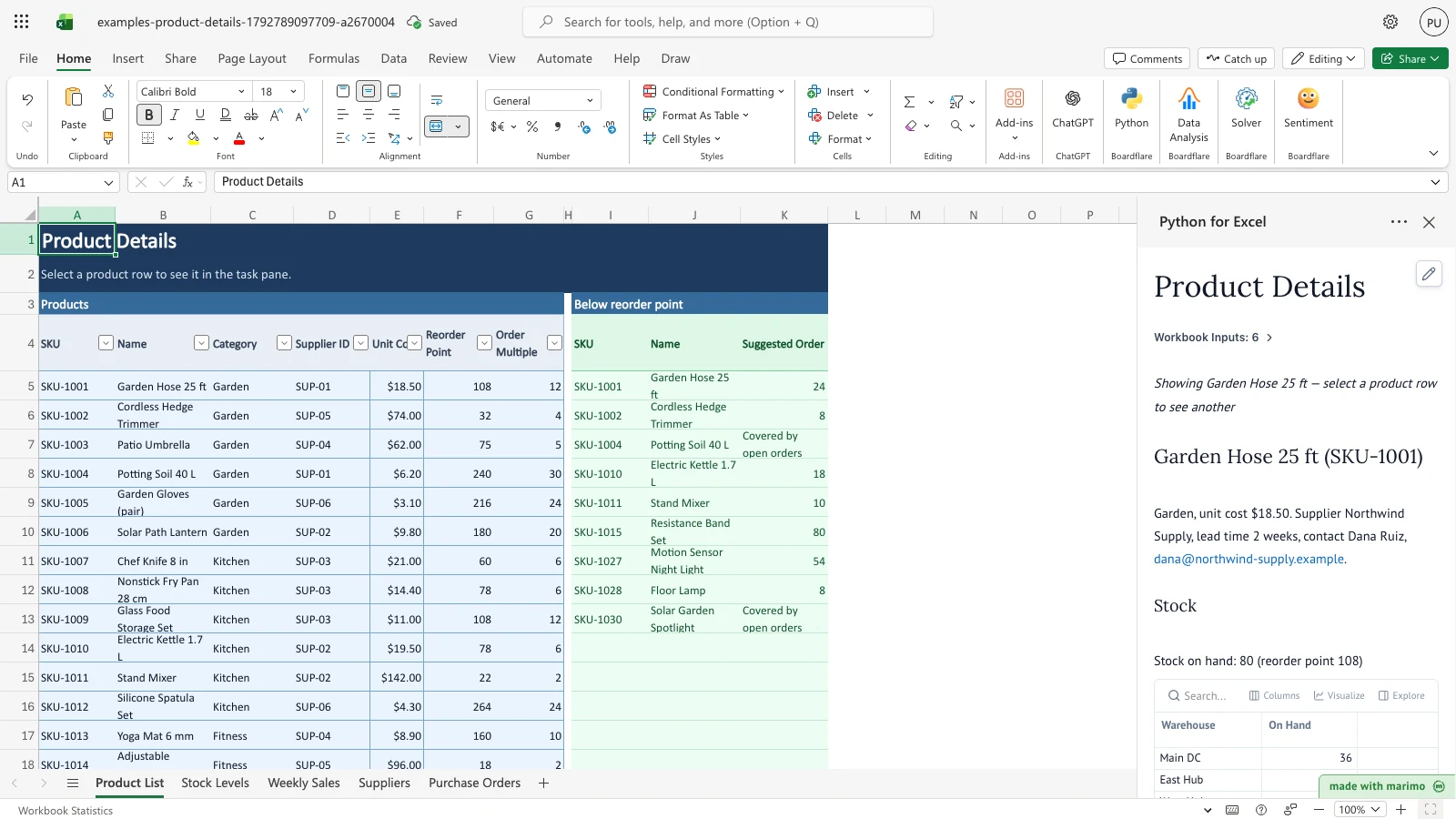
The Product List sheet also has a Below reorder point list. It names each product whose units on hand are under its reorder point, with a suggested order for each. With the sample data and nothing selected, the pane shows the first product, Garden Hose 25 ft, labelled as the default. Nine of the 30 products are on the reorder list.
Before you start
- Requirements: Excel with Python for Excel. Installing the add-in, opening the task pane and sharing the workbook are covered in the Boardflare Notebook Reference.
- Data shape: five tables. Each table has its headers in row 4.
- Products (Product List,
A4:G34): SKU, Name, Category, Supplier ID, Unit Cost, Reorder Point, Order Multiple. - Stock (Stock Levels): SKU, Warehouse, On Hand. Each product has one row per warehouse: Main DC, East Hub and West Hub.
- Sales (Weekly Sales): SKU, Week Starting (a Monday date), Units. Each product has 52 weeks of sales.
- Suppliers (Suppliers): Supplier ID, Name, Lead Time (weeks), Contact.
- Purchase Orders: PO, SKU, Quantity, Expected Date.
- Products (Product List,
- Sample data: included. It covers 30 products, 6 suppliers, 20 open purchase orders, and 52 weeks of sales for 29 products. The last product in the list has no sales yet.
- Roles: the technical author maintains the Python source and the generated package. The workbook user is a purchasing or inventory planner who selects products and edits stock, reorder points and purchase orders, without maintaining the Python source.
Workbook tour
| Sheet and range | What it holds | Editable |
|---|---|---|
Product List A1:A2 |
Title and instructions | No |
Product List A4:G34 (Products) |
One row per product | Yes, all cells |
Product List I3:K34 (Below reorder point) |
Products under their reorder point, with suggested orders. Filled by Python | No, output |
Stock Levels A4:C94 (Stock) |
Units on hand for each product in each warehouse | Yes, especially On Hand |
Weekly Sales A4:C1512 (Sales) |
Units sold per product per week | Yes |
Suppliers A4:D10 (Suppliers) |
Supplier name, lead time in weeks, and contact | Yes |
Purchase Orders A4:D24 (PurchaseOrders) |
Open orders, with quantity and expected date | Yes |
| **_BOARDFLARE** | Very hidden sheet the add-in uses to run the template | No. Do not edit |
The task pane is not a sheet. It shows the product you select on Product List.
Using the template
Select a product
- On Product List, click any cell in a product’s row, columns A to G.
- Read the header of the pane. It shows the product’s name and SKU, its category, unit cost, supplier, lead time and contact.
- Scroll the pane for Stock, On order, Demand, Suggested order, and the weekly sales chart.
Check a product with no stock
- Select Resistance Band Set.
- The pane shows zero units on hand against its reorder point, and a suggested order for the full amount needed.
Check a product with no sales history
- Select Solar Garden Spotlight, the last product in the list.
- The pane says there is no sales history, so it does not show average demand or weeks of cover. The suggested order still follows the stock and open orders.
Work with a range selection
- Select a range that covers several product rows, and place the cursor on one of them.
- The pane shows the product on the active cell, not the whole range.
Change stock and watch the reorder list
- On Stock Levels, change the On Hand value for a product in one warehouse. For example, raise the Main DC value for the first product in the list.
- The product leaves the Below reorder point list when its units on hand reach its reorder point.
Inputs and settings
Every value the workbook user can edit is a table cell. The rules that are not in a cell are set by the author.
Product List (Products)
- SKU, Name, Category and Unit Cost: shown in the pane. Unit costs appear with a dollar sign.
- Supplier ID: must match a Supplier ID on Suppliers. It sets the lead time and contact in the pane.
- Reorder Point: units on hand below this value put the product on the reorder list.
- Order Multiple: suggested quantities are rounded to a multiple of this value.
Stock Levels (Stock)
- On Hand: units in one warehouse. The total across warehouses drives weeks of cover, the reorder list and the suggested order.
Weekly Sales (Sales)
- Units: units sold in one week. The most recent 12 weeks for each product drive average weekly demand.
Suppliers
- Lead Time (weeks): how long a new order takes to arrive. It sets the target stock.
Purchase Orders
- Quantity: units on order. Open orders reduce the suggested order.
- Expected Date: an order whose date is before the as-of date is flagged LATE. A blank date shows as “(no date)”.
Author rules (set in the notebook, not in a cell)
- As-of date: 2026-10-05 in the sample. Orders expected before this date are flagged late.
- Demand window: 12 weeks of recent sales.
- Safety stock: 2 weeks of demand, held on top of the supplier lead time.
- Rounding: up to the order multiple. The author can choose nearest or no rounding.
How results are calculated
- Average weekly demand is the mean of the product’s last 12 weeks of sales.
- Weeks of cover is units on hand divided by average weekly demand. It counts units on hand only, not incoming orders.
- Target stock is the higher of the reorder point and average weekly demand multiplied by the supplier lead time plus 2 safety weeks.
- Suggested order is target stock minus units on hand and units on order, never below zero, rounded to the order multiple. When that is zero, the pane says “none, covered by open orders” if units on hand are under the target, and “none, stock is above target” otherwise. The reorder list shows “Covered by open orders” for any product whose suggested order is zero.
- Below reorder point lists products whose units on hand, across all warehouses, are under their reorder point.
Worked example (Potting Soil, sample data): Potting Soil has 110 units on hand and an average weekly demand of 57.1 units, so its weeks of cover is 1.9. It has 180 units on order, including PO-4402, which is LATE. Its suggested order reads as covered by open orders, so the reader does not need to order more yet.
Reading the results
The task pane
- Header: the product’s name and SKU, with “Showing … (selected)” or, when nothing is selected, “Showing … select a product row to see another”.
- Details: category, unit cost, supplier, lead time and contact.
- Stock: units on hand and the reorder point, then a table of units per warehouse.
- On order: total units on order, then each open purchase order with its quantity and expected date. LATE marks an order whose expected date is before the as-of date.
- Demand: average weekly demand over the last 12 weeks and weeks of cover.
- Suggested order: the suggested quantity, then the target stock and the reasoning in one line.
- Chart: weekly sales for the last 52 weeks, with the average demand as a dashed line.
Below reorder point (Product List I4:K34)
- Shows SKU, Name and Suggested Order, in the order the products appear on Product List.
- A suggested order of zero is shown as “Covered by open orders”.
- Holds up to 30 products. With more than 30, the list shows 29 products and a final row that reads “+N more”, where N is the number not shown.
- Does not change when you select a product.
Saving, sharing and App mode
- Edit values in the tables, not in the pane. The pane shows the selected product and does not change any values.
- To share the workbook or run it in App mode, follow the Boardflare Notebook Reference.
Errors, empty states and limits
Messages you may see in the pane:
- “No sales history for this product, so average demand and weeks of cover cannot be worked out.” Cause: the product has no rows on Weekly Sales. Fix: add weekly sales rows for the product.
- “No open orders.” Cause: the product has no rows on Purchase Orders. This is informational.
- “(no date)” beside a purchase order: its Expected Date is blank. Fix: enter a date so the order can be checked for lateness.
- “(LATE)” beside a purchase order: its expected date is before the as-of date.
- “none, covered by open orders” and “none, stock is above target”: no order is suggested, for the two reasons shown.
Empty states and limits:
- If the selected row is not a product, the pane shows the first product, labelled as the default.
- The reorder list shows up to 30 products. Adding more products than that needs an author change, described in the developer reference.
- Sales are read as the last 12 weeks for each product. Weeks older than the latest 12 do not affect demand.
Runtime errors from the add-in are covered in the Boardflare Notebook Reference.
Limitations and when to use this
- Demand is a simple average of recent weeks. There is no forecast model, trend or seasonality adjustment.
- Weeks of cover counts units on hand only, not incoming orders.
- The template suggests quantities. It does not create purchase orders.
- Unit costs are shown with a dollar sign. The template does not convert currencies.
Use this approach when a planner needs a product’s full position on one screen to decide on a reorder, and the supporting data lives in separate tables. For demand with long gaps between sales, see the intermittent demand template.
Developer reference
Notebook implementation
One bf.inputs(...) call reads the five tables and the selected rows on Product List.
inputs = bf.inputs(
    products=bf.ref("Products", headers=True),
    stock=bf.ref("Stock", headers=True),
    sales=bf.ref("Sales", headers=True),
    suppliers=bf.ref("Suppliers", headers=True),
    orders=bf.ref("PurchaseOrders", headers=True),
    picked=bf.selection("Products"),
)
The rules block at the top of the notebook holds AS_OF, DEMAND_WINDOW_WEEKS, SAFETY_WEEKS and ROUNDING. AS_OF is a fixed sample date. The source comment shows pd.Timestamp.today().normalize() as the alternative. ROUNDING must be "up", "nearest" or "none", and the notebook raises an error otherwise.
The measures are built once, in one table indexed by SKU. The pane is built from the row on the active cell, or the first product when nothing is selected. The reorder list is built from the whole table and published with:
publication = bf.publish(outputs={"reorder": reorder})The reorder list does not depend on the selection, so the sheet never shows selection-dependent values.
How the calculation/model works
- Average weekly demand: the mean of
Unitsover each product’s most recentDEMAND_WINDOW_WEEKSsales rows. - Weeks of cover: units on hand divided by average weekly demand, where demand is positive.
- Target stock: the larger of the reorder point and average weekly demand times (supplier lead time plus
SAFETY_WEEKS). A product with no sales uses zero demand. - Suggested order: target stock minus units on hand minus units on order, clipped at zero, then rounded according to
ROUNDING. The rounding step uses the product’s order multiple, at least 1. - Reorder list: products whose total on hand is under their reorder point. A suggested order of zero is shown as the text “Covered by open orders”.
Units on hand are summed across warehouses before any of these steps. Blank expected dates on purchase orders are read as missing, and the pane shows them as “(no date)”.
Validation / expected results
| Check | Expected outcome |
|---|---|
| Products on the reorder list | 9, with SKU-1001 Garden Hose 25 ft first |
| Nothing selected | Garden Hose 25 ft, labelled as the default |
| Potting Soil selected | Stock on hand 110, on order 180 with PO-4402 late, weeks of cover 1.9, suggested order covered by open orders |
| Chef Knife 8 in selected | Weeks of cover 6.4, suggested order none (stock above target) |
| Resistance Band Set selected | Stock on hand 0 against a reorder point of 200, suggested order 80 |
| Solar Garden Spotlight selected | “No sales history” message in place of demand and cover |
| Fountain Pen Gift Set selected | Weeks of cover 60.0, suggested order none (stock above target) |
| Range selected, active cell on Stand Mixer | Stand Mixer, stock on hand 7 against a reorder point of 22, suggested order 10 |
| Main DC stock raised to 100 on the first product | That product leaves the reorder list, which now starts with SKU-1002 |
These checks verify baseline workbook values and expected updates when inputs change, confirmed against the inventory and order data.
Architecture
- Selection decoupling: the selected row drives the pane only. The published
reorderoutput covers the whole product table and writes no selection-dependent values to the sheet. - Fixed spill: the
reorderoutput is anchored atI4and spills toI4:K34, which holds 30 products. Changing that capacity needs matching changes to the output block and output anchor inworkbook.pyand to the 29-plus-more rule innotebook.py. - Sales capacity: the Weekly Sales table sets
rowCountto 2000, so the sheet can hold 52 weekly rows for each product. - Shared as-of date:
workbook.pyreadsAS_OFfromnotebook.pyby pattern, so the generated sales history and purchase order dates line up with the notebook’s as-of date.
Changelog
2026-10-23
- Standardized developer reference subheadings to H3 and changelog entries to H4.
- Embedded the overview task-pane poster (thumbnail.webp) before the workbook download link.
- Updated the workbook download link format and verified table formatting and currency escaping.
- Regenerated release artifacts and verified acceptance gate.
2026-10-22 (#143)
- Corrected the zero suggested-order wording: the pane says “none, covered by open orders” or “none, stock is above target”, and the reorder list says “Covered by open orders”. (#143)
- Corrected the LATE rule to the as-of date, and the **_BOARDFLARE** sheet to very hidden. (#143)
2026-10-21
- Rewrote the guide in the standard layout: workbook tour, step-by-step use, inputs, result definitions, errors and limits. (#143)
- Moved implementation detail out of the user guide and into the developer reference. (#143)