Regression
Overview
Find out which operational factors drive store sales, and by how much. This template fits a multiple linear regression to the store figures in the workbook, tests whether each factor is statistically significant, and states each effect as a plain-English takeaway.
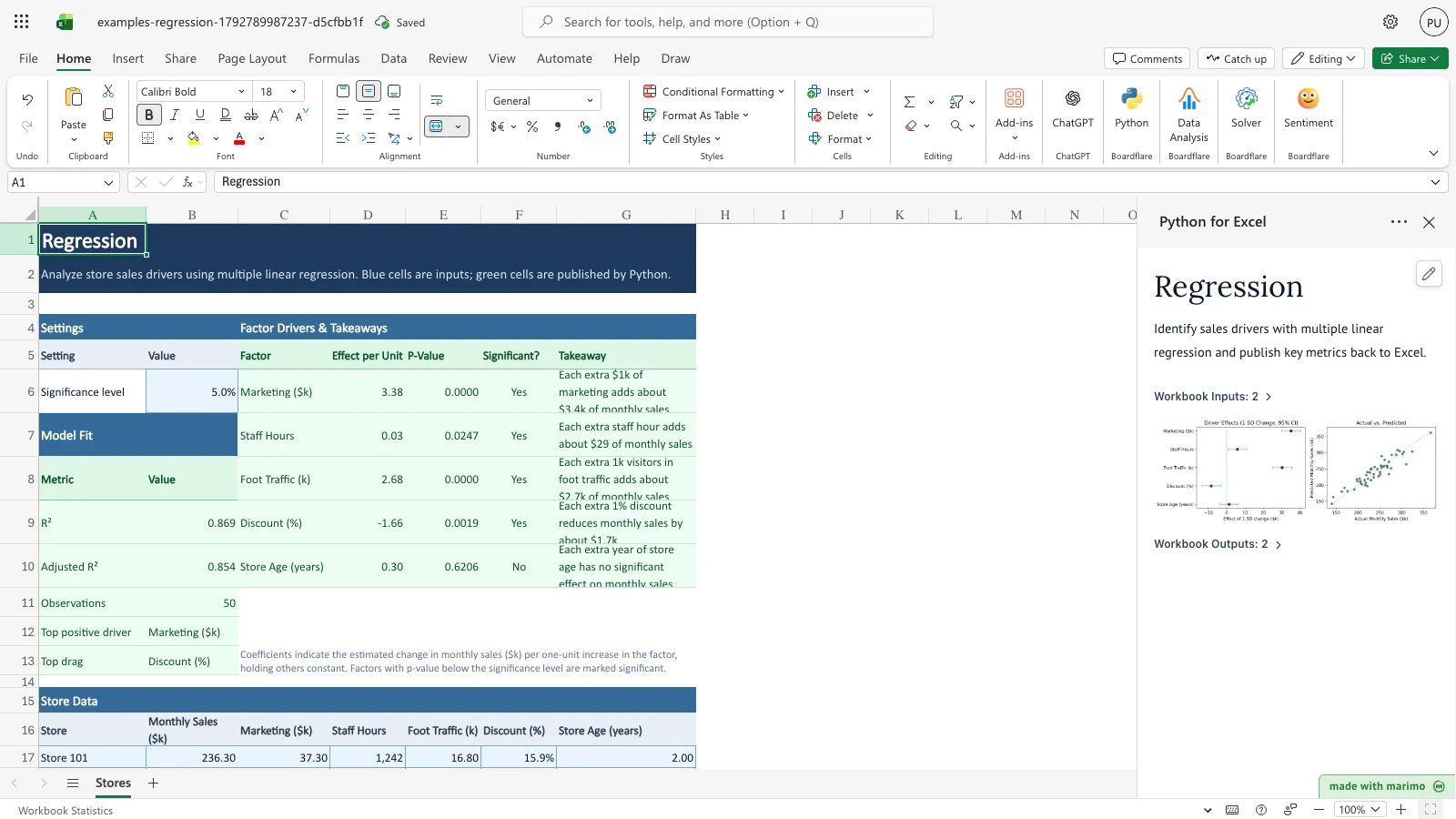
With the 50 sample stores, the model’s R² is 0.869 (adjusted R² 0.854). Marketing is the strongest positive driver: each extra $1k adds about $3.4k of monthly sales. Discount is the main drag: each extra 1% of discount reduces monthly sales by about $1.7k. Foot Traffic and Staff Hours are also significant at the default 5% level. Store Age is not. Change a store figure or the significance level and the Model Fit and Factor Drivers & Takeaways values recalculate.
Before you start
- Requirements: Excel with the Boardflare add-in, which runs this template’s Python for Excel notebook. For installing and opening the add-in, see the Boardflare Notebook Reference. For saving and App mode, see Saving, sharing and App mode.
- Data shape: one store per row in the Store Data table on the Stores sheet. The header is in row 16 and the store rows are rows 17 to 66, columns A to G. Monthly Sales and Marketing are in $k. Staff Hours is a count of hours. Foot Traffic is in thousands of visitors. Discount is a percentage, entered as 10% for ten percent. Store Age is in years.
- Sample data: the workbook includes 50 sample stores in Store Data (A16:G66), so every result is populated when the workbook opens.
- Roles: the technical author maintains the Python source, including the factor list, units and wording in the “Edit these rules” section. The workbook user edits the store figures and the significance level, and reads the results. The workbook user does not need to change any Python.
Workbook tour
| Sheet | Range | What it holds | Type |
|---|---|---|---|
| Stores | A4:B4 | Settings section heading | Label |
| Stores | A5:B6 | Setting and Value headers, and Significance level in B6 | B6 is editable input |
| Stores | C4:G4 | Factor Drivers & Takeaways section heading | Label |
| Stores | C5:G10 | Header in row 5 (Factor, Effect per Unit, P-Value, Significant?, Takeaway) and one row per factor in rows 6 to 10 | Output, published by Python |
| Stores | A7:B7 | Model Fit section heading | Label |
| Stores | A8:B13 | Metric and Value header in row 8, then R², Adjusted R², Observations, Top positive driver and Top drag in rows 9 to 13 | Output, published by Python |
| Stores | C11:G13 | A note on how to read the coefficients and significance | Label |
| Stores | A15:G15 | Store Data section heading | Label |
| Stores | A16:G66 | The Store Data table: header in row 16, 50 sample stores in rows 17 to 66 | Editable input |
In Store Data, the columns are Store, Monthly Sales ($k), Marketing ($k), Staff Hours, Foot Traffic (k), Discount (%) and Store Age (years). All seven columns are blue input cells. Store is a label that identifies the row; the model does not use it.
Do not type over the Model Fit or Factor Drivers & Takeaways ranges. Python writes them each time it recalculates.
Using the template
Change the significance level
- On Stores, select B6, which shows the Significance level, 5.0% by default.
- Type a new level, for example
1%. The accepted forms are listed under Inputs and settings. - The notebook recalculates. Each factor whose P-Value is below the new level shows Yes in Significant?, and its Takeaway is rewritten. At 1%, Staff Hours changes to No, and its takeaway reads “has no significant effect”. Marketing, Foot Traffic and Discount remain Yes.
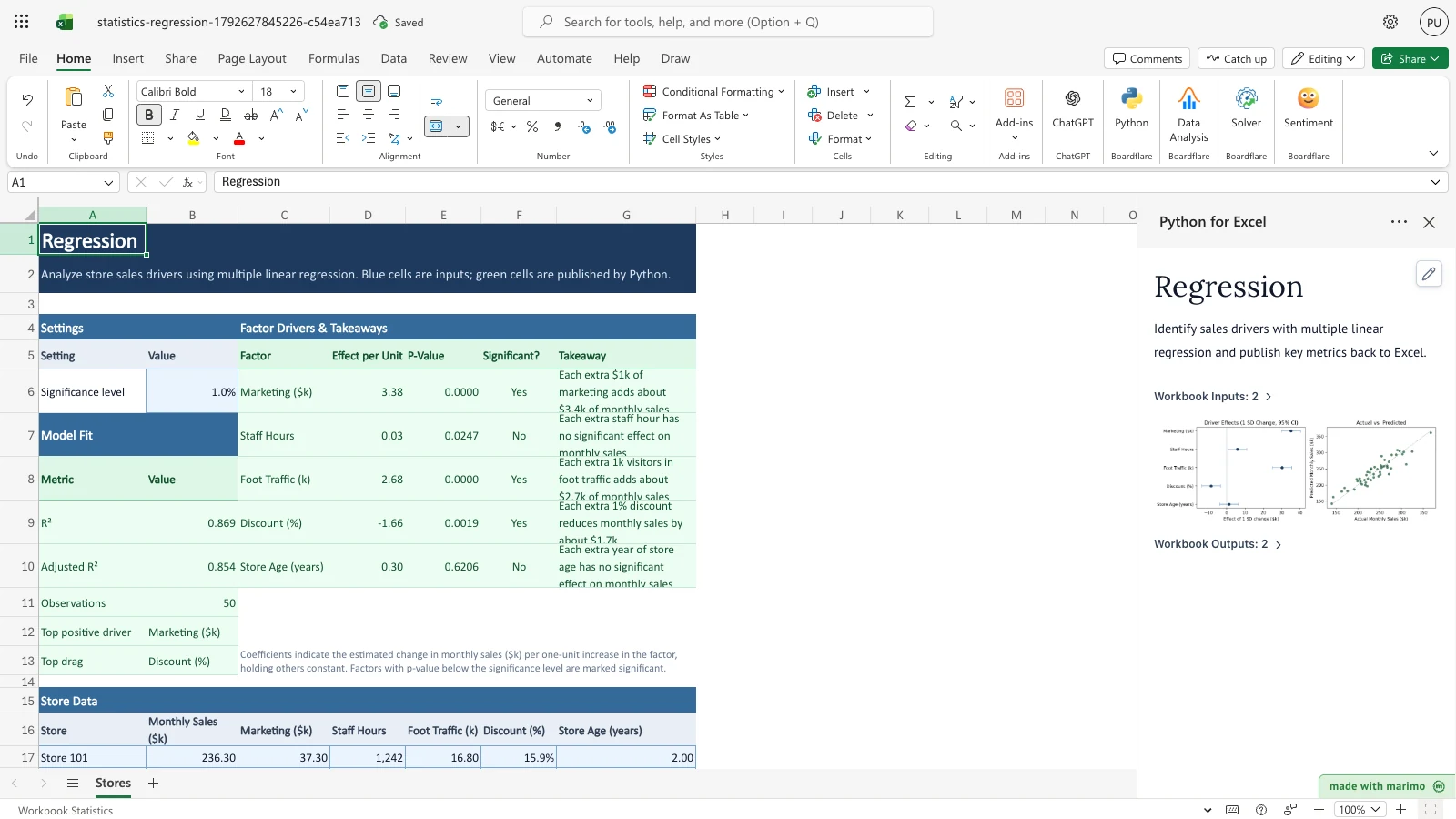
Notice that Staff Hours now reads No, with its takeaway changed to “has no significant effect”. Marketing, Foot Traffic and Discount stay Yes.
Enter a percentage and a formatted dollar figure
- Select B6 and type
10%. Excel stores it as 0.10, and the Significance level shows 10.0%. - Select a Marketing cell in Store Data, for example the first store’s Marketing cell (C17), and type
$50. The notebook removes the dollar sign and any commas before it reads the figure, so the cell is read as 50. - The Model Fit values update. R² falls to 0.865. The Marketing Effect per Unit becomes 3.29, and its takeaway reads about $3.3k of monthly sales. Staff Hours stays Yes, and its takeaway reads about $23 of monthly sales per hour.
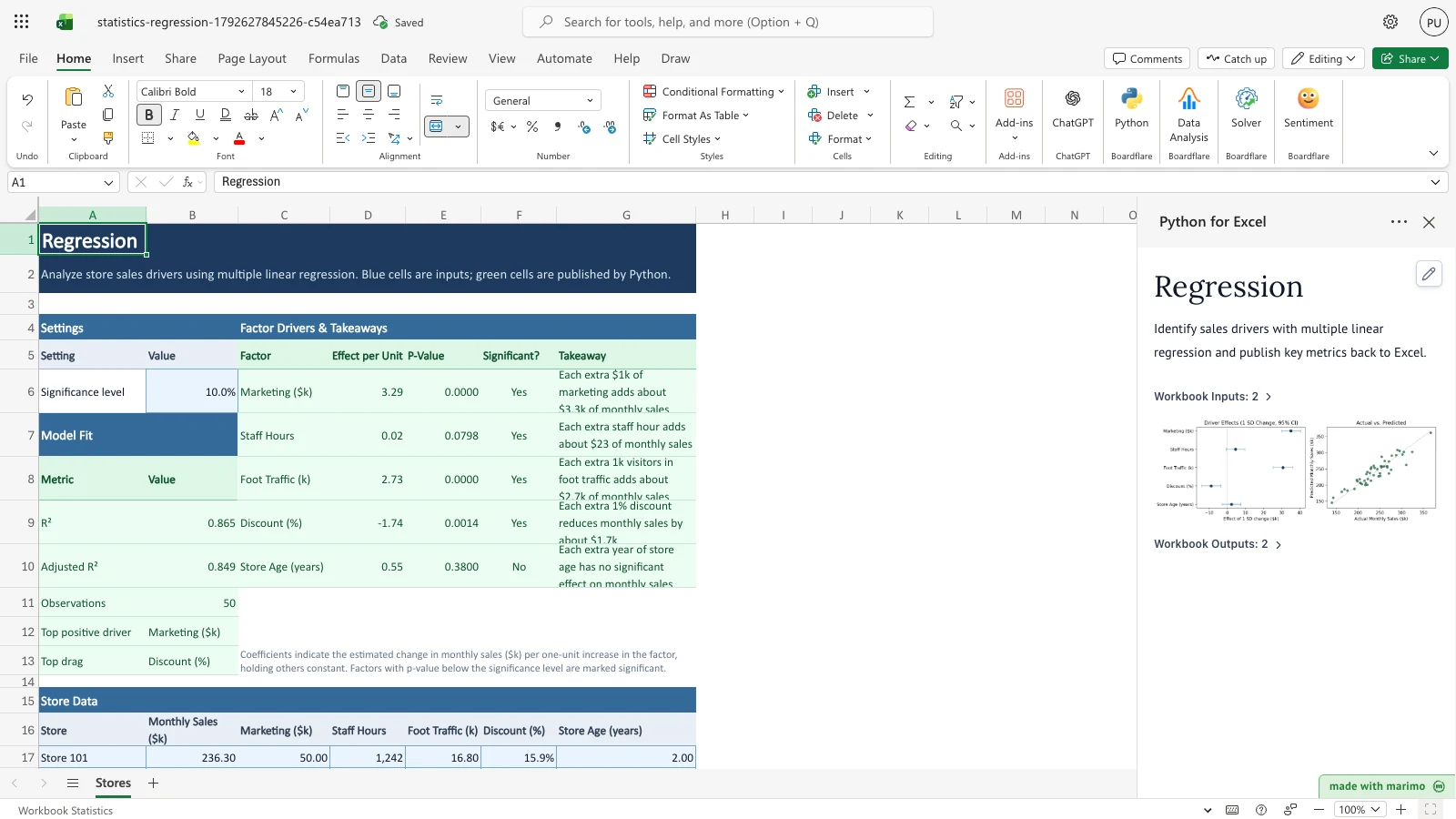
Notice the Significance level reads 10.0%, the Marketing cell reads 50.00, and R² reads 0.865.
To enter the significance level as a decimal, type 0.5% or 0.005. The step is the same as above, with the cell value read as 0.005.
Change a store’s sales and age
- In Store Data, select the first store’s Monthly Sales ($k) cell (B17) and type
360. Then select its Store Age (years) cell (G17) and type16. - Make the same kind of change in a second store, for example row 23 (B23 set to 320 and G23 set to 15).
- The results change. R² falls to 0.606 and Adjusted R² to 0.562. Store Age now reads Yes, with an Effect per Unit of 2.337 and a takeaway of about $2.3k of monthly sales per extra year.
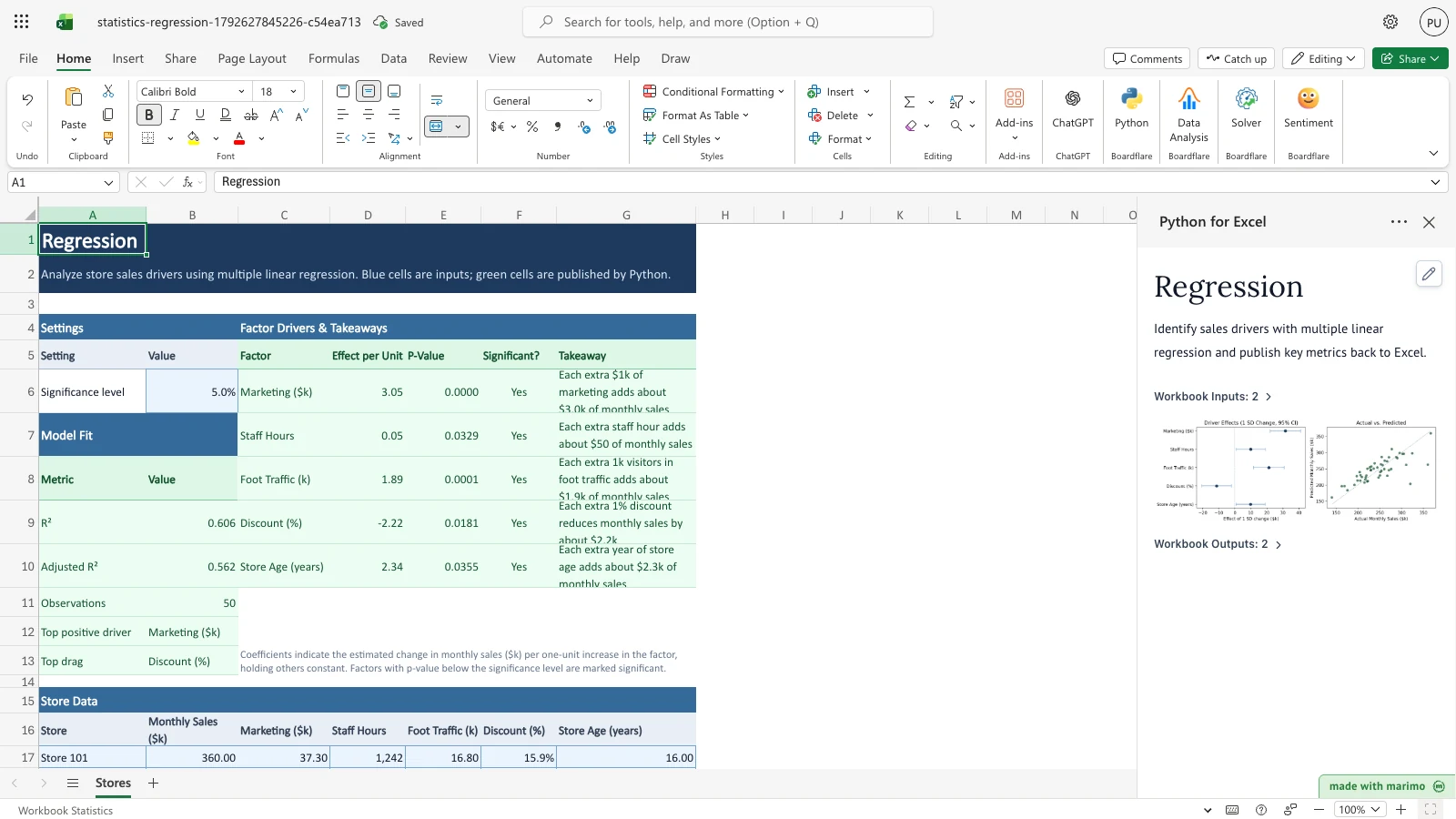
Notice that R² drops to 0.606, and that Store Age now shows Yes with its takeaway about $2.3k per year.
Inputs and settings
Significance level (Stores!B6)
- Meaning: the P-Value cutoff for calling a factor statistically significant. A factor is marked Yes when its P-Value is below this level.
- Default: 5.0% (0.05).
- Accepted forms: a decimal below 1, such as
0.05; a percentage with the percent sign, such as5%or0.5%; or a whole number of 1 or more, which is read as a percentage, so5means 5%. - Fallback: a blank, zero, or unreadable value is read as 5%.
- Effect of a change: a lower level makes significance harder to reach, so fewer factors show Yes, fewer takeaways state an effect, and Top positive driver and Top drag can change or show None.
Store Data columns
| Column | Entry | Role in the model | Effect of a change |
|---|---|---|---|
| Store | Text | Label only | None. The model does not use it. |
| Monthly Sales ($k) | Number, in $k | The value being explained | Changes every Effect per Unit and R². A blank or non-numeric value leaves that store out. |
| Marketing ($k) | Number, in $k | Factor | Effect per Unit is in $k of monthly sales per $1k of marketing. |
| Staff Hours | Number of hours | Factor | Effect per Unit is in $k per staff hour; the takeaway shows dollars, for example about $29. |
| Foot Traffic (k) | Number, in thousands of visitors | Factor | Effect per Unit is in $k per 1k visitors. |
| Discount (%) | Percentage, entered as 10% | Factor | Effect per Unit is per one percentage point of discount. A whole number such as 10 is read as 1000% and distorts the result. |
| Store Age (years) | Number of years | Factor | Effect per Unit is in $k per extra year of store age. |
Currency signs and thousands separators are removed before a figure is read. Text that is not a number is treated as blank.
How results are calculated
- Clean the figures. Dollar signs and commas are removed from Monthly Sales and the five factors. Anything that is still not a number is treated as blank.
- Scale the discount. Discount (%) is read as a fraction (0.10 for 10%) and multiplied by 100, so its effect is per one percentage point.
- Leave out incomplete stores. A store is used only when its Monthly Sales and all five factors are numbers. Observations counts the stores that are used.
- Fit the model. An ordinary least squares regression estimates the effect of each factor on Monthly Sales, holding the other factors constant.
- Test significance. Each factor’s two-tailed P-Value is compared with the Significance level. Below it, the factor shows Yes.
- Rank the drivers. Among the significant factors, each one is ranked by its standardized effect, which is its coefficient scaled by the spread of the factor and of Monthly Sales. The largest positive one is the Top positive driver, and the most negative one is the Top drag. If no significant factor has that sign, the value shows None.
- Write the takeaway. A significant positive factor reads “Each extra [unit] adds about [amount] of monthly sales”. A significant negative factor reads “reduces … by about”. A factor that is not significant reads “has no significant effect”. Amounts under $0.1k ($100) are written in dollars, for example $29.
Worked example with the sample data. The Marketing Effect per Unit is 3.383, which means $3.383k of monthly sales per $1k of marketing. Its P-Value is below 5%, so Significant? shows Yes. The takeaway reads “Each extra $1k of marketing adds about $3.4k of monthly sales”.
Reading the results
Model Fit (Stores!A8:B13)
| Metric (A) | Value (B) | Meaning |
|---|---|---|
| R² | 0.869 | The share of the variation in Monthly Sales the factors explain, from 0 to 1. |
| Adjusted R² | 0.854 | R² adjusted for the number of factors, so it does not rise just by adding factors. |
| Observations | 50 | The number of stores used in the model. |
| Top positive driver | Marketing ($k) | The significant positive factor with the largest standardized effect, or None. |
| Top drag | Discount (%) | The significant negative factor with the largest standardized effect, or None. |
Factor Drivers & Takeaways (Stores!C5:G10)
| Column | Meaning |
|---|---|
| Factor (C) | The factor, named as in the Store Data header. |
| Effect per Unit (D) | The estimated change in Monthly Sales, in $k, for one unit of the factor, holding the others constant. A negative value is a drag. |
| P-Value (E) | The two-tailed P-Value, shown to four decimal places. |
| Significant? (F) | Yes when the P-Value is below the Significance level, otherwise No. |
| Takeaway (G) | The plain-English effect, or a statement that there is no significant effect. |
What to check if a value looks wrong
- Observations is below 50: at least one store has a blank or non-numeric value in Monthly Sales or in a factor. Check the Store Data rows.
- A Discount effect is in the thousands: the discount was probably entered as a whole number. Enter it as a percentage, such as
10%. - A takeaway says there is no significant effect: check the Significance level in B6, then the P-Value in column E.
- Top drag or Top positive driver shows None: no significant factor has that sign at the current Significance level.
Saving, sharing and App mode
- What users can change: the Significance level in B6 and the Store Data table. Do not type over the Model Fit and Factor Drivers & Takeaways ranges.
- State: the template keeps its settings and figures in the Stores sheet only.
- Saving, sharing and App mode: how the add-in saves, recalculates and presents workbooks is described in the Boardflare Notebook Reference.
Errors, empty states and limits
Messages
This template shows no messages of its own. Python errors and add-in messages are described in the Boardflare Notebook Reference.
Empty states
The workbook opens with 50 sample stores, so every output is populated. If no store row has a Monthly Sales value and all five factors, the model has no rows to fit, so check Observations and the Store Data rows first.
Limits
- Rows: the model reads Store Data rows 17 to 66 only. Stores added below row 66 are not read.
- Factors: the model uses five factors, the columns Marketing ($k), Staff Hours, Foot Traffic (k), Discount (%) and Store Age (years). Adding a factor needs an author change; see Customizing as an author.
- Discount: enter it as a percentage, such as
10%. - Model form: the model assumes linear, additive effects. See Limitations and when to use this.
Limitations and when to use this
Use this template when a store, territory or channel measure moves with a few operational factors, the data is refreshed regularly, and stakeholders need plain-language takeaways next to formal regression results.
- It assumes linear relationships. It does not capture diminishing returns to marketing or saturation without non-linear terms.
- It does not test for multicollinearity, such as foot traffic and staffing moving together, or for outlier leverage points.
- It is observational. It shows statistical association, not controlled causal proof.
- For non-linear responses or pricing elasticity curves, use Nonlinear Curve Fitting Starter or a dedicated pricing model.
Developer reference
Notebook implementation
The notebook reads the Store Data table and the Significance level with bf.inputs(...). It fits an ordinary least squares model and publishes two outputs with bf.publish(...). workbook.py anchors the summary output at Stores!A8 (spill A8:B13) and the drivers output at Stores!C5 (spill C5:G10).
inputs = bf.inputs(stores=bf.ref("Stores!A16:G66", headers=True), significance="Stores!B6")
df = inputs["stores"].copy()
# ...significance parsing and numeric coercion...

clean_df = df.dropna(subset=[TARGET_COLUMN] + list(PREDICTORS))
y = clean_df[TARGET_COLUMN]
X_cols = list(PREDICTORS.keys())
X = sm.add_constant(clean_df[X_cols])
model = sm.OLS(y, X).fit()

# ...driver ranking and takeaway text...
publication = bf.publish(outputs={"summary": summary_rows, "drivers": driver_rows})
The two charts in the notebook (driver effects with 95% confidence intervals, and actual versus predicted Monthly Sales) are drawn for review in the notebook. Only the summary and drivers outputs are written to the workbook.
How the calculation/model works
The model is an ordinary least squares regression of Monthly Sales on the five factors, with an intercept. Each coefficient is the change in Monthly Sales per unit of its factor, holding the others constant. Each factor’s two-tailed P-Value is compared with the significance level α. A factor with P-Value below α is significant.
The standardized coefficient, β × s(X) / s(Y), puts factors measured in different units on one scale. The notebook uses it only to rank significant factors for Top positive driver and Top drag. Standard errors and P-Values assume linear additive relationships, homoscedastic residuals, and approximately normal residuals.
Validation / expected results
| Check | Expected outcome |
|---|---|
| Baseline R² | 0.869 |
| Baseline adjusted R² | 0.854 |
| Observations | 50 |
| Top positive driver | Marketing ($k) |
| Top drag | Discount (%) |
| Marketing takeaway | Each extra $1k of marketing adds about $3.4k of monthly sales |
| Staff Hours significance at 5% | Yes |
| Store Age significance at 5% | No |
| Significance level 1% | Staff Hours No; Marketing, Foot Traffic and Discount Yes |
| Significance level “10%” with the first store’s Marketing set to “$50” | R² 0.865; Marketing Effect per Unit 3.29 |
| First store’s Monthly Sales 360 and Store Age 16, second store’s Monthly Sales 320 and Store Age 15 | R² 0.606; Store Age Effect per Unit 2.337, Significant? Yes |
Architecture
- Predictor configuration and scaling: factors are declared in
PREDICTORSin the# --- Edit these rules ---cell ofnotebook.py. Each entry gives its unit phrase for takeaways and an optionalscale. Discount (%) usesscale: 100, so a stored fraction becomes percentage points. - Output ranges:
summaryspills toStores!A8:B13anddriverstoStores!C5:G10(header plus five factor rows). Adding or removing a factor changes thedriversrow count, so update the Store Data columns,PREDICTORS, and thedriversspillRefinworkbook.pytogether. - Significance parsing:
Stores!B6accepts a bare decimal, a percentage string, or a whole number. A value of 1 or more is divided by 100 before the cutoff is applied. A value that is not between 0 and 1 after that step falls back to 0.05.
Changelog
2026-10-23
- Audited template standards and documentation structure; corrected section heading levels under Developer reference to H3 and changelog entries to H4.
- Verified currency escaping across markdown tables and prose.
- Refreshed generated workbook and thumbnail release artifacts via template gate.
2026-10-21 (#143)
- Reorganized the guide into user sections and a developer reference, moved the notebook details below the divider, and embedded three step screenshots (significance level 1%, significance level 10% with a formatted input, and store sales and age changes).