Remove Duplicates
Overview
Remove Duplicates finds the rows of a customer or supplier list that name the same company, even when capitalisation, punctuation, spacing or a legal suffix differs. For example, “Acme Corp.”, “ACME Corporation” and “Acme Corp” are treated as one company. The template keeps one row per group, using a rule you choose, and lists the other rows for removal.
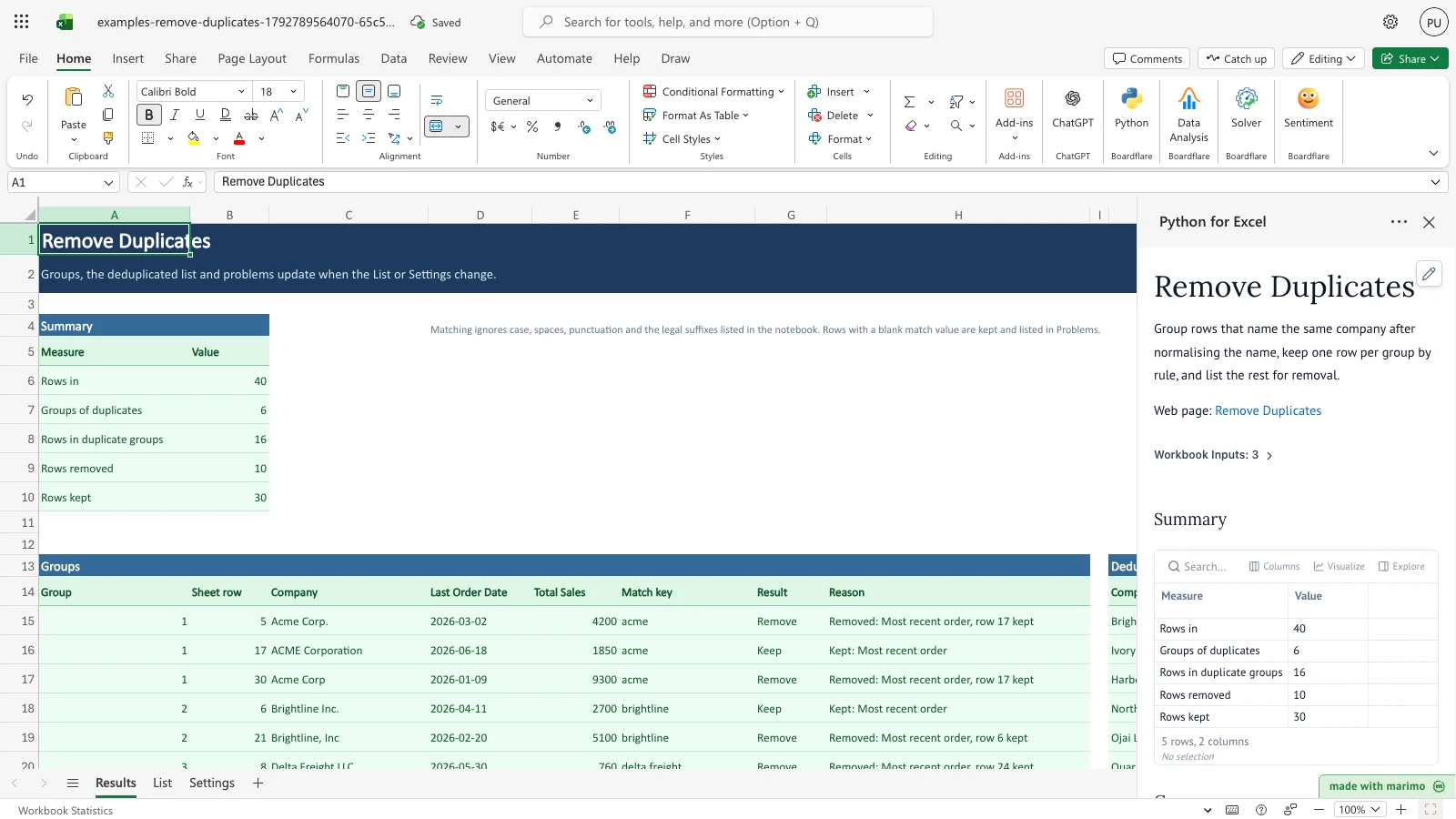
The Results sheet shows a summary, a view of every duplicate group with the row kept and the rows to remove, a copy of the list with the removed rows taken out, and a Problems list for rows or settings that need attention. The List sheet is not changed.
Before you start
- Requirements: Excel with the Boardflare add-in, which runs this template’s Python for Excel notebook. App mode is optional; see Saving, sharing and App mode. For installing and opening the add-in, see the Boardflare Notebook Reference.
- Data shape: one company per row on the List sheet. The header is in row 4 and data starts in row 5. The template reads columns A to H and up to 400 data rows (rows 5 to 404). Blank header columns are ignored. The match column defaults to Company. Last Order Date should hold Excel dates or text in the form YYYY-MM-DD. Total Sales should hold numbers.
- Sample data: the workbook includes 40 sample companies in List A4:E44 (the header in row 4 and sample rows 5 to 44). Settings starts with Match column set to Company and Keep rule set to Most recent order.
- Roles: the technical author maintains the Python source (the notebook), including the rules in its “Edit these rules” section. The workbook user pastes the list, sets the two values on Settings and reads the Results sheet. The workbook user does not need to change any Python.
Workbook tour
| Sheet | Range | What it holds | Type |
|---|---|---|---|
| Results | A4:B10 | Summary: Measure and Value for Rows in, Groups of duplicates, Rows in duplicate groups, Rows removed and Rows kept | Output |
| Results | A13:H414 | Groups: one line for each row that belongs to a duplicate group, in group order | Output |
| Results | J13:Q414 | Deduplicated: the rows that are kept, in sheet order, with the List columns | Output |
| Results | S13:T214 | Problems: the sheet row and reason for each row or setting that needs attention | Output |
| List | A4:E44 (table CustomerList) | The Customer List header and 40 sample rows | Editable input |
| List | A45:E404 and F5:H404 | Empty input cells for more rows and extra columns | Editable input |
| Settings | B6 | Match column | Editable input |
| Settings | B7 | Keep rule | Editable input |
| Settings | A9:A11 | The three keep rule names, Most recent order, Highest sales and First listed, as labels | Labels, not input |
| Settings | A4:B5 | The “Duplicate settings” heading and the Setting and Value header | Labels |
The Results sheet has a note in D4 that states the matching rule. Results is calculated from List and Settings, so change the inputs rather than the results. Boardflare also stores the notebook source in a hidden sheet named _BOARDFLARE. You do not need to open it.
Using the template
Review a company name change
- On List, select the Company cell you want to change. For example, change A7 from Ivory Stationers to Harbor Foods.
- Results is recalculated from List and Settings. If the new value’s match key equals the key of another row, those rows form a group, and the keep rule chooses one row to keep. A row whose key matches no other row is not grouped.
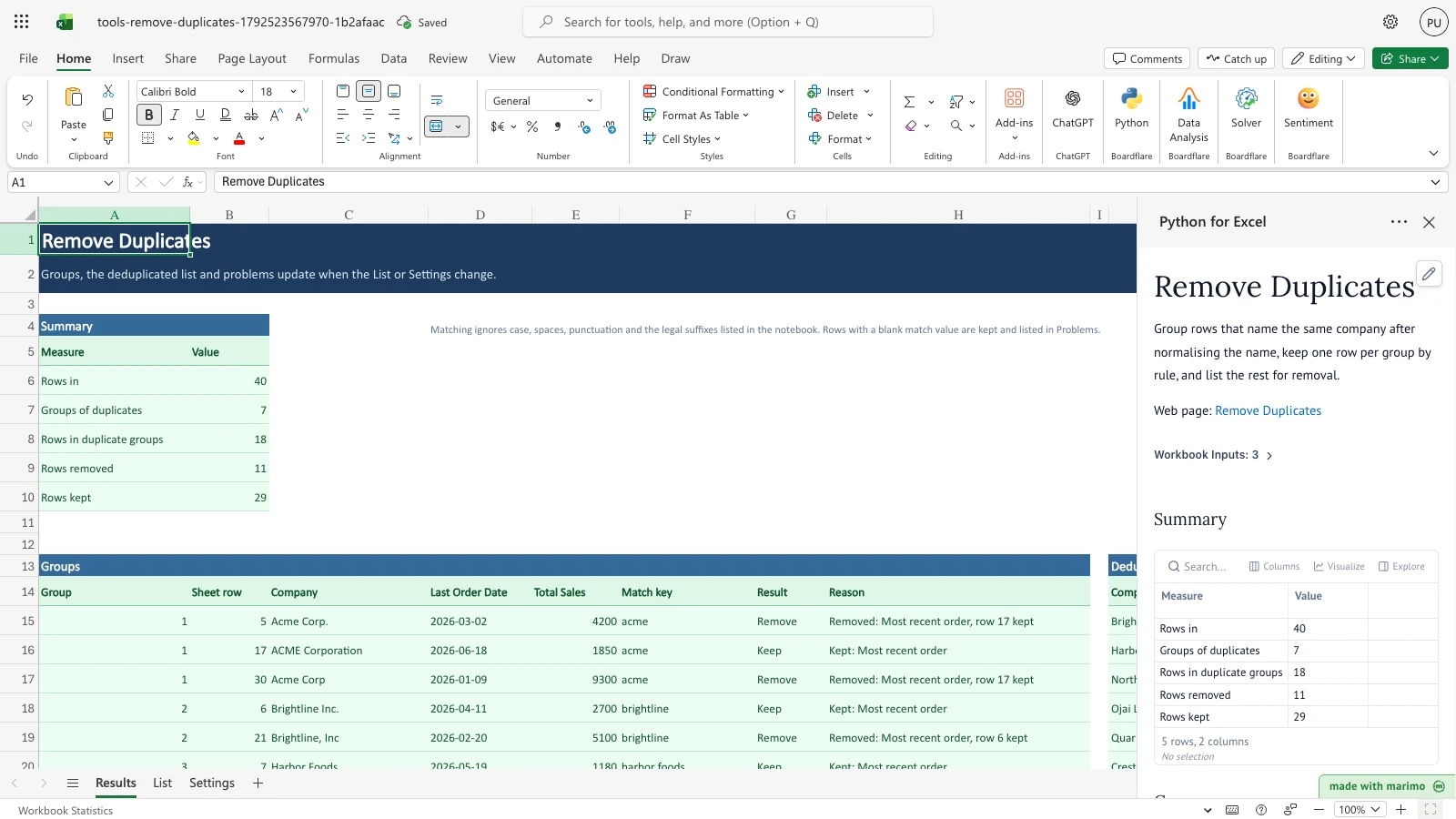
Step 2. Row 7 was changed to “Harbor Foods.” Its match key “harbor foods” now matches row 10, so the two rows form a group. Row 7 is kept under Most recent order because its Last Order Date (2026-05-19) is later than row 10’s (2026-01-22), and row 10 is removed.
Handle a blank company name
- On List, clear a Company cell, or enter only punctuation such as “…”.
- The row is kept, is not grouped with any other row and is listed in Problems. A cleared cell gives the reason “blank match value; row kept, not grouped”. Punctuation only, such as “…”, gives “match value empty after normalising; row kept, not grouped”.
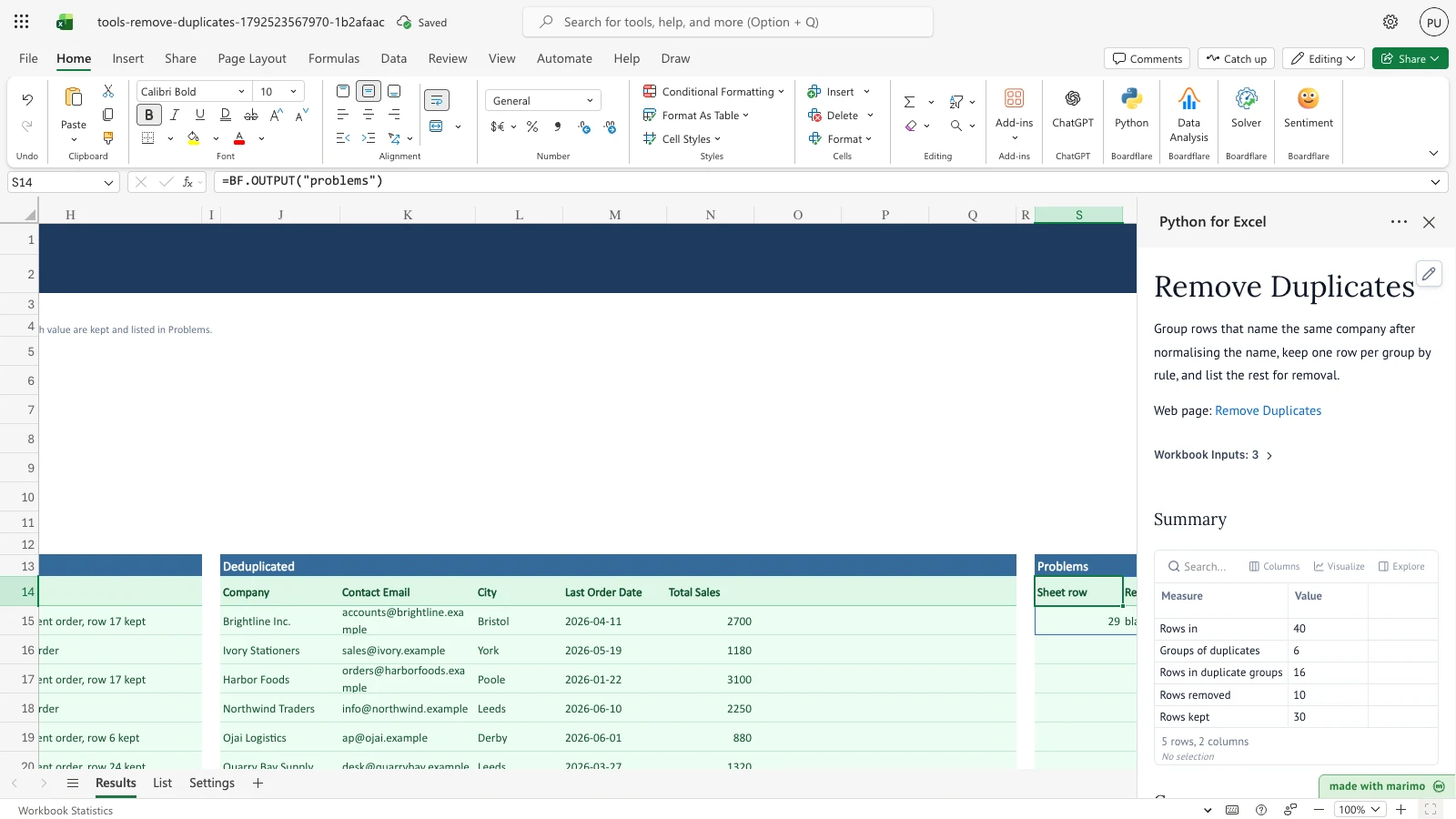
Step 3. The Company cell in row 29, originally Kestrel Tools, was cleared. The row is kept in Deduplicated and Problems reports it as a blank match value.
Choose the match column
- On Settings, select B6, labelled Match column.
- Type the header text of the column that names the company, for example Company. Letter case and spaces at the start or end do not matter.
- Only this column is compared. Contact Email and City are carried through to Deduplicated but are never compared.
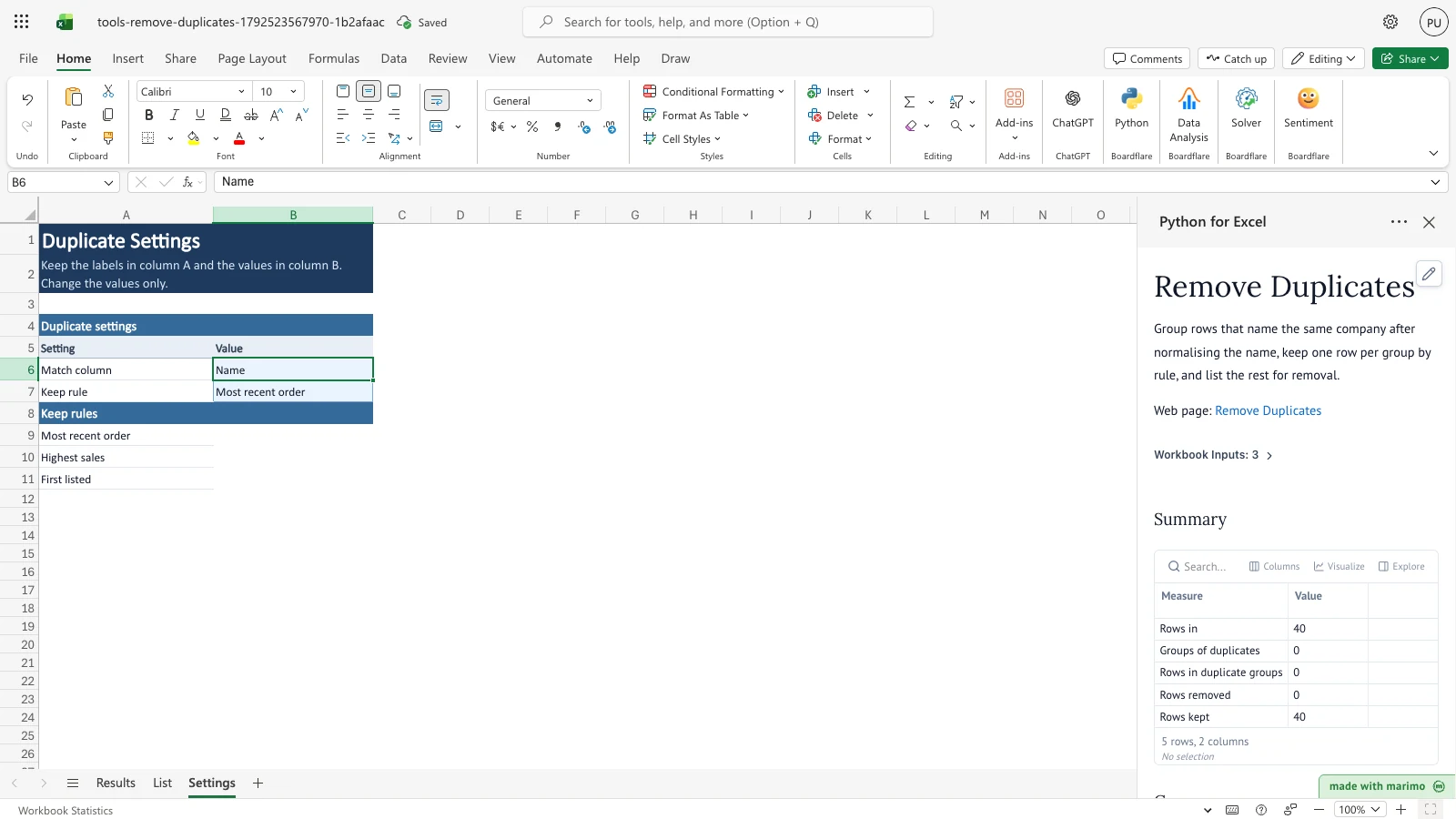
Step 4. Match column is set to Name, which is not a header in the List table. No groups form, every row is kept, and Problems gives the reason.
Choose the keep rule
- On Settings, select B7, labelled Keep rule.
- Type one of the three rule names: Most recent order (the default), Highest sales or First listed. Letter case and spaces at the start or end do not matter.
- The rule chooses one row to keep in each group. Every other row in the group is marked Remove.
Keep rule is set to Highest sales. Row 30 (Acme Corp, Total Sales 9300) is kept in the Acme group and the other members are marked Remove.
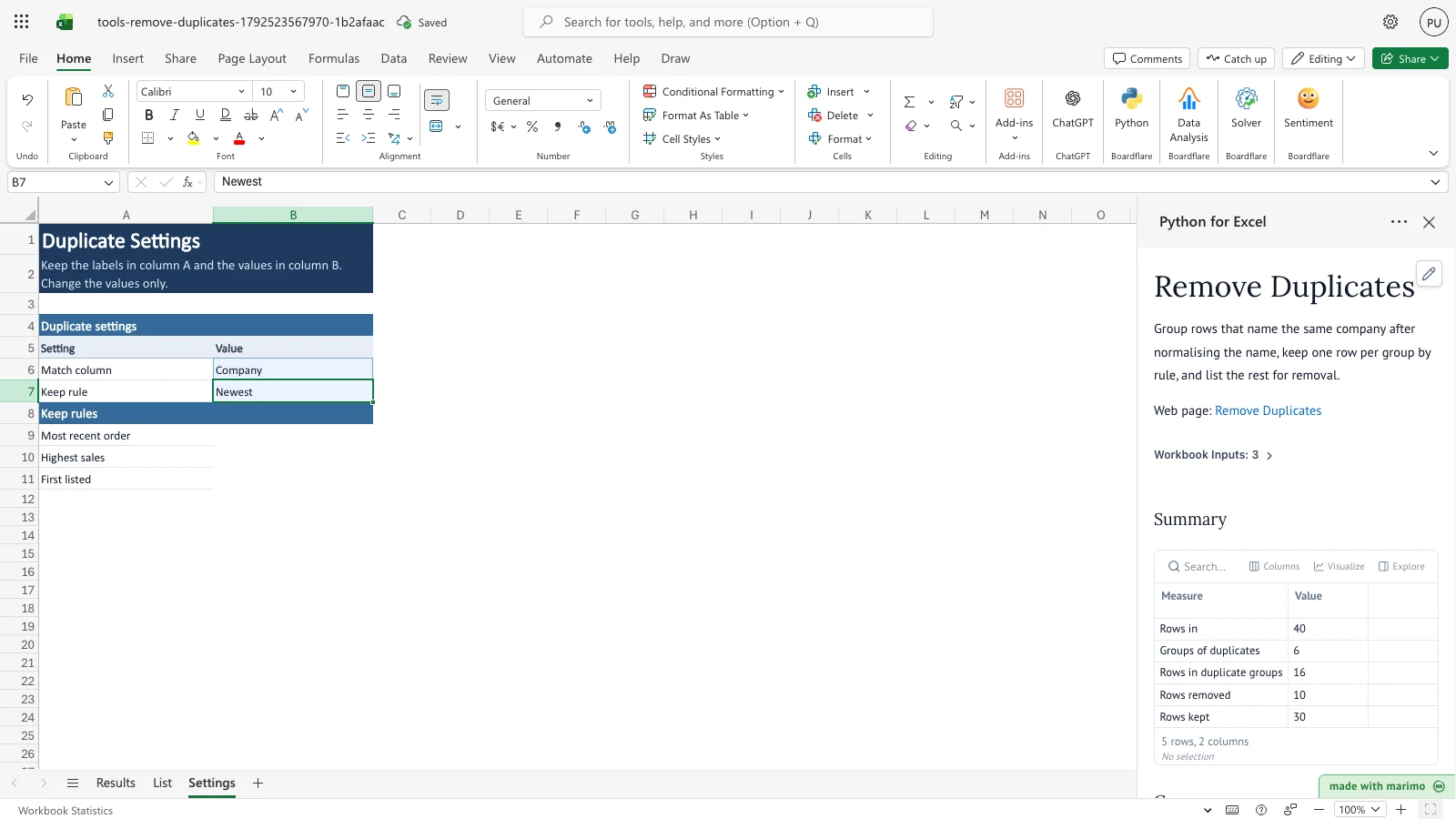
Step 5. Keep rule is set to Newest, which is not an accepted rule. Results use Most recent order, and Problems says so.
Use the cleaned list
- On Results, select the Deduplicated block from J14 to Q, including its header row.
- Copy the rows you need to a new sheet to use the cleaned list. The List sheet is unchanged, so the original rows remain available.
Inputs and settings
Inputs are the List table and the two cells on Settings. Only these three inputs drive the results.
List table
| Column | Read as | Effect |
|---|---|---|
| Company | Text | The default match column. Its values are compared when Match column is Company. In Groups, the Company column shows the value of the Match column for each row, whatever that column is. |
| Contact Email | Text | Carried through to Deduplicated. Not compared and not ranked. |
| City | Text | Carried through to Deduplicated. Not compared and not ranked. |
| Last Order Date | Excel date, or text in exactly YYYY-MM-DD form | Ranked by Most recent order. Other text, such as 03/02/2026, cannot be read and ranks last. |
| Total Sales | Number | Ranked by Highest sales. Text such as “2,200” cannot be read and ranks last. |
Any other column with a header in F to H is carried through to Deduplicated, and is not compared or ranked. Headers must be in row 4.
Match column
- Cell: Settings B6. Default: Company.
- Allowed values: the header text of any column in the List table. It is matched without regard to letter case, and spaces at the start and end are ignored.
- Effect: only this column’s values are normalised and compared. If the cell is blank or names no header, no rows are grouped and every row is kept. A Problems line explains why.
Keep rule
- Cell: Settings B7. Default: Most recent order.
- Allowed values: Most recent order, Highest sales or First listed. Letter case is ignored, and spaces at the start and end are ignored. Any other text, or a blank cell, uses Most recent order and adds a Problems line.
- Effect: each group keeps one row, chosen as described in How results are calculated.
| Rule | Keeps, in each group | Ranks by |
|---|---|---|
| Most recent order | the row with the latest Last Order Date | Last Order Date |
| Highest sales | the row with the largest Total Sales | Total Sales |
| First listed | the row with the lowest sheet row | Sheet row |
How results are calculated
How duplicates are identified
The template compares only the Match column. It builds a match key for each value in that column, in five steps:
- The value is converted to text, and every full stop is deleted. “L.L.C.” becomes “LLC”.
- Each run of spaces, punctuation (such as commas, hyphens, apostrophes and ampersands) or underscores becomes one space. Letters and digits are kept, including accented letters.
- The text is lower-cased and split into words at the spaces.
- Any word that exactly equals a legal word is dropped. The legal words are inc, llc, ltd, limited, corp, corporation, co, company, plc, llp and gmbh. Each word is checked on its own, anywhere in the value. “Inc Holdings” becomes “holdings”, but “Incorporated” is kept.
- The remaining words are joined with single spaces. The result is the match key.
Rows with the same match key form a group. The key is an exact comparison, so there is no fuzzy or spelling match. Examples:
| Match value | Match key | Result |
|---|---|---|
| Acme Corp. | acme | Grouped with “ACME Corporation” and “Acme Corp” (sample rows 5, 17 and 30) |
| DELTA FREIGHT, L.L.C. | delta freight | Grouped with “Delta Freight LLC” and “Delta Freight” (sample rows 24, 8 and 36) |
| Brightline, Inc | brightline | Grouped with “Brightline Inc.” (sample rows 21 and 6) |
| Fenwick & Co | fenwick | The ampersand becomes a space and “Co” is dropped. Any other value with the key “fenwick”, such as “Fenwick”, matches it |
| Inc Holdings | holdings | “Inc” is dropped wherever it appears. Any other value with the key “holdings”, such as “Holdings”, matches it |
| Co-op | op | The hyphen becomes a space, so “co” is dropped and the key is “op” |
| Acme.Corp | acmecorp | Not grouped with “Acme Corp”; the full stop is deleted, not turned into a space |
| Café Roma | café roma | Not grouped with “Cafe Roma”; accented letters are kept |
| Harbor Foods | harbor foods | Not grouped with “Harbour Foods” (key “harbour foods”) |
| Summit Labs | summit labs | Not grouped with “Summit Labs Services” (sample rows 40 and 41) |
| Inc. | (empty) | Kept, and listed in Problems as normalising to nothing |
Other rules for groups:
- A group is two or more rows with the same key. Groups are numbered from 1 in the order of their first sheet row. Members are listed in sheet-row order.
- A blank match value (an empty cell, spaces only, or an empty value) is kept, is not grouped and is listed in Problems.
- A match value that normalises to nothing, such as “Inc.” or “…”, is kept, is not grouped and is listed in Problems.
- A number in the match column is compared by its value and skips the steps above. So 1.5 and 15 are not grouped, and 10 and 10.0 are. Text keeps the steps above, so the text “1.5” still gives the key “15”.
- A row where every List column is blank is skipped and is not counted in Rows in.
How the keep rule chooses a row
- Most recent order keeps the row with the largest Last Order Date. A value is read if it is an Excel date or date-time, or text in exactly YYYY-MM-DD form that is a real calendar date. Text in another form, such as 03/02/2026, cannot be read.
- Highest sales keeps the row with the largest Total Sales. A value is read if it is a number. Text, including numbers stored as text, cannot be read.
- First listed keeps the row with the lowest sheet row. It does not read any column.
These rules apply to all rules:
- Each group keeps exactly one row. Every other row in the group is marked Remove.
- Blank rank values and values that cannot be read rank last. A readable value always wins over them.
- If no row in a group has a readable value, the lowest sheet row is kept.
- A tie goes to the lower sheet row.
- If the rank column is not in the List headers, rows are ranked by sheet row, and a Problems line says so.
Worked example, the Acme group in the sample data:
| Sheet row | Company | Last Order Date | Total Sales |
|---|---|---|---|
| 5 | Acme Corp. | 2026-03-02 | 4200 |
| 17 | ACME Corporation | 2026-06-18 | 1850 |
| 30 | Acme Corp | 2026-01-09 | 9300 |
Under Most recent order, row 17 is kept. Rows 5 and 30 are marked Remove with the reason “Removed: Most recent order, row 17 kept”. Under Highest sales, row 30 is kept, because 9300 is the largest Total Sales in the group.
Worked example, the whole sample: with Most recent order, the sample gives 6 groups, 16 rows in duplicate groups, 10 rows removed and 30 rows kept. Under Highest sales the counts are the same, but the rows kept in the six groups are 30 (Acme), 21 (Brightline), 36 (Delta Freight), 27 (Crestview Partners), 34 (Ojai Logistics) and 13 (Pinecrest Medical, with Total Sales 2100 against 500 for row 39).
Reading the results
The Results sheet has four blocks. They all recalculate when List or Settings changes.
Summary (Results A4:B10)
| Measure | Meaning |
|---|---|
| Rows in | Rows in List that have at least one value. Completely blank rows are not counted. |
| Groups of duplicates | Groups that have two or more rows. |
| Rows in duplicate groups | Rows that belong to a group. This includes the row kept in each group. |
| Rows removed | Rows marked Remove. |
| Rows kept | Rows that are not removed. This includes rows that are in no group and rows with a blank or unusable match value. Rows in equals Rows kept plus Rows removed. |
With the sample data and Most recent order, the values are 40, 6, 16, 10 and 30.
Groups (Results A13:H414)
| Column | Meaning |
|---|---|
| Group | The group number, in order of the first sheet row in each group. |
| Sheet row | The row number on List. |
| Company | The value of the Match column for this row. The heading stays Company whatever the match column is. |
| Last Order Date | The date as text in YYYY-MM-DD form. Blank if the cell is empty or the column is not a header. |
| Total Sales | The value as a number. Blank if the cell is empty or the column is not a header. |
| Match key | The key the row was matched on, from the steps in How duplicates are identified. |
| Result | Keep or Remove. |
| Reason | “Kept:” followed by the rule name, or “Removed:” followed by the rule name and the sheet row that was kept, for example “Removed: Highest sales, row 30 kept”. |
Groups lists only rows that are in a duplicate group. Rows that are not in a group appear only in Deduplicated.
Deduplicated (Results J13:Q414)
The rows that are kept, in sheet order. The headers are the List headers, with blank headers left out, up to eight columns. Dates appear as YYYY-MM-DD text and numbers appear as numbers. Rows that are in no group are included.
Problems (Results S13:T214)
| Column | Meaning |
|---|---|
| Sheet row | The List row the problem applies to. Blank for a problem with a setting. |
| Reason | The message. Each message is explained in Errors, empty states and limits. |
Problems are listed in the order the template checks them. The list holds up to 200 lines. When there are more than 200 problems, the first 199 are shown and the last line gives the number of problems not shown.
What to check if a value looks wrong
- Check the Match key in Groups. Unexpected matches usually come from a shared legal word, from punctuation that becomes a space, or from a full stop that is removed.
- Check Problems for the row. A row with a blank or unusable match value is kept and is not grouped.
- Check that Last Order Date holds real dates, not text in another format.
- Check that Total Sales holds numbers, not text.
- Check the spelling of the Match column and Keep rule cells on Settings.
Saving, sharing and App mode
- Saved with the workbook: the values in List and Settings, the notebook source, the opening mode preference (Open as: Edit or Open as: App), and the last calculated values on Results.
- Recalculated when the workbook opens: the notebook starts again from its saved source and publishes the Results outputs. Until it does, Results shows
#BUSY!. - Recipients without Boardflare: they see the last saved values. If the sheet recalculates without the add-in, Results shows
#NAME?until the add-in is enabled. - What users can change: the values in List and Settings. The rules in the notebook are edited in Edit mode, as described in Customizing as an author.
- App mode and the notebook: how Edit and App mode work, and how the add-in saves and recovers, is in the Boardflare Notebook Reference.
Errors, empty states and limits
Messages
Each message appears in the Reason column of Problems. The Sheet row column is blank for the first four messages, which describe settings rather than List rows.
| Message | Cause | Fix |
|---|---|---|
| Keep rule ‘text’ is not an accepted rule; Most recent order used. | Settings B7 holds text that is not one of the three rule names. The typed text appears in the message. | Type Most recent order, Highest sales or First listed in B7. |
| Keep rule is blank; Most recent order used. | Settings B7 is empty. | Type one of the three rule names in B7. |
| Column ‘name’ for keep rule ‘rule’ is not a header; rows ranked by sheet row. | The rank column for the chosen rule, Last Order Date or Total Sales, is not a header in List. The lowest sheet row is kept in each group. | Restore the header, spelled as shown. |
| Match column ‘name’ is not a header in the List table; no rows grouped, every row kept. | Settings B6 is blank or names no header in List. The name is empty when B6 is blank. | Type the exact header of the column to compare in B6. |
| blank match value; row kept, not grouped | The match cell is empty or holds only spaces. | Enter the company name, or accept that the row stays ungrouped. |
| match value empty after normalising; row kept, not grouped | The match value has no words left after the steps in How duplicates are identified, for example “Inc.” or “…”. | Enter a company name that has a word other than a legal word. |
| last order date not readable; ranked last | A row in a duplicate group has a Last Order Date that is not a date or YYYY-MM-DD text. | Enter the date as an Excel date or as YYYY-MM-DD text. |
| total sales not readable; ranked last | A row in a duplicate group has a Total Sales that is not a number. | Enter the value as a number. |
| N more problems not shown | More than 200 problems were found, so the list shows 199 and this line gives the number left out. | Fix the problems listed first, then check again. |
Empty states
- No data in List: Summary shows 0 for each measure, Groups and Deduplicated show only their headers, and Problems shows only its header.
- Results before the notebook has run: Results shows
#BUSY!.
Hard limits
- Rows: 400 data rows, from List row 5 to row 404. Rows below row 404 are not read. The notebook does not check whether the list is longer and adds no Problems line for the extra rows.
- Columns: eight columns, A to H. Columns from I onwards are not read.
- Matching: one match column, and one keep rule for all groups.
Limitations and when to use this
Use this template when the same company appears in a list with different capitalisation, punctuation, spacing or legal suffixes, and you want one row per company and a record of what was removed.
It is not the right tool for:
- Spelling variants and typos. Matching is exact on the match key, so “Harbor Foods” and “Harbour Foods” stay separate. For near matches, use fuzzy matching.
- Matching on more than one column, such as company and city together. Only one match column is compared.
- Deleting rows. The template lists the rows to remove and writes a copy of the kept rows. It does not change or delete rows in List.
- Lists longer than 400 data rows.
- Choosing a different keep rule for each group. One keep rule applies to all groups.
Developer reference
Notebook implementation
bf.inputs(...) reads three inputs: the List table as rows (List!A4:H404, with headers in row 4), the match column from Settings!B6 as match_col, and the keep rule from Settings!B7 as keep_rule. The range is fixed at 400 data rows and 8 columns to stay within the add-in’s snapshot limit.
The # --- Edit these rules --- section holds LEGAL_WORDS, the words removed from a match value, and KEEP_RULES, which maps each rule name to the column it ranks by and its winning direction. DEFAULT_RULE, used when the keep rule is blank or not accepted, is set in the calculation cell.
The calculation cell builds a match key for each row, groups rows that share a key, chooses one row to keep in each group, and collects the problems it finds. Problems are capped at 200 lines. The results are published with bf.publish(...) to the summary, groups, deduplicated and problems outputs.
How the calculation/model works
This is deterministic grouping, not a statistical model. A match key is the match value with full stops deleted, punctuation and underscores turned into spaces, lower-cased, and legal words removed. Rows with the same key form a group. Within a group, the keep rule’s rank picks the keeper: the latest readable Last Order Date under Most recent order, the largest readable Total Sales under Highest sales, or the lowest sheet row under First listed. Blank or unreadable rank values lose to readable ones, and when no row in a group has a readable value, the lowest sheet row is kept.
Read a group as one company. A Remove row is a row the template suggests deleting, and nothing in List changes. Summary counts come from the groups: Rows removed is the number of Remove rows across all groups, and Rows kept is the number of rows that are not removed.
Validation / expected results
| Check | Expected outcome |
|---|---|
| Sample data, Most recent order | Rows in 40, Groups of duplicates 6, Rows in duplicate groups 16, Rows removed 10, Rows kept 30 |
| Sample data, Highest sales | The same counts; the Acme group keeps row 30 |
| Change List A7 to Harbor Foods | Rows 7 and 10 form a group; row 7 is kept under Most recent order and row 10 is removed |
| Clear the Company cell in row 29 | Row 29 is kept, is not grouped, and Problems reports a blank match value |
| Match column set to Name | No groups form, every row is kept, and Problems reports that Name is not a header |
| Keep rule set to Newest | Most recent order is used, and Problems reports that the rule is not accepted |
Changelog
2026-10-23
- Documentation review and remediation: corrected developer reference heading hierarchy to H3/H4, verified markdown table escaping, and refreshed generated artifacts.
2026-10-21 (#137)
- Fixed: numbers in the match column are compared by value, so 1.5 and 15 are no longer grouped as duplicates.
2026-10-20 (#18)
- Added Remove Duplicates: groups matching company names, keeps one row per group by rule and lists the rows removed.