Reshape Data
Overview
Reshape Data changes the layout of a table without retyping it. It can turn month columns into rows, turn one row per measurement into a grid with one column per name, or split a list stored in one cell into separate columns or rows. Every row it cannot reshape cleanly is listed on the Problems sheet, so one bad value does not quietly shift the rows around it.
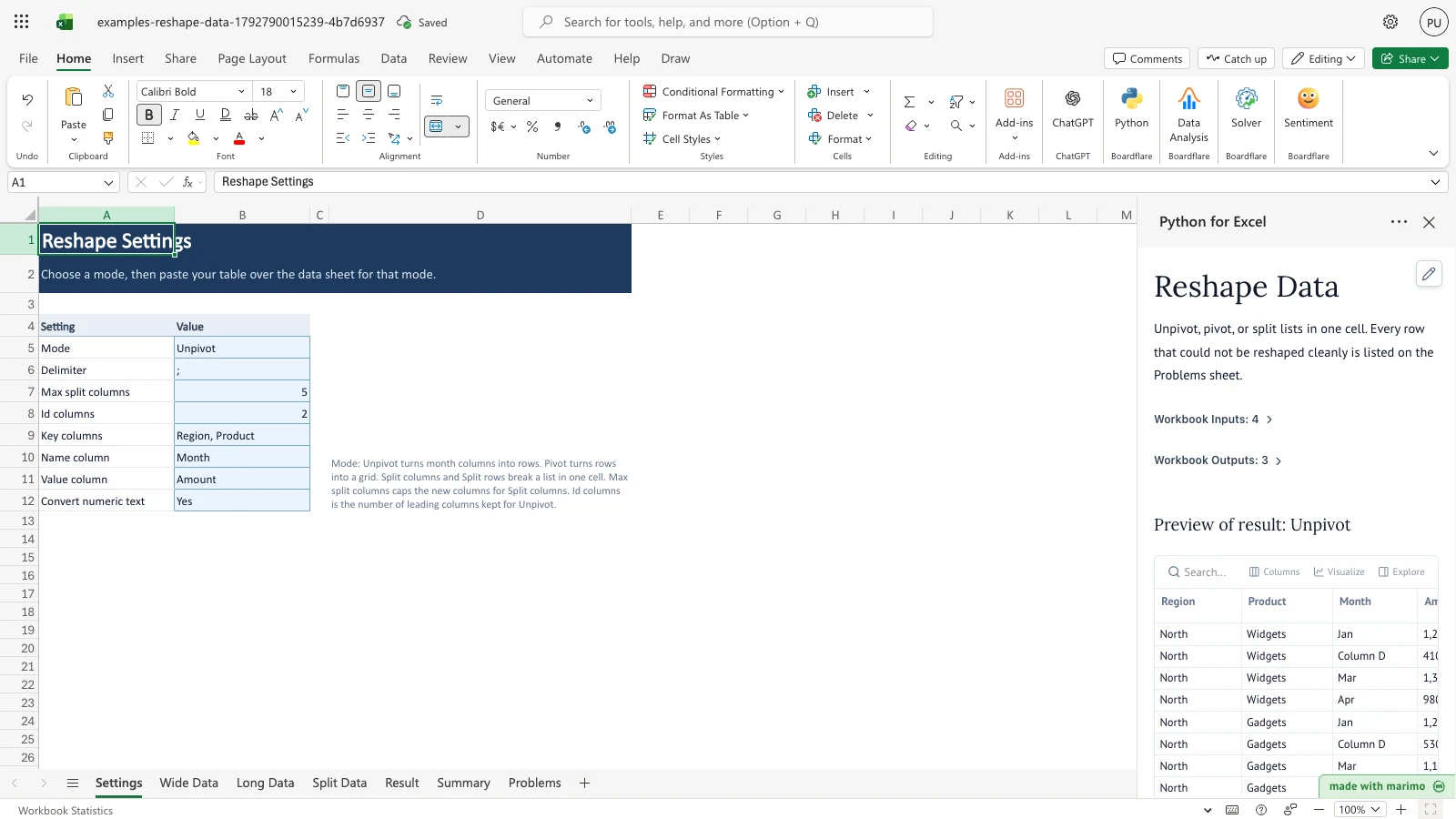
The workbook opens in Unpivot mode on the Wide Data sample. The Result sheet shows 48 rows built from the 12 sample rows, and the Summary and Problems sheets show what needed attention: one blank header and one amount that is not a number.
Before you start
- Requirements: Excel with Python for Excel. This template has no sign-in and no App mode settings of its own. For running the workbook as an app, see the Boardflare Notebook Reference.
- Data shape: Each mode reads one data sheet. The headers sit in row 4 and the data starts in row 5 of that sheet.
- Wide Data (Unpivot):
A4:F204, with id columns on the left and one column per month after them. The sample has six columns and 12 rows. - Long Data (Pivot):
A4:D504, with one row per measurement and four columns: Region, Product, Month, and Amount. - Split Data (Split columns and Split rows):
A4:C504, with the list in the last column, Tags.
- Wide Data (Unpivot):
- Sample data: All three data sheets hold sample data. Wide Data includes a blank header in column D on purpose, and an “n/a” amount. Long Data includes two repeated keys, which Pivot reports. Split Data includes a blank list cell and a list with an empty piece.
- Roles: The technical author maintains the Python source of the notebook. The workbook user chooses a mode, pastes the data, and reads the results. The user does not need to change any Python.
Workbook tour
| Sheet | What it holds | Editable |
|---|---|---|
| Settings | Setting and Value columns in A4:B12. Values are in B5:B12. A note in D4:D12 describes the modes. |
Yes, the values in B5:B12 |
| Wide Data | The data area A4:F204, with headers in row 4 and the sample rows from row 5. It is not an Excel table. Read in Unpivot mode. |
Yes |
| Long Data | Table LongData holds the sample rows at A4:D42. The data area is read down to row 504. Read in Pivot mode. |
Yes |
| Split Data | Table SplitData holds the sample rows at A4:C14. The data area is read down to row 504. Read in both split modes. |
Yes |
| Result | The reshaped table, with headers in row 5 and up to 500 rows and 12 columns. | No, output only |
| Summary | A Check and Count table, with checks from row 6 to row 17. | No, output only |
| Problems | A Sheet row, Column, Value, and Reason table, with up to 500 rows. | No, output only |
The Result, Summary, and Problems sheets are written each time the notebook runs. Do not type over them.
Using the template
Choose a mode
- On Settings, select a value for Mode in cell
B5. The drop-down offers Unpivot, Pivot, Split columns, and Split rows. - Paste your table over the data sheet for that mode, keeping the headers in row 4. Use Wide Data for Unpivot, Long Data for Pivot, and Split Data for Split columns or Split rows.
- Read the Result, Summary, and Problems sheets. The task pane shows a preview of the first 10 rows of the Result.
The sample in the workbook is already set to Unpivot. Setting Mode to Pivot switches the Result to the grid built from Long Data. The task pane preview updates with it.
Unpivot month columns
Use Unpivot when the months run across the columns of Wide Data.
- Keep Mode on Unpivot.
- Paste the table into Wide Data from
A4. Put the id columns on the left, then one column per month. - Read the Result. Each input row becomes one output row per month column. The id columns are kept, the month column’s header is written in the Month column, and its value is written in the Amount column.
A blank value cell gives a row with a blank Amount, as it appears in the source. A number stored as text, such as “1,240”, is converted to a number while Convert numeric text is Yes. A text value that is not a number, such as “n/a”, is kept as text and listed on Problems.
Pivot rows into a grid
Use Pivot when Long Data has one row per measurement, and you want one column per name.
- Set Mode to Pivot.
- Paste the table into Long Data from
A4. The headers must include the Key columns, the Name column, and the Value column from Settings. By default these are Region, Product, Month, and Amount. - Read the Result. Each distinct combination of key values becomes one row. Each distinct Name value becomes one column, in the order it first appears in the data.
If the same key and name appear more than once, the first row is kept and later rows are excluded. They are listed on Problems. Duplicate rows are never added together.
Split a list into columns or rows
Use Split columns or Split rows when a cell in Split Data holds a list, such as “red; blue; green”.
- Set Mode to Split columns or Split rows.
- Paste the table into Split Data from
A4, with the list in the last column, Tags. - For Split columns, the Result gets one column per piece, named with the list header and a number, such as Tags 1 and Tags 2. Rows with fewer pieces are padded with blank cells. A list with more pieces than Max split columns keeps its first pieces, and the rest is joined into the last column.
- For Split rows, the Result gets one row per piece. The other columns repeat on each row. A blank list cell gives one row with a blank piece.
Turn off numeric conversion
Set Convert numeric text in B12 to No when the numbers in your table must stay exactly as they are. Numbers stored as text stay text, and no text value is listed on Problems as “not a number”. This setting applies to Unpivot and Pivot. Split columns and Split rows never convert numbers.
Cap the split columns
Use Max split columns to limit how many columns a Split columns result can add.
- Set Mode to Split columns.
- Set Max split columns in
B7to a whole number from 1 to 50. The default is 5. - Read the Result and Problems. Any list with more pieces than the cap keeps its first pieces, and the rest is joined into the last column with the delimiter and a space.
Inputs and settings
Every value on Settings is read by the label in column A. Change the value in column B and leave the label as it is.
| Setting | Cell | Allowed values | Default | Used by | Effect |
|---|---|---|---|---|---|
| Mode | B5 |
Unpivot, Pivot, Split columns, Split rows | Unpivot | All modes | Chooses the data sheet and the reshaping rule. Any other value is reported on Problems, and Unpivot is used. |
| Delimiter | B6 |
Any text | ; |
Split columns, Split rows | Separates the pieces of a list. Pieces are trimmed of spaces. A blank value uses ;. |
| Max split columns | B7 |
Whole number from 1 to 50 | 5 | Split columns | The most columns a list can add. Extra pieces are joined into the last column. |
| Id columns | B8 |
Whole number from 0 to 50 | 2 | Unpivot | The number of leading columns of Wide Data kept as they are. Every column after them is treated as a month. |
| Key columns | B9 |
Comma-separated header names | Region, Product | Pivot | The columns that identify one row of the grid. Each name must be a header in Long Data. |
| Name column | B10 |
Header text | Month | Unpivot, Pivot | In Pivot, the Long Data header whose values become the grid columns. In Unpivot, the header of the output column that holds the old month headers. |
| Value column | B11 |
Header text | Amount | Unpivot, Pivot | In Pivot, the Long Data header that holds the values. In Unpivot, the header of the output column that holds the values. |
| Convert numeric text | B12 |
Yes or No | Yes | Unpivot, Pivot | When Yes, text such as “1,240” or “$850” is converted to a number. When No, values are kept as they are. |
Changing the Name column or Value column in Unpivot also changes the header of the output column. The Name and Value columns must differ from each other and from the id headers. If they do not, the template uses Month and Amount and lists the change on Problems.
Editable data columns
- Wide Data: The id columns (Region and Product in the sample) and one column per month. Headers are read from row 4. The sample header in column D is blank on purpose.
- Long Data: Region, Product, Month, and Amount. For Pivot, the key columns, the Name column, and the Value column must each match a header here.
- Split Data: Id, Name, and Tags. Tags must be the last column, and it holds the list.
How results are calculated
The rules run in this order.
- The Mode chooses the data sheet: Wide Data for Unpivot, Long Data for Pivot, and Split Data for both split modes.
- Settings are checked. A value that is blank or not allowed is replaced with its default, and a line is added to Problems.
- Headers are cleaned. A blank header is named Column followed by its letter, such as Column D. A repeated header gets its column letter added, such as “Jan (F)”.
- Rows that are entirely blank are skipped. A cell that holds nothing,
-, orNAis treated as blank. The text “n/a” is not blank. - Each value is read. In Unpivot and Pivot, with Convert numeric text set to Yes, a currency symbol ($, €, £, or ¥) is removed. Brackets mean a negative number, so “(75)” becomes -75. Commas or spaces count as thousands separators only in complete groups of three digits, so “1,240” becomes 1240 but “2,5” stays text. Dates and times are kept as text.
- The rows are reshaped by the Mode. Unpivot writes one row per month column. Pivot writes one row per key and one column per name. The split modes write one column or one row per piece.
- The Result is cut to 500 rows and 12 columns, and the Summary counts anything cut off.
Worked example
The sample Wide Data row for North and Bolts is:
| Region | Product | Jan | (blank) | Mar | Apr |
|---|---|---|---|---|---|
| North | Bolts | 300 | 150 | 320 | (75) |
Unpivot writes four rows for it. The Apr row is:
| Region | Product | Month | Amount |
|---|---|---|---|
| North | Bolts | Apr | -75 |
The “(75)” is converted to -75 because Convert numeric text is Yes. The blank header column gives rows whose Month is “Column D”. Across the whole sample, the Summary reads 12 rows read, 48 rows in the result, 4 numbers converted (1,240, “$850”, 1200, and (75)), 1 value left as text (“n/a”), and 1 blank header named.
Reading the results
Result
- Unpivot: The id columns (Region and Product by default), then Month and Amount. Month holds the old column headers, and Amount holds the value.
- Pivot: The key columns (Region and Product by default), then one column per Month value. A combination with no value for a month is blank. In the sample, North and Widgets for Jan is 1200, and for Jun it is 1350.
- Split columns: The other columns, then Tags 1 to Tags N, where N is the widest row up to the Max split columns cap.
- Split rows: The other columns, with one row per piece of the list. Tags holds the piece.
The task pane preview shows the first 10 rows of the Result. The preview can show NaN where a list has no piece for a column, so check the Result sheet for the exact cell.
Summary
The Summary sheet has a Check and Count column. Each row counts one thing:
| Check | What it counts |
|---|---|
| Rows read | Rows from the data sheet that are not entirely blank. |
| Rows in result | Rows written to the Result sheet. |
| Numeric text converted | Values changed from text to a number. |
| Unparseable numbers left as text | Values that could not be read as a number and were kept as text. |
| Blank headers named | Headers that were blank and were given a name such as Column D. |
| Duplicate keys excluded | Later rows excluded in Pivot because their key and name already appeared. |
| Ragged rows padded | Split columns rows that had fewer pieces than the widest row and were padded with blanks. |
| Pieces past the cap joined | Lists with more pieces than Max split columns, joined into the last column. |
| Empty pieces dropped | Pieces that were blank, such as two delimiters with nothing between them, or a delimiter at the start or end of a list. |
| Result rows past the spill limit | Rows past 500 that were not written. |
| Result columns past the spill limit | Columns past 12 that were not written. |
| Problems past the spill limit | Problems past 500 that were not listed. |
Problems
The Problems sheet has four columns: Sheet row, Column, Value, and Reason. The Sheet row is the row on the data sheet, or the word Settings or Result when the problem is not in a data row. The Column is a column letter, except in Pivot, where it is the column name.
| Reason | What it means | What to do |
|---|---|---|
| Not a number: left as text | The value could not be read as a number, such as “n/a”. | Correct the value on the data sheet, or accept the text. |
| Blank header named Column D | A header in the data sheet is blank. | Add a header name on the data sheet. |
| Duplicate header named Jan (F) | A header repeats an earlier header. | Rename one of the headers. |
| Duplicate key: excluded, first row kept | In Pivot, a key and name appear more than once. | Remove the later row, or change its key or name. |
| Empty piece dropped | A list has a blank piece, such as two delimiters with nothing between them, or a delimiter at the start or end. | Remove the extra delimiter if it was a mistake. |
| More than 3 pieces: rest joined into last column | A list has more pieces than Max split columns. | Raise Max split columns, up to 50, or accept the joined piece. |
| Column not found in Long Data | A key, Name, or Value column name in Settings is not a header in Long Data. | Correct the name in Settings or the header in Long Data. |
| Duplicate output header renamed Month (2) | Two output columns would have the same name. | Rename the source header or the Name column. |
| Mode is blank: used Unpivot, or Mode … is not one of …: used Unpivot | The Mode value is blank or not one of the four modes. | Choose a Mode from the drop-down. |
| … is blank: used the default, or … must be a whole number from … to …: used the default | A Settings value is blank or outside its allowed range, so its default is used. | Enter a value that is allowed for that setting. |
| Id columns N is more than the data has: used K | Id columns is larger than the number of columns in Wide Data. | Lower Id columns to the number of id columns in the table. |
| Convert numeric text must be Yes or No: used Yes. | The Convert numeric text value is neither Yes nor No. | Choose Yes or No from the drop-down. |
| Key columns has no names: used Region, Product. | The Key columns value has no header names in it, such as a value that is only commas. | Enter the Long Data header names, separated by commas. |
| Setting … was not found: used … | A Settings label in column A is missing or changed, so its value cannot be read. | Restore the label in column A and keep the value in column B. |
| Name and Value columns must differ from each other and from the id headers: used Month and Amount | The Name or Value column repeats an id header. | Choose different names for the Name and Value columns. |
| Past the spill limit | The Result or Problems list is longer than the sheet holds. | Split the data into smaller tables. |
What to check if a value looks wrong
- Read the Problems sheet first. A value that was left as text, or a duplicate that was excluded, is listed there.
- If a number is missing its conversion, check that Convert numeric text is Yes.
- If the columns are not what you expected, check the Mode and that the data sheet for that mode has its headers in row 4.
- If a month or name is missing from a Pivot grid, check that it appears in Long Data within the first 500 rows.
Saving, sharing and App mode
- What is saved: The Settings values and the data on Wide Data, Long Data, and Split Data are saved with the workbook. The workbook runs the notebook when it opens, so the Result, Summary, and Problems sheets are rebuilt from the saved inputs.
- Per-user state: The template keeps no per-user data. Everyone who opens the workbook sees the same inputs and the same results.
- App mode: This template has no App mode settings of its own. App mode changes presentation rather than permissions, source access, or workbook trust. The same Settings and data sheets are used in either case.
For saving, recovery, and App mode behavior that applies to every Boardflare template, see the Boardflare Notebook Reference.
Errors, empty states and limits
Empty states
- If the data sheet for the chosen mode has no rows, the Result sheet shows headers only, and the Summary reports zero rows read.
- Pivot with a Key column, Name column, or Value column that is not a header in Long Data leaves the Result with the key headers only, and Problems lists the missing column names. A blank Key columns value uses Region, Product.
Messages
The messages a user can see are listed under Problems above, with their cause and fix. The Settings messages use the default for the setting, and the Result continues to run.
Limits
- Wide Data: Reads
A4:F204, which is up to 200 data rows and 6 columns. Columns after F and rows after row 204 are not read. - Long Data: Reads
A4:D504, which is up to 500 data rows and 4 columns. - Split Data: Reads
A4:C504, which is up to 500 data rows and 3 columns. The list must be in column C. - Result: Up to 500 rows and 12 columns. Anything past that is not written, and the Summary counts it.
- Problems: Up to 500 entries.
- Max split columns: 1 to 50. Id columns: 0 to 50.
- Dates and times are kept as text and are not parsed.
Limitations and when to use this
- No aggregation. Duplicate keys are reported and excluded in Pivot. They are never summed or averaged.
- No date parsing. Dates and times pass through as text.
- One list column and one id block per run. The list must be the last column of Split Data, and the id columns must be the leftmost columns of Wide Data.
- Four modes only. A job that needs other transformations belongs in a different template.
- Not for cleaning or combining files. Standardize values, stack several exports, or remove duplicate rows.
Developer reference
Notebook implementation
The notebook reads four ranges from the workbook. Settings is read with its headers, so the labels in column A select each value. The three data sheets are read with their headers in row 4.
inputs = bf.inputs(
    settings=bf.ref("Settings!A4:B12", headers=True),
    wide=bf.ref("Wide Data!A4:F204", headers=True),
    long=bf.ref("Long Data!A4:D504", headers=True),
    split=bf.ref("Split Data!A4:C504", headers=True),
)_build_settingsturns the Settings pairs into acfgdictionary and a list of messages. Each invalid value falls back to its default, and the message is added to the Problems list.clean_tablenames blank and repeated headers and drops fully blank rows.parse_valuereturns a status for each value: blank, converted, unparsed, or kept.- One function per mode does the reshape:
unpivot_mode,pivot_mode,split_columns_mode, andsplit_rows_mode. The data source is chosen from the Mode. - After the reshape, the headers are made unique, the Result is cut to
SPILL_ROWS(500) rows andSPILL_COLUMNS(12) columns, and the Summary and Problems tables are built. - The publish step sends the three outputs:
publication = bf.publish(outputs={"result": result, "summary": summary, "problems": problems_table})- The last cell draws the task pane preview from the first 10 rows of
result. It does not change the outputs. - The rules that differ by business sit in the marked
# --- Edit these rules ---cell:BLANK_MARKERS,CURRENCY_SYMBOLS, andBLANK_HEADER_PREFIX.
How the calculation/model works
The template is a deterministic reshape with a report, not a statistical model.
- Unpivot keeps
id_count = min(Id columns, columns - 1)leading columns. Each remaining column becomes one output row per input row, with the header as the name and the parsed value. - Pivot builds a key from the trimmed key values and a label from the Name value. The first row for each (key, label) pair is kept. Labels are collected in first-seen order, and missing cells are
None. - Split columns splits each list cell on the delimiter. The width is the largest number of pieces, after the cap is applied. Shorter rows are padded. Headers are the list header followed by a number.
- Split rows writes one row per piece. A blank list cell gives one row with
Nonein the list column. - Summary counts the events from each step. Each Problems row records one event with its sheet row, column, value, and reason.
Validation / expected results
Baseline, with the shipped workbook in Unpivot mode:
| Check | Expected outcome |
|---|---|
| Rows read | 12 |
| Rows in result | 48 |
| Numeric text converted | 4 |
| Unparseable numbers left as text | 1 |
| Blank headers named | 1 |
| Result, North, Widgets, Jan, Amount | 1200 |
| Result, West, Bolts, Apr, Amount | 175 |
| Problems, first entry | Sheet row 4, column D, blank header named Column D |
| Problems, second entry | Sheet row 13, column C, value “n/a” left as text |
Scenario outcomes, each run from the baseline with one setting changed:
| Setting changed | Expected outcome |
|---|---|
| Mode set to Pivot | 6 rows in the result. 2 numbers converted and 1 value left as text. 2 duplicate keys excluded. The last Result column is Jun, and North, Widgets, Jun is 1350. The Problems list includes sheet rows 30, 41, and 42. |
| Convert numeric text set to No | 48 rows in the result. No numbers converted, and no unparseable numbers listed. 1 blank header named. |
| Mode set to Split columns and Max split columns set to 3 | 10 rows in the result. 2 pieces past the cap joined, and 1 empty piece dropped. The Result has Tags 1 and Tags 3 as its first and last list columns. |
Changelog
2026-10-23
- Standards audit: fixed Developer reference heading levels, verified table formatting, and refreshed release artifacts.
2026-10-22 (#143)
- Corrected the sheet table descriptions to match the workbook, the Pivot message for a missing key column, the empty piece wording on Summary and Problems, and the Settings messages on Problems.
2026-10-21
- Guide rewritten for the user-guide layout (Issue #143). It now describes each mode, every Settings value, each data sheet, the Problems messages, and a worked example.
2026-10-19
- Initial release with Unpivot, Pivot, Split columns, and Split rows, and a Summary and Problems report.