Sales Scenario Analysis
Overview
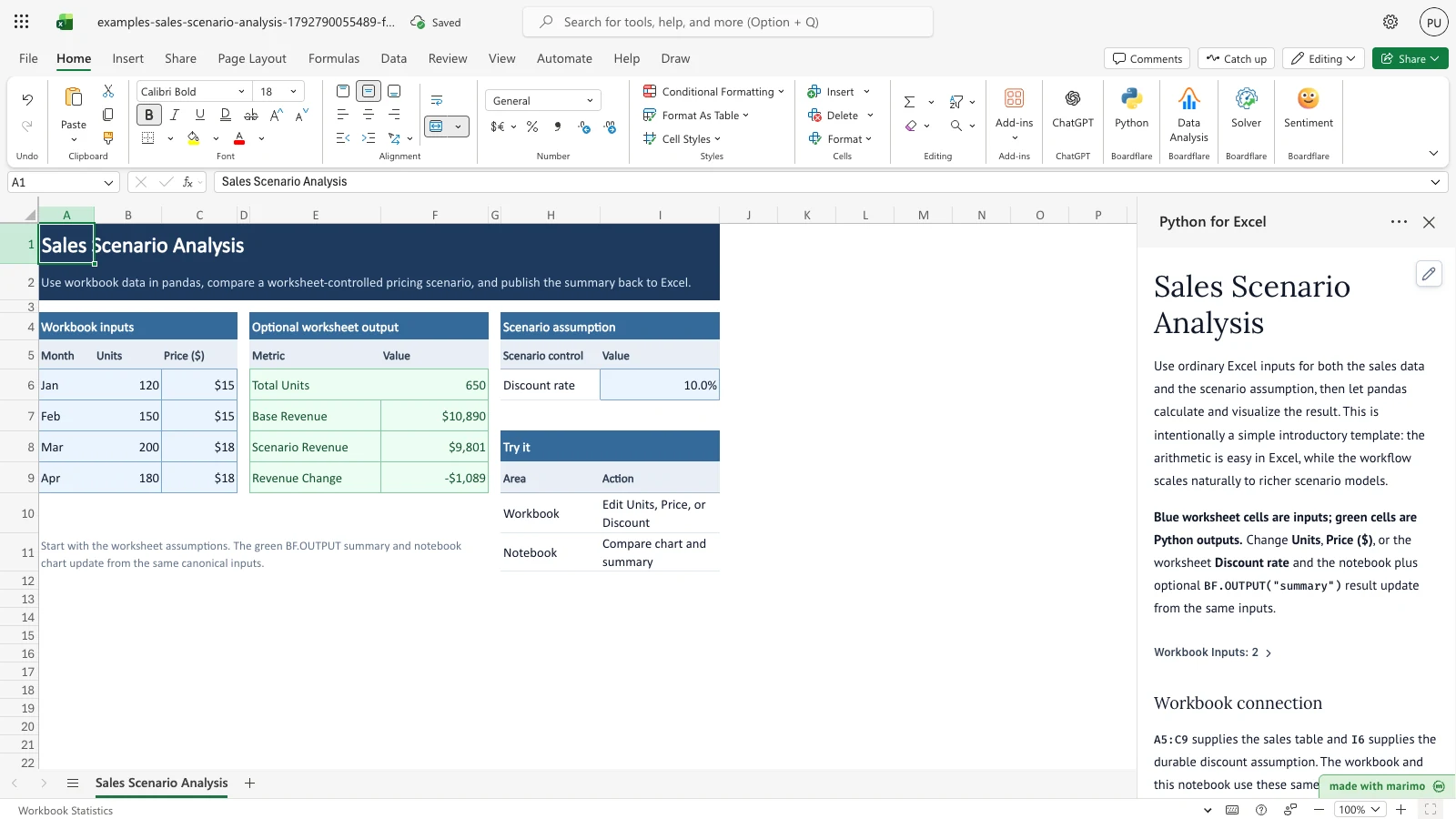
Sales Scenario Analysis compares monthly sales revenue at full price with revenue after a discount. You enter months, units, and prices in the workbook, set one discount rate, and the workbook shows total units, base revenue, scenario revenue, and the change between them. A Python notebook beside the workbook draws a monthly revenue chart from the same inputs.
With the sample data and a 10% discount, total units are 650, base revenue is $10,890, scenario revenue is $9,801, and the change is -$1,089. Demand is held constant, so this is a comparison of prices, not a forecast of volume.
Before you start
Requirements. Excel with Python for Excel. The template reads only its own sheet, so it needs no sign-in and no external data. To install the add-in and open the task pane, see the Boardflare Notebook Reference.
Data shape. The sales table is in A5:C9. Row 5 holds the headers Month, Units, and Price ($). Rows 6 to 9 hold four months. Units and prices must be zero or more. Commas and dollar signs are allowed in both columns, so 1,000 and $15 both work.
Discount rate. The discount rate is in I6 and must be between 0% and 100%. Type it as a percent, such as 10%, or as a decimal, such as 0.1. A plain number above 1, such as 20, is rejected.
Roles. The workbook author maintains the table layout and the notebook. The workbook user changes the monthly figures and the discount rate, then reads the summary and chart without editing any code.
Workbook tour
The workbook has one sheet, Sales Scenario Analysis.
| Range | What it holds | Kind |
|---|---|---|
| A1:I2 | Title and subtitle | Text |
| A4:C9 | Workbook inputs: the header row in row 5 and four monthly rows (Jan to Apr) in rows 6 to 9 | Editable input (blue) |
| E4:F9 | Optional worksheet output: Metric and Value headers in row 5, then Total Units, Base Revenue, Scenario Revenue, and Revenue Change in rows 6 to 9 | Python output (green) |
| H4:I6 | Scenario assumption: the Discount rate label in H6 and its value in I6 | Editable input (blue) |
| H8:I11 | A short Try it guide that points to the Workbook and Notebook steps | Reference text |
Do not type over the green output cells. Python fills them each time the notebook runs.
Using the template
Change March units
- In the Workbook inputs table, select B8, the Units cell for Mar.
- Change it from 200 to 220.
- The green output cells update. Total Units moves to 670, and Revenue Change moves to -$1,125.
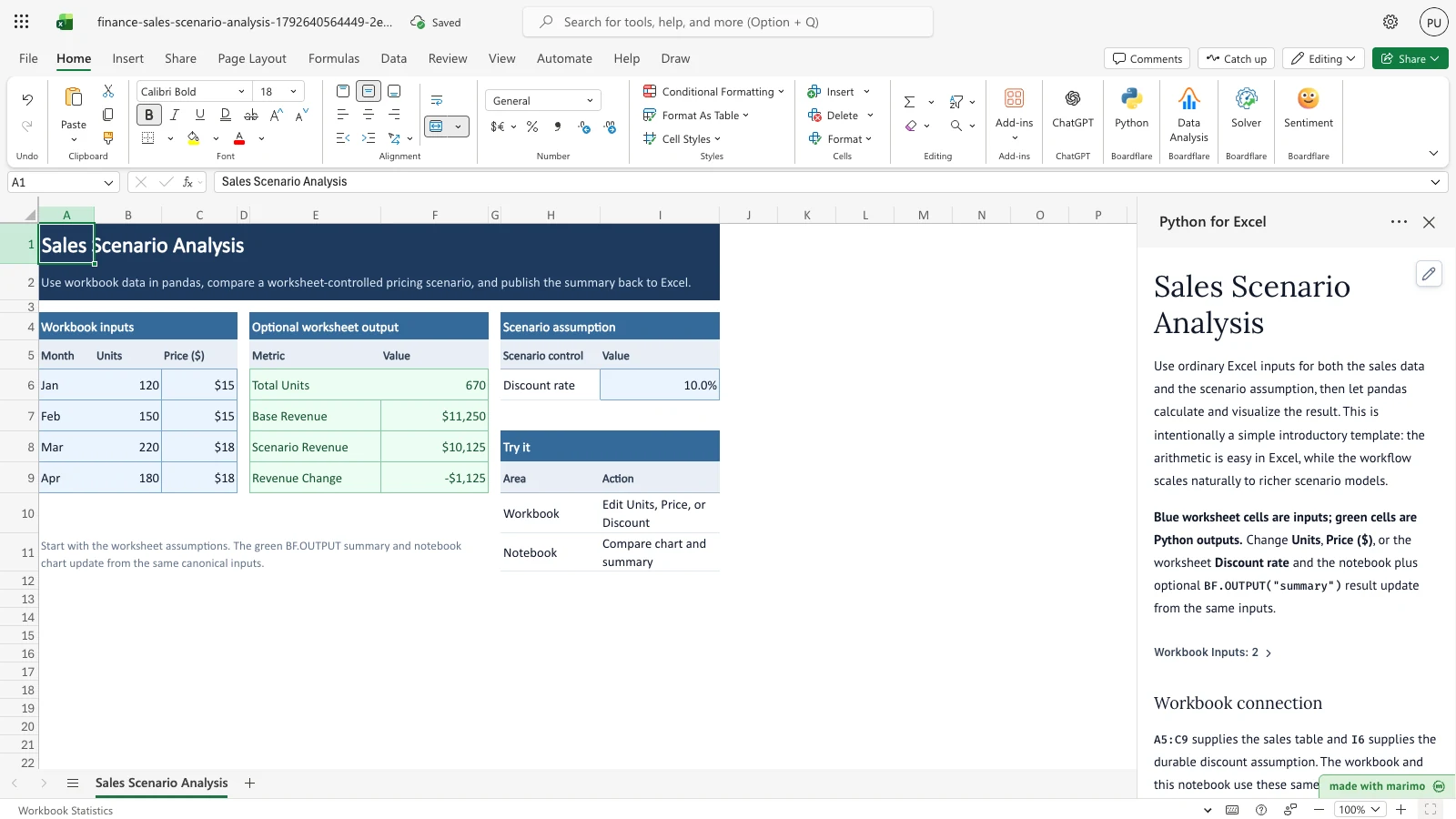
Notice that Mar reads 220, Total Units reads 670, and Revenue Change reads -$1,125.
Enter numbers with commas and dollar signs
- Select B6, the Units cell for Jan, and type 1,000.
- Select C6, the Price cell for Jan, and type $15.
- The notebook strips the comma and the dollar sign before it calculates, so the totals still update. Total Units reads 1530.
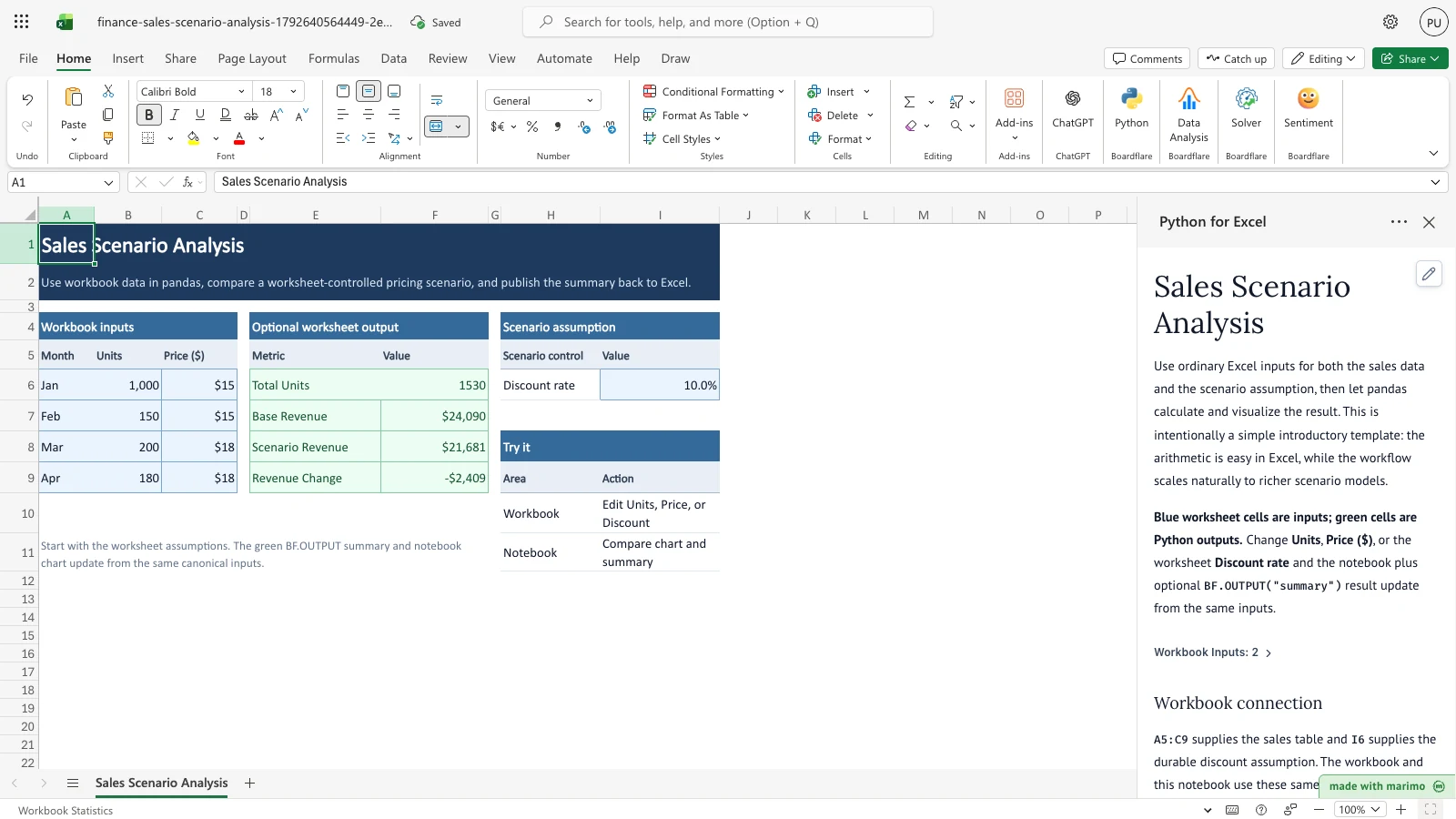
Notice that Jan reads 1,000 and $15, Total Units reads 1530, and Base Revenue reads $24,090.
Test the full discount boundary
- Select I6, the Discount rate, and type 100%.
- Scenario Revenue falls to $0, and the whole base revenue is shown as the change.
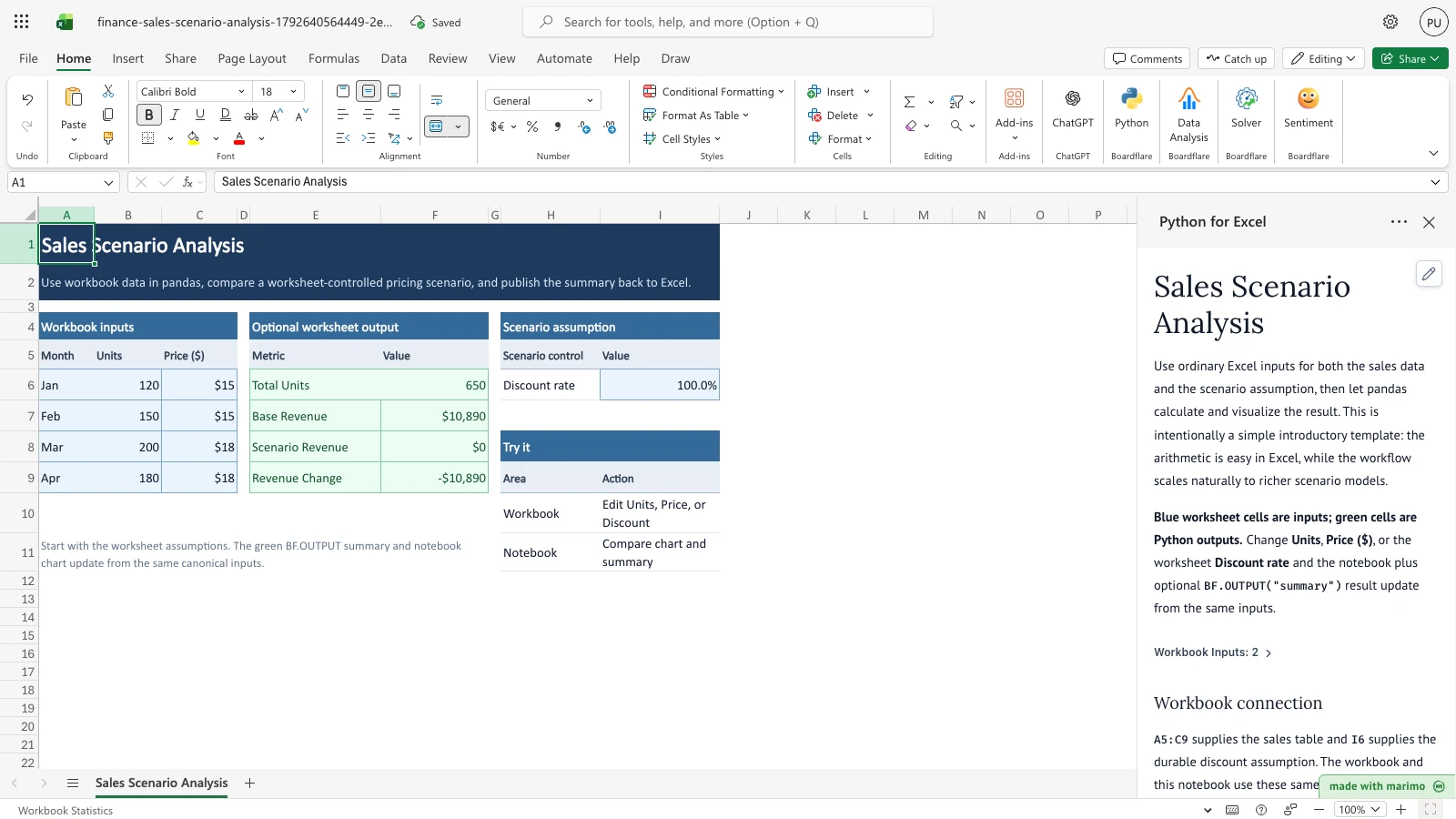
Notice that Scenario Revenue reads $0 and Revenue Change reads -$10,890.
Try a 20% discount
- Select I6 and type 20%.
- Scenario Revenue becomes $8,712, and Revenue Change becomes -$2,178.
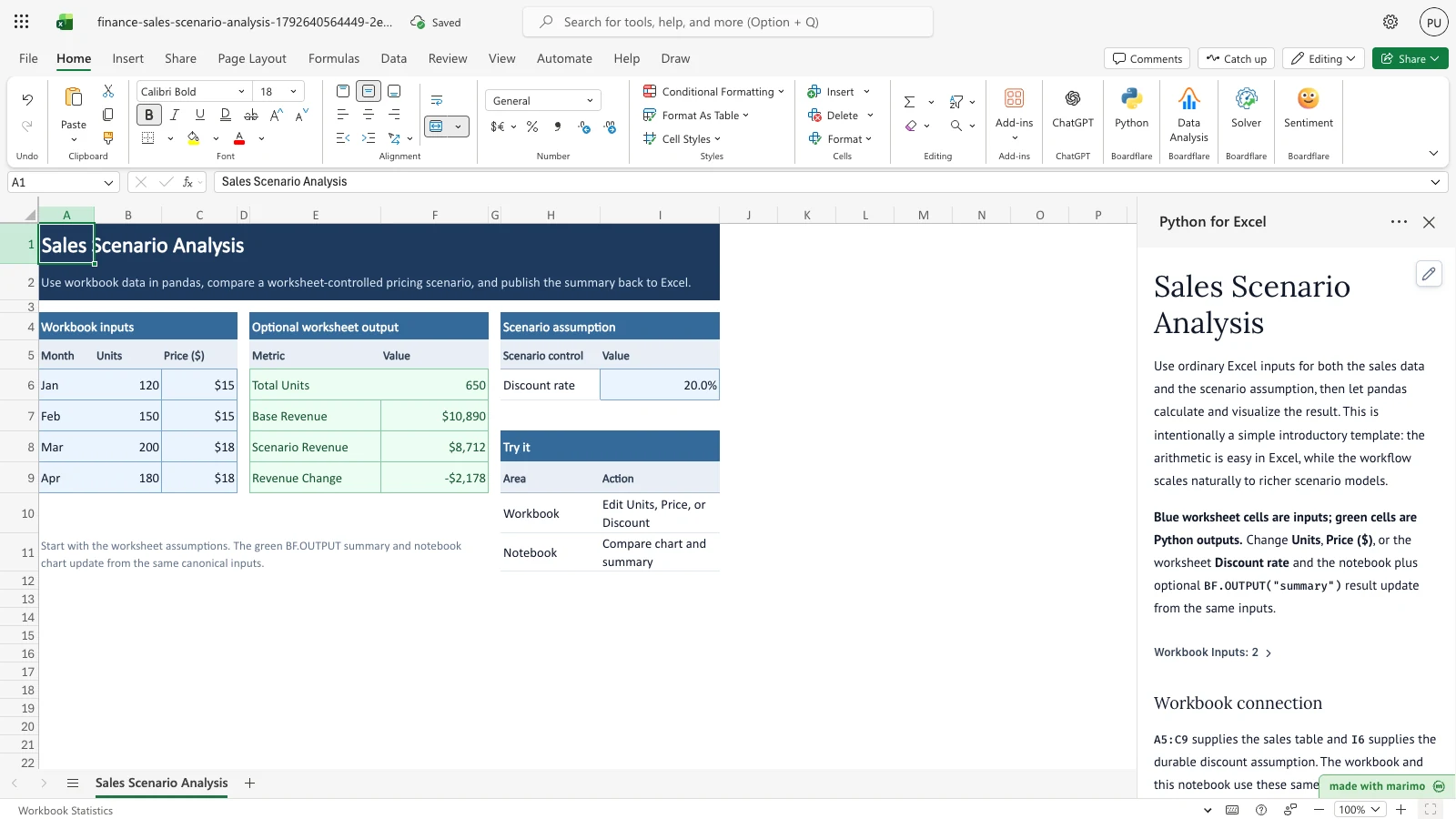
Notice that Scenario Revenue reads $8,712 and Revenue Change reads -$2,178.
Inputs and settings
| Input | Location | Allowed values | Sample value |
|---|---|---|---|
| Month | A6:A9 | Text label for each row | Jan, Feb, Mar, Apr |
| Units | B6:B9 | Zero or more. Commas are allowed. | 120, 150, 200, 180 |
| Price ($) | C6:C9 | Zero or more. Dollar signs and commas are allowed. | $15, $15, $18, $18 |
| Discount rate | I6 | 0% to 100%, inclusive. Type a percent or a decimal. | 10% |
The discount rate applies to every row. The model does not set a separate discount for each month or product.
How results are calculated
The calculation runs in this order each time the notebook runs:
- Read Units and Price. Dollar signs and commas are removed. A blank, non-numeric, or negative value stops the run and names the affected months.
- Read the discount rate. A value ending in % is divided by 100. Any other value is used as typed, so 0.1 means 10%. Text that is not a number, or a rate outside 0 to 1, stops the run.
- Calculate each month. Base revenue is Units × Price. Scenario revenue is base revenue × (1 − discount rate).
- Total the rows. Total Units is the sum of Units. Base Revenue and Scenario Revenue are the sums of their monthly values. Revenue Change is Scenario Revenue minus Base Revenue, so a discount gives a negative change.
- Publish the summary. Total Units is shown as a whole number. The revenue figures are rounded to cents and written to the green output table.
Reading the results
Output table (E5:F9). Each row shows one total.
| Row | Metric | What it means |
|---|---|---|
| 6 | Total Units | The sum of all monthly units |
| 7 | Base Revenue | Revenue at the entered prices, with no discount |
| 8 | Scenario Revenue | Revenue after the discount rate is applied |
| 9 | Revenue Change | Scenario Revenue minus Base Revenue. A negative value is a reduction. |
Scenario result and chart (task pane). The notebook shows a sentence above the chart. It gives the scenario revenue, the discount rate, and the change from the baseline, for example “$9,801 revenue at a 10% discount, a change of -$1,089 from the workbook baseline.” Below it, a line chart titled Monthly revenue plots Base revenue in navy and Scenario revenue in green for each month.
What to check if a value looks wrong.
- Total Units looks too low: check for a month whose Units cell holds text, which stops the run rather than being counted as zero.
- The discount seems ignored: check that I6 shows a percent, not a number above 1, and that the notebook has refreshed.
- The change is positive: the discount rate is 0%, or the Price or Units cells were changed in a way that increased revenue.
Saving, sharing and App mode
What persists. The monthly table, the discount rate in I6, and the green output values are saved with the workbook. Anyone who opens the same copy sees the same numbers.
What is recalculated. The output table and the chart are rebuilt from the saved inputs each time the notebook runs. The results do not depend on which user opens the workbook.
App mode. App mode changes how the workbook is presented, not what it contains. For how App mode opens and runs a Python for Excel workbook, see the Boardflare Notebook Reference.
Errors, empty states and limits
Messages. A message appears in the task pane when an input cannot be used. The output table keeps its previous values until the input is fixed.
| Message | Cause | Fix |
|---|---|---|
Units must contain non-negative numbers. Check: <months> |
A Units cell is blank, is not a number, or is negative. The months listed are the rows with the problem. | Enter a number of zero or more in each listed row. |
Price ($) must contain non-negative numbers. Check: <months> |
A Price cell is blank, is not a number, or is negative. | Enter a price of zero or more in each listed row. |
Discount rate must be a numeric value between 0% and 100%. |
I6 holds text that is not a number. | Type a percent such as 10% or a decimal such as 0.1. |
Discount rate must be between 0% and 100% (inclusive). |
I6 is below 0% or above 100%. A plain number such as 20 is read as 20, which is outside the range. | Type a value from 0% to 100%, for example 20%. |
Empty state. The workbook opens with the sample data, so the summary and chart show results straight away. If every Units cell is blank, the first message in the table above appears.
Limits.
- The table covers the four rows A6:C9. A fifth month is not included unless the author extends the table binding in the notebook.
- One discount rate applies to all rows.
- Demand is held constant. The template does not model price elasticity.
Limitations and when to use this
The model is a scenario comparison, not a demand model. A discount can change unit volume, contribution margin, channel mix, or other business variables that the template holds constant. Do not use it as a pricing forecast until those assumptions are added.
Use it to learn the Python for Excel workflow, or for a first-pass scenario from a small table of sales data. For pricing decisions where demand responds to price, extend the model with an elasticity assumption or a sensitivity table.
Developer reference
Notebook implementation
The notebook binds the sales table and the discount cell with bf.inputs. The table binding uses the header row, so the Month, Units, and Price ($) names become column labels.
inputs = bf.inputs(
    sales=bf.ref("A5:C9", headers=True),
    discount="I6",
)
The analysis cell removes $ and , from Units and Price, converts each column with pd.to_numeric(..., errors="coerce"), and raises ValueError when a value is missing or negative. The discount is read as text. A trailing % divides the value by 100, and the result must be between 0 and 1.
analysis["Base revenue"] = analysis["Units"] * analysis["Price ($)"]
analysis["Scenario revenue"] = analysis["Base revenue"] * (1 - discount_rate)
The summary cell builds a list of rows: a header, Total Units rounded to an integer, and the three revenue values rounded to two decimals. The publish step writes that list to the worksheet:
publication = bf.publish(outputs={"summary": summary})The published range starts at E5. The chart and the scenario sentence are shown in the task pane and are not written to the workbook.
How the calculation/model works
For each row, base revenue is Units multiplied by Price. Scenario revenue multiplies that amount by 1 minus the discount rate. The same discount rate is applied to every row, and Units are held constant. Revenue change is the total scenario revenue minus the total base revenue, so with a discount above zero it is always zero or negative.
Validation / expected results
These values match the scenario checks for the template. Each row starts from the sample workbook and changes only the listed input.
| Case | Input change | Total Units | Base Revenue | Scenario Revenue | Revenue Change |
|---|---|---|---|---|---|
| Sample | None (10% discount) | 650 | $10,890 | $9,801 | -$1,089 |
| March units increase | Units for Mar set to 220 | 670 | $11,250 | $10,125 | -$1,125 |
| Formatted string inputs | Units for Jan set to “1,000” and price to “$15” | 1,530 | $24,090 | $21,681 | -$2,409 |
| Full discount boundary | Discount rate set to 100% | 650 | $10,890 | $0 | -$10,890 |
| Twenty percent discount | Discount rate set to 20% | 650 | $10,890 | $8,712 | -$2,178 |
Changelog
2026-10-23
- Standardized developer reference heading levels to H3 and changelog entries to H4.
- Removed internal tooling references from validation expected results.
- Verified table currency escaping and refreshed generated workbook and thumbnail artifacts.
2026-10-21 (#143)
- Rewrote the guide around the sales table, the discount rate, the results, and the errors you can fix in the workbook.
- Added four screenshots that walk through March units, formatted numbers, the full discount boundary, and a 20% discount.