Segments
Overview
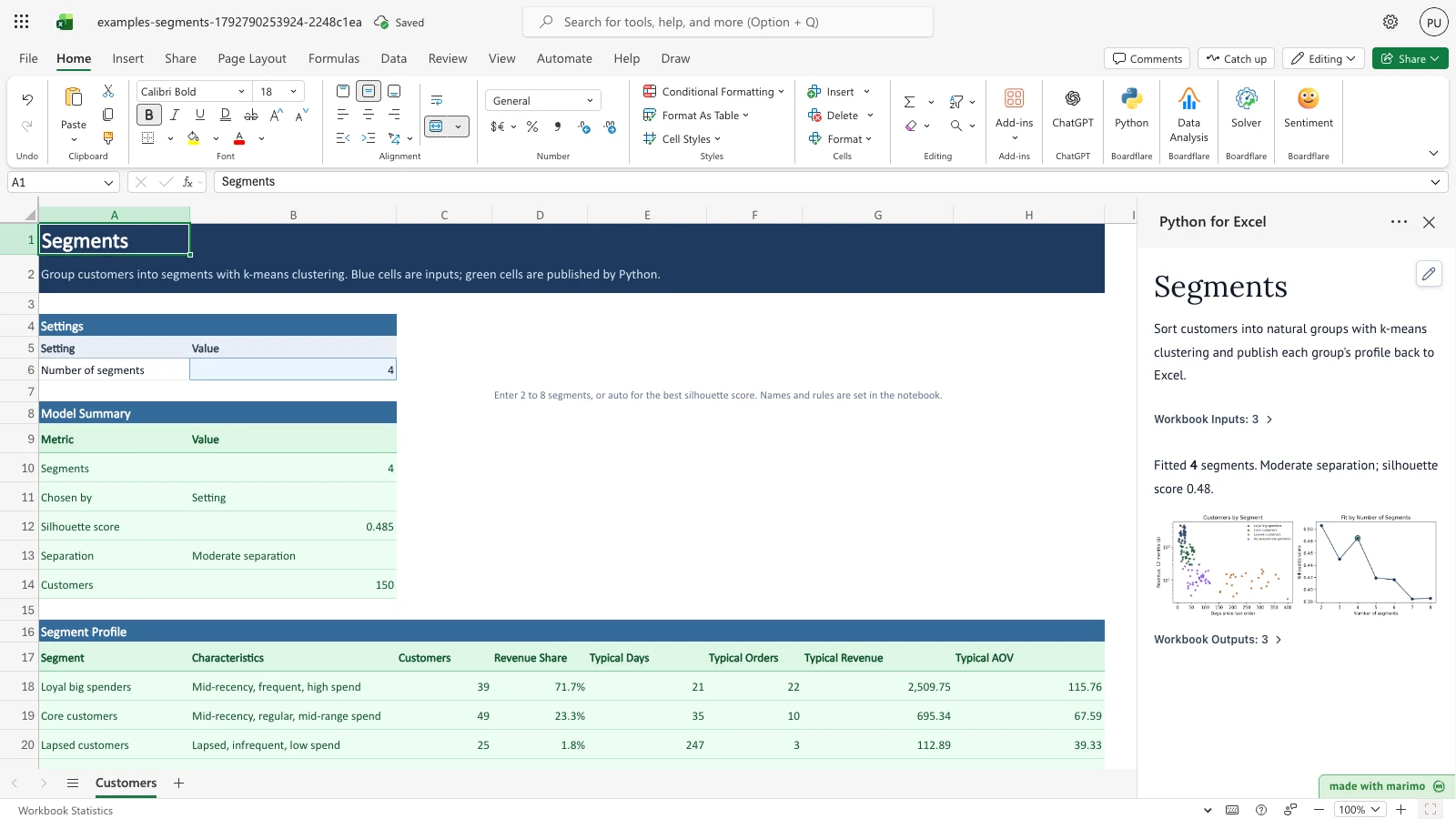
Sort customers into a few natural groups, such as big-ticket buyers, regular buyers, and lapsed customers. The template groups customers by how recently they ordered, how often they order, and how much they spend, then names each group in plain English. It also shows how well the chosen number of groups fits the data.
The outcome is in the Customers sheet. A Model Summary, a Segment Profile, and a Segment Assignment column are filled in by Python for Excel beside the customer table. They update when you change a customer row or the number of segments.
Before you start
- Requirements: Excel with Python for Excel. For how to open the add-in, the task pane, and App mode, see the Boardflare Notebook Reference.
- Data shape: One row per customer, starting at row 29 of the
Customerssheet, with the headers in row 28. Each row needs a customer name and four measures: days since last order, orders in the last 12 months, revenue in the last 12 months, and average order value. Revenue and average order value may include$and commas. The table reads up to 1,000 customer rows (rows 29 to 1028). - Sample data: The workbook includes 150 sample customers in rows 29 to 178. Replace them with your own rows, or add rows up to row 1028.
- Roles: The technical author maintains the Python source, including the measures and segment names. The workbook user edits the customer rows and the setting in Excel, and reads the results without changing any Python.
Workbook tour
| Area | Cells | What it holds | Type |
|---|---|---|---|
| Title and notes | A1:A2 | The template name and a note on the colour convention. Blue cells are inputs; green cells are published by Python. | Text |
| Settings | A4:B6 | The Setting and Value headers, and Number of segments in B6 (default 4). |
Editable input (B6) |
| Model Summary | A8:B14 | Metric and Value rows: Segments, Chosen by, Silhouette score, Separation, and Customers. | Output |
| Segment Profile | A16:H25 | A header row (row 17) and one row per segment, up to eight. Unused rows stay blank. | Output |
| Customer table | A27:E1028 | Customer, Days Since Last Order, Orders (12 months), Revenue (12 months), and Average Order Value. Sample rows are 29 to 178. | Editable input |
| Segment Assignment | G27:H1028 | Customer and Segment. Each row lines up with the customer in the same row of the customer table. | Output |
Using the template
Change the number of segments
- In the
Customerssheet, selectB6and enter a whole number from 2 to 8. The Model Summary, Segment Profile, and Segment Assignment update in place. - Read the Model Summary. Segments shows the count in use, and Chosen by reads Setting.
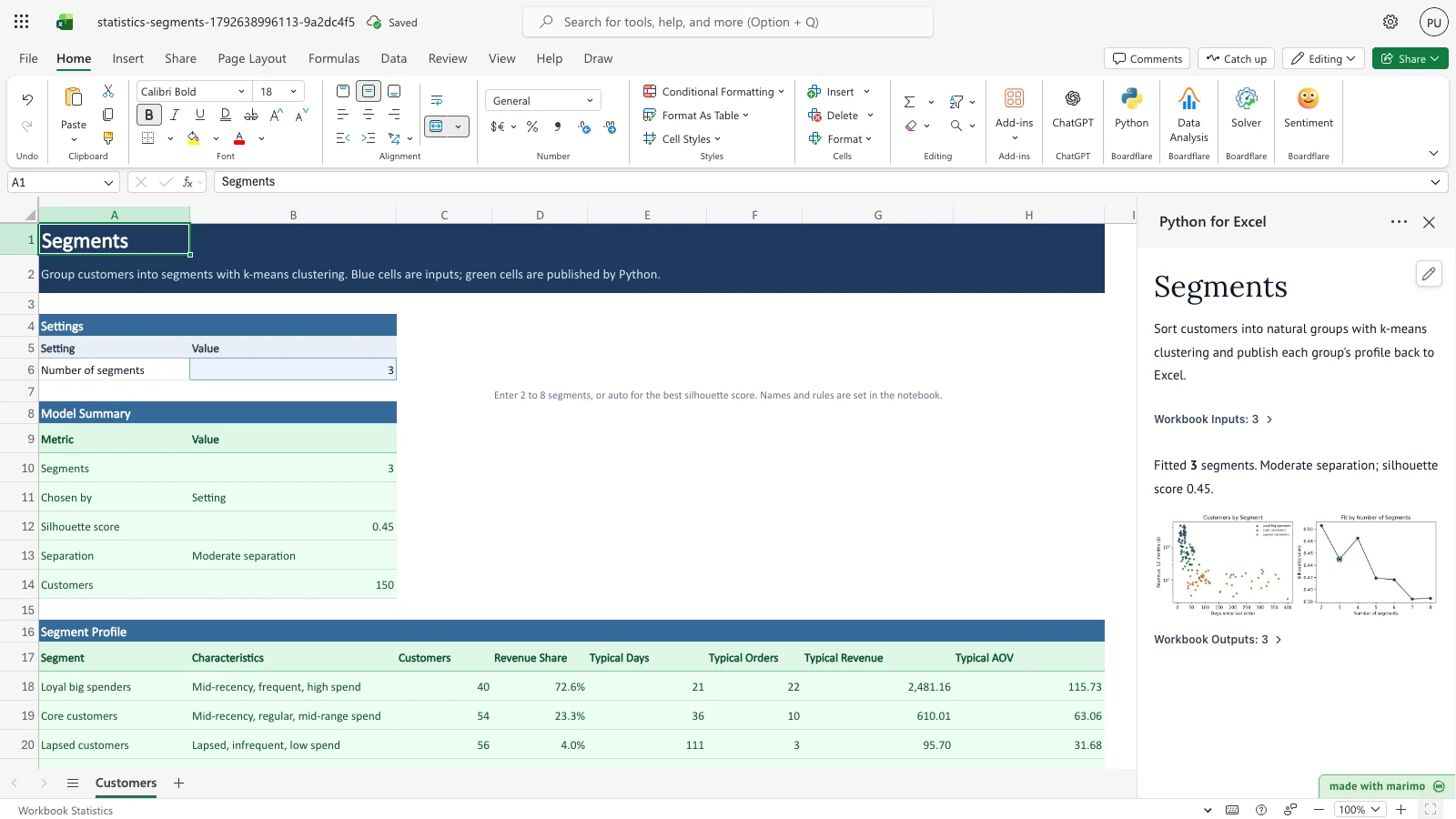
Notice that Segments now reads 3 and Chosen by reads Setting. Customer C-1150 in row 178 now reads Core customers in the Segment Assignment column.
Let the template choose the count
- Enter
autoinB6. The template fits each count from 2 to 8, or fewer if the table has fewer distinct customer profiles, and keeps the count with the best silhouette score. Chosen by changes to Best silhouette score. - Read Separation. It reads Clear separation, Moderate separation, or Weak separation: groups overlap, depending on the silhouette score.
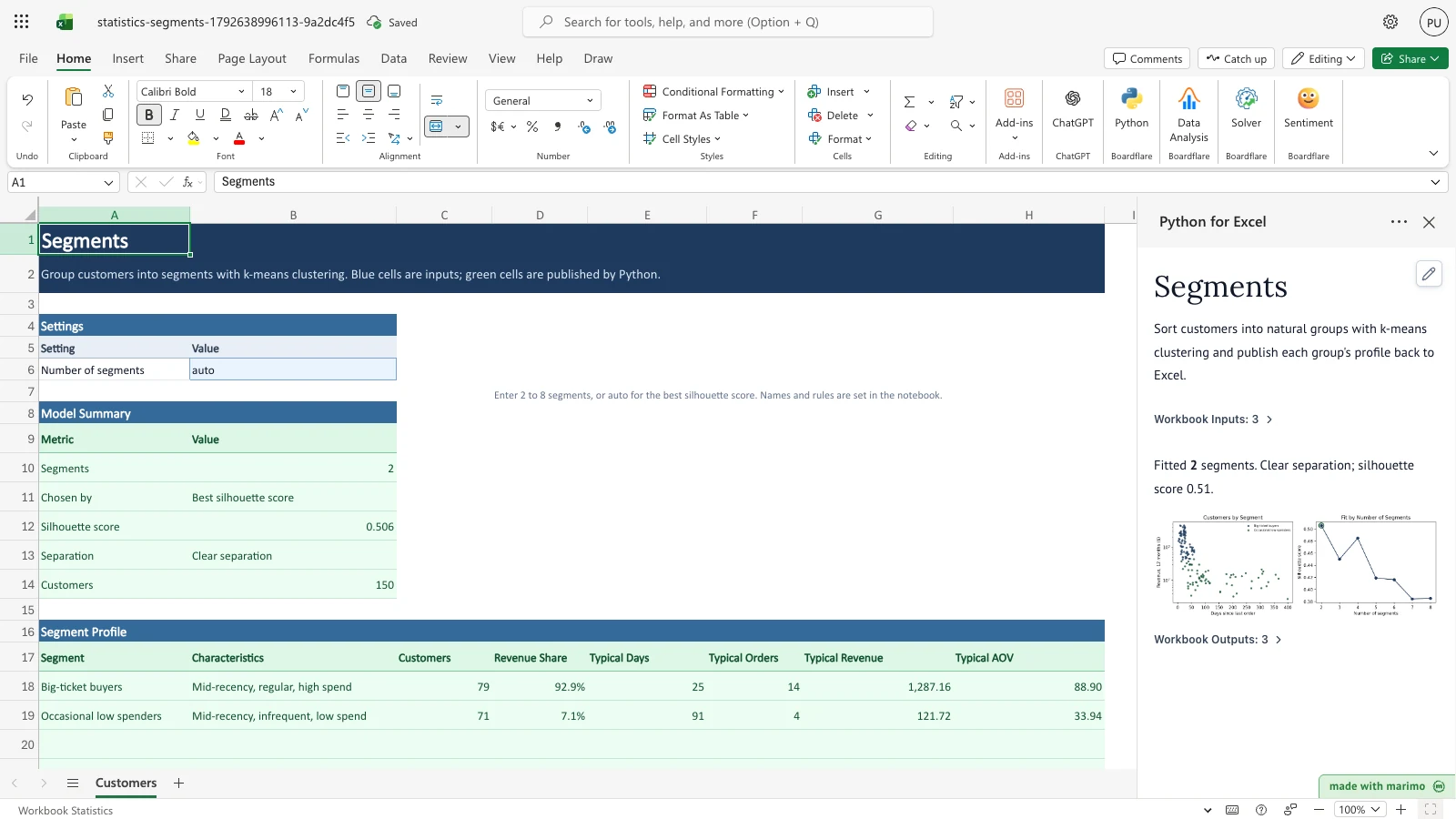
Notice that the template chose 2 segments on its own. Chosen by reads Best silhouette score, and Separation reads Clear separation.
Update a customer
- Edit a customer’s row in the customer table. For example, change
B29(Days Since Last Order for C-1001) to 250,C29(orders) to 2,D29(revenue) to 100, andE29(average order value) to 50. - The Segment Assignment for that customer changes to match. The Model Summary and Segment Profile update with it.
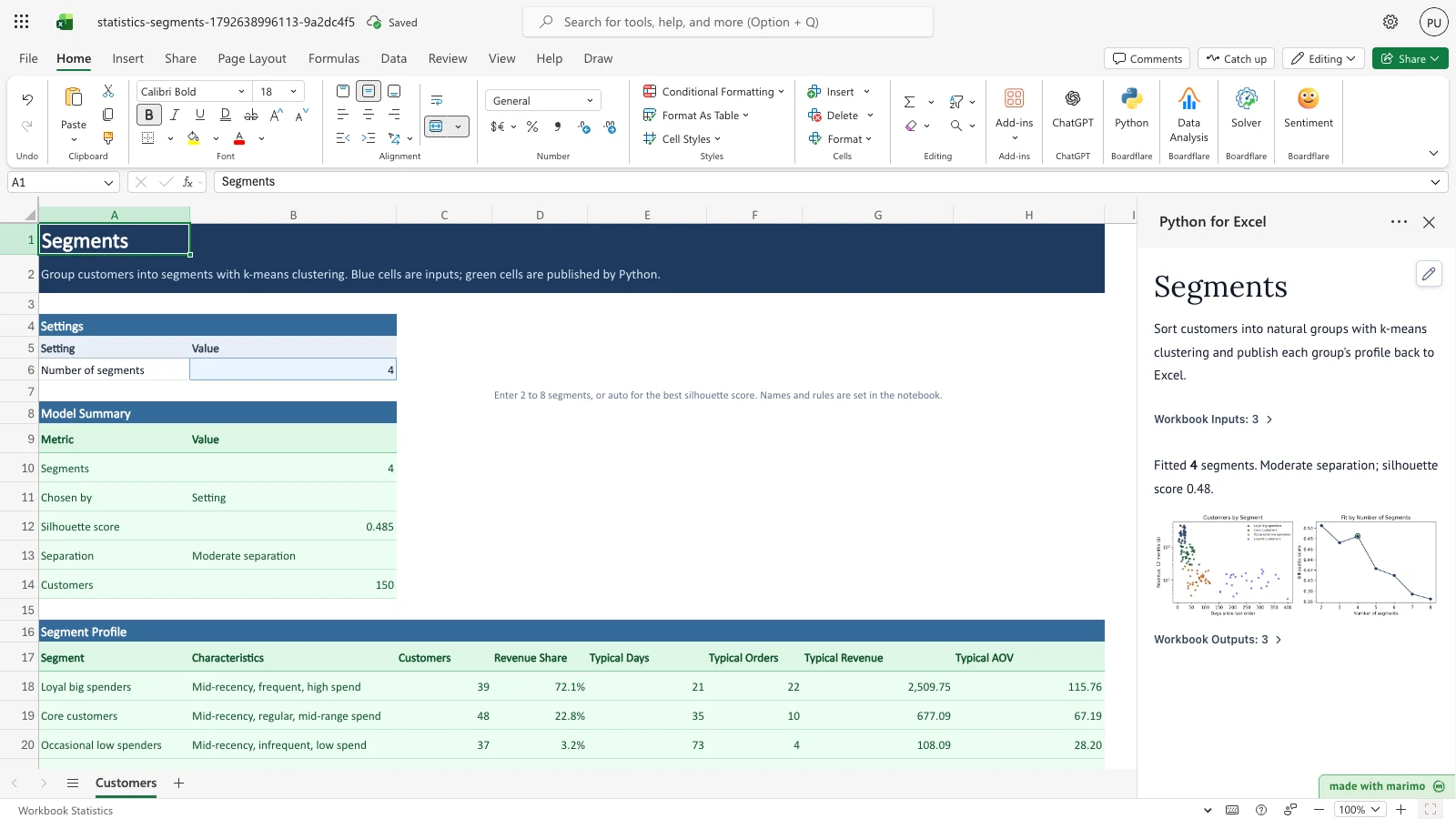
Notice that C-1001 now reads Lapsed customers in the Segment Assignment column. The number of segments is still 4.
Enter a setting the template does not accept
- Enter a value other than a whole number from 2 to 8 or
autoinB6, such asbanana. The template uses 4 segments and shows a note in the task pane.
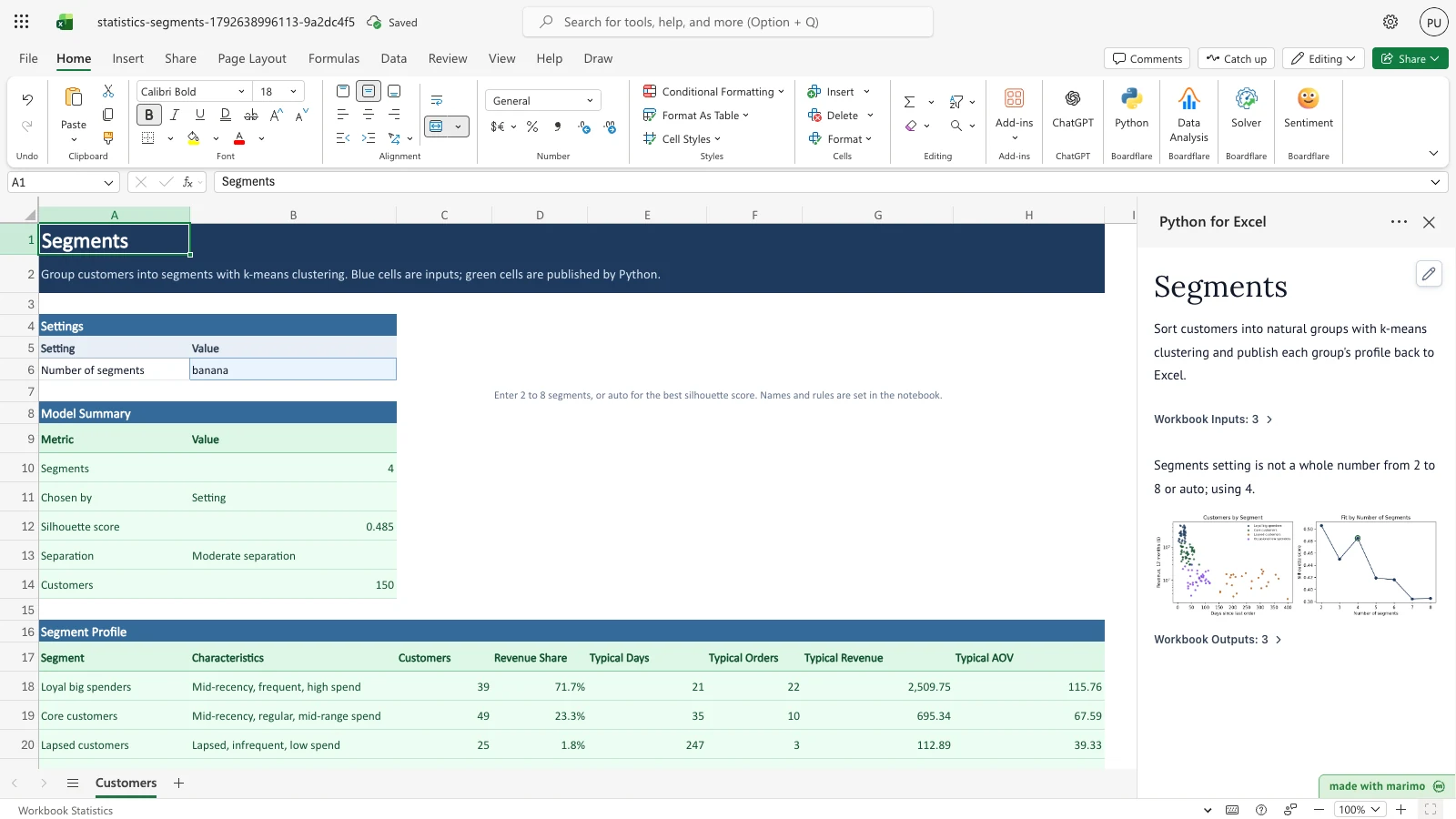
Notice the note in the task pane. The setting was not recognised, so the template used the default of 4 segments.
Inputs and settings
| Name | Where | Allowed values | Default | Effect |
|---|---|---|---|---|
| Number of segments | Customers!B6 |
A whole number from 2 to 8, or auto (any capitalisation). |
4 |
Sets how many segments are fitted. With auto, the template picks the count with the best silhouette score. A count larger than the number of distinct customer profiles is reduced, with a note. Any other value uses 4, with a note. |
The customer table columns are editable inputs. Each row is one customer.
| Column | Type | Effect |
|---|---|---|
| Customer | Text | The name shown in Segment Assignment. Rows with a blank Customer are ignored. |
| Days Since Last Order | Number of days | A measure used as is. A larger value means a lapsed customer. |
| Orders (12 months) | Number | A measure used as is. |
| Revenue (12 months) | Currency amount | A measure with a log transform, so very large spenders count less. $ and commas are removed first. |
| Average Order Value | Currency amount | A measure with a log transform. $ and commas are removed first. |
A customer with a blank or non-numeric value in any measure is left out of the fit and shows Not enough data in Segment Assignment.
How results are calculated
The template works through these steps in order:
- It drops rows with a blank Customer and removes
$and commas from the measures. - It applies a log(1 + x) transform to Revenue (12 months) and Average Order Value, after setting negative values to zero. Days Since Last Order and Orders (12 months) are not transformed.
- It scales every measure to a common range, so that no measure dominates because of its units.
- It groups customers into the chosen number of segments with k-means clustering.
- It names each segment from the segment’s centre. Each measure is placed in a low, middle, or high band, and a short list of rules picks the name. A segment with high days since last order is called Lapsed customers. A segment with high orders and high revenue is called Loyal big spenders.
- It sorts the segments by median revenue, highest first, and fills the Segment Profile.
Worked example (sample data): With the default setting of 4 segments, the Model Summary reads 4 segments, Chosen by Setting, a silhouette score of 0.485, Moderate separation, and 150 customers. Customer C-1001 starts with 52 days since last order, 12 orders, $820.92 revenue, and a $68.41 average order value. If its row is changed to 250 days, 2 orders, $100 revenue, and a $50 average order value, the template assigns C-1001 to Lapsed customers.
Reading the results
- Model Summary (
Customers!A9:B14): Segments is the number of segments used. Chosen by isSettingwhen you chose the count, orBest silhouette scorewhen you choseauto. Silhouette score is a fit measure from -1 to 1, where higher means the segments are more clearly apart. Separation is Clear separation at 0.5 or above, Moderate separation from 0.25 to below 0.5, and Weak separation: groups overlap below 0.25. Customers is the number of customers included in the fit. - Segment Profile (
Customers!A17:H25): Each row is one segment. Segment is the name. Characteristics gives three words in the order recency, frequency, and spend, for example “Mid-recency, frequent, high spend”. Customers is the segment size. Revenue Share is the segment’s share of total revenue. Typical Days, Typical Orders, Typical Revenue, and Typical AOV are the segment medians. - Segment Assignment (
Customers!G28:H1028): One row per customer, in the same order as the customer table. Segment shows the segment name, or Not enough data if a measure is missing or not a number.
The notebook also draws two charts. Customers by Segment plots days since last order against revenue, with revenue on a log scale and one colour per segment. Fit by Number of Segments plots the silhouette score for each count from 2 to 8, with the chosen count circled.
If a value looks wrong, check the customer’s row first. A blank or text measure removes the customer from the fit. Then check that the header names in row 28 match the names in the table above.
Saving, sharing and App mode
- Saving the workbook keeps the setting in
B6and the customer rows. Edit those two inputs, not the output blocks. - This template has no App mode settings of its own. For how App mode, sharing, and recovery work in Python for Excel, see the Boardflare Notebook Reference.
Errors, empty states and limits
| Message or state | Cause | Fix |
|---|---|---|
| Missing column: names. Keep the header names exactly as the notebook lists them. | A header in row 28 was renamed or removed. | Restore the header to the name shown in the workbook tour. |
| This table needs at least 3 customers with numbers in every measure; found N. | Fewer than 3 customers have all four measures as numbers. | Fill in or correct the measures for the rows that are missing them. |
| These customers are identical on every measure, so no segments can be found. | All usable customers have the same measures. | Add customers with different values. |
| Segments setting is not a whole number from 2 to 8 or auto; using 4. | B6 holds a value that is not accepted. |
Enter a whole number from 2 to 8, or auto. |
| Only N distinct customer profiles, so k segments were fitted instead of requested. | The customers do not have enough different profiles for the requested count. | Accept the count shown, or add customers with more varied measures. |
| Rows below row 1028 are not included; the table reads up to 1000 customers. | A value is in A1029 or below. |
Move rows so that all customers are in rows 29 to 1028. |
| Not enough data (in Segment Assignment) | The customer has a blank or non-numeric measure. | Correct the measure in that row. |
Empty state: Until you enter customers, the template shows the messages above instead of a segment profile.
Limits: The customer table holds up to 1,000 rows (rows 29 to 1028). The setting accepts 2 to 8 segments or auto. At least 3 customers with numbers in every measure are needed.
Limitations and when to use this
- k-means assumes roughly round clusters of similar spread. It does not find long, nested, or density-based groups.
- Segment names come from simple rules. Check each name against what it means for your business before you use it.
- Segments describe the customers in the table at one point in time. They do not predict which segment a new customer will join.
Developer reference
Notebook implementation
The notebook reads the customer table and the setting from the workbook, and it writes three outputs back to the workbook. The inputs are declared once at the start:
inputs = bf.inputs(customers=bf.ref("Customers!A28:E1028", headers=True), segments="Customers!B6", overflow="Customers!A1029")The fit itself uses scikit-learn k-means. The model for a chosen count is fitted with a fixed random seed, so the same inputs give the same segments:
model = KMeans(n_clusters=k, n_init=10, random_state=42).fit(Z)The auto setting fits each count from 2 to the largest allowed count and keeps the best silhouette score. The notebook builds the summary, profile, and assignment rows, and then publishes them to the workbook:
publication = bf.publish(
    outputs={"summary": summary_rows, "profile": profile_rows, "assignments": assignment_rows}
)
The overflow input (Customers!A1029) drives only the overflow note. Its value is not used in the fit.
How the calculation/model works
- Cleaning: Strip whitespace from Customer and drop blank names. Strip whitespace,
$, and commas from each measure, then convert it to a number. Rows with any measure that is not a finite number are excluded from the fit. - Transform: Revenue (12 months) and Average Order Value are clipped at zero and passed through log1p. Days Since Last Order and Orders (12 months) are not transformed.
- Scale:
StandardScalergives each measure zero mean and unit variance. - Choose k: The largest candidate is the smallest of 8, the number of distinct scaled profiles, and the number of usable customers minus one. For
auto, the candidate with the highest silhouette score is used. For a number, the setting is capped at the largest candidate. - Name: For each cluster centre, each of the three measures used for names (recency, frequency, spend) is placed in a band. The band is low at or below -0.75, high at or above 0.75, and mid otherwise.
NAME_RULESare checked in order, and the first match gives the name. The default is Core customers. A repeated name gets a number, such as “Lapsed customers 2”. - Profile: Segments are ordered by median Revenue (12 months), highest first. Revenue Share is the segment’s revenue sum divided by the total. Typical values are rounded medians.
- Separation: The chosen silhouette score is compared with 0.5 and 0.25 to set the Separation label.
Validation / expected results
| Check | Expected outcome |
|---|---|
| Sample data, default setting | 4 segments, Chosen by Setting, silhouette score 0.485, Moderate separation, 150 customers. |
| Number of segments set to 3 | 3 segments. Customer C-1150 (row 178) reads Core customers. |
Number of segments set to auto |
2 segments, Chosen by Best silhouette score, Clear separation. |
| Customer C-1001 changed to 250 days, 2 orders, $100 revenue, and $50 average order value | C-1001 reads Lapsed customers. The number of segments stays at 4. |
Setting changed to banana |
4 segments, and the note “Segments setting is not a whole number from 2 to 8 or auto; using 4.” appears. |
Customer entered in A1029 |
The note “Rows below row 1028 are not included; the table reads up to 1000 customers.” appears. |
Architecture
- Rules cell:
MEASURES, the band thresholdBAND_Z, the name words,NAME_RULES, and the default name sit together in the# --- Edit these rules ---cell ofnotebook.py. - Fixed output blocks: The published outputs are
Customers!A9:B14(summary),Customers!A17:H25(profile, room for eight segments), andCustomers!G28:H1028(assignments, room for 1,000 customers). They are declared inBOARDFLARE_PACKAGEinworkbook.py. Keep those anchors in step with the notebook’s row counts. - Column order: The profile columns follow the order of
MEASURESfor the typical values. Changing a measure means changing the headers in row 28 ofworkbook.pyas well.
Changelog
2026-10-23
- Standards audit: restored overview poster embed, updated download link text, corrected Developer reference heading hierarchy to H3/H4, verified currency escaping in tables, and refreshed release artifacts (Issue #22).
2026-10-21
- Rewrote the page as a user guide, with the settings, the three result tables, the
autochoice, and the messages you may see (Issue #143).
2026-10-19
- Initial release (#22).