Text Functions
Overview
Free-text columns from emails, tickets and exports hide the values you need: an invoice reference inside a note, an email address in a sentence, a phone number typed several ways, a name written as “Last, First”. This template adds seven worksheet functions that each pull one kind of value out of text with a single call. Put the call in a cell, fill it down, and each row returns its own value.
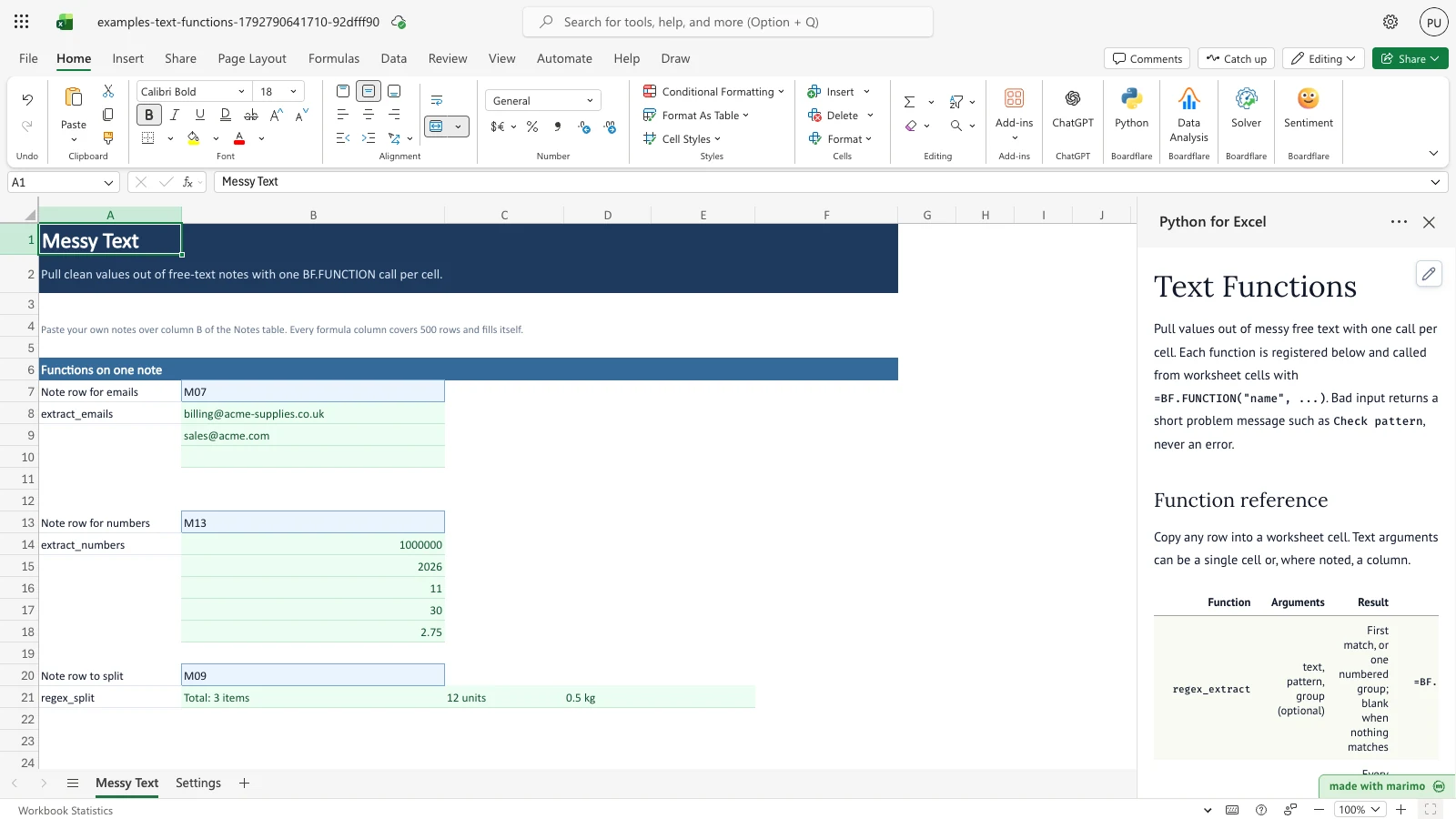
The Messy Text sheet opens with 15 sample notes beside four formula columns: Invoice Ref, Has Email, Phone and Name Swapped. Above the table, three blocks show the email addresses in one note, the numbers in one note, and one note split into parts. Bad input returns a short problem message such as Check pattern, not an error.
Before you start
Requirements. Excel with Python for Excel. The template reads only the sheets in this workbook, so it needs no sign-in and no external data. To install and open the add-in, and for how Edit and App mode work, see the Boardflare Notebook Reference.
Data shape. Sample notes are included on the Messy Text sheet. To use your own, paste your notes over column B of the Notes table, one note per row, keeping the row labels in column A. The formula columns cover rows 28 to 527, so up to 500 notes are read. Each function reads the whole text of a note, even where the cell is too narrow to show all of it.
Roles. The technical author maintains the Python source and the phone rule in the notebook. The workbook user pastes notes, edits the two patterns on Settings, and types row labels into the three note-row cells on Messy Text. The workbook user does not need to change the Python source.
Workbook tour
| Where | What it holds | Type |
|---|---|---|
| Messy Text, Notes table, columns A and B (rows 28 to 527) | Row (A, labels such as M01) and Note (B, the text to read) | Editable input. Paste notes over column B. |
| Messy Text, columns C to F (rows 28 to 527) | Invoice Ref, Has Email, Phone and Name Swapped | Formula. Do not type over these. |
| Messy Text, B7 | Note row for emails. Type a row label from column A, such as M07 | Editable input |
| Messy Text, B8 to B10 | Email list: up to three addresses from the note in B7 | Formula (output) |
| Messy Text, B13 | Note row for numbers. Type a row label, such as M13 | Editable input |
| Messy Text, B14 to B18 | Number list: up to five numbers from the note in B13 | Formula (output) |
| Messy Text, B20 | Note row to split. Type a row label, such as M09 | Editable input |
| Messy Text, B21 to E21 | Split parts: up to four parts from the note in B20, one part per cell | Formula (output) |
| Settings, B6 | Invoice pattern (a regular expression) | Editable input |
| Settings, B7 | Email pattern (a regular expression) | Editable input |
| Settings, A9 to B16 | Function list: each function with a ready-to-copy formula | Output |
Using the template
Read one value from each note
The Invoice Ref column (C) reads each note with =BF.FUNCTION("regex_extract", B28, Settings!$B$6). The formula returns the first match of the invoice pattern in the note. If nothing matches, the cell is blank. The same formula, filled down, reads every row.
Change the invoice pattern
- On Settings, change the invoice pattern in B6. The default
INV-\d{4}-\d{4}matches references such as INV-2026-0042. - Return to Messy Text. Invoice Ref recalculates for every row. For example, set B6 to
PO \d{4}, and the note in row 28 shows the PO reference instead of the invoice number, while notes with no PO show blank.
If the pattern cannot be read, every Invoice Ref cell shows Check pattern. For example, INV-(\d{4} has a missing closing bracket. Change Settings B6 back to a readable pattern to fix it.
Check whether a note has an email address
Has Email (column D) tests each note against the email pattern on Settings (B7) and shows TRUE or FALSE. A blank note shows FALSE. If the email pattern cannot be read, Has Email shows Check pattern. Edit B7 to change which text counts as an email address.
Pull a list of values from one note
Three blocks show every item in one note. Each block reads a row label that you type, and places each item in its own cell.
Emails. Type a row label in B7, for example M07. B8 to B10 show the email addresses in the note, in order, using the email pattern on Settings (B7). When the note has only one address, the second cell is blank. For example, changing the note in row 34 to
Sent to [email protected] onlyleaves[email protected]in B8 and B9 blank.Numbers. Type a row label in B13, for example M13. B14 to B18 show every number in the note, in order. A leading minus sign is kept, and dollar signs and thousands separators are removed, so
$1,000,000shows as 1000000.Split. Type a row label in B20, for example M09. B21 to E21 show the parts of the note between commas followed by spaces.
If the label you type is not in column A, the block shows Check row. Empty cells below the last item are blank.
Clean names and phone numbers
- Phone (column E) returns the first US phone number in each note in the form
555-014-2290, and shows a blank cell when none is found. A leading +1 is dropped. The phone rule is fixed in the notebook and is described for authors below. It has no Settings cell. - Name Swapped (column F) turns a name written as
Last, FirstintoFirst Last. Notes without that form are returned unchanged.
Use the functions in your own cells
Copy any row of the function reference below into a worksheet cell. Text arguments can be a single cell or, where noted, a column. The Settings sheet (A9 to B16) lists each function with a ready-to-copy formula.
| Function | Arguments | Result |
|---|---|---|
regex_extract |
text, pattern, group (optional) | First match, or one numbered group; blank when nothing matches. Single cell or column. Example: =BF.FUNCTION("regex_extract", B28, Settings!$B$6) |
regex_replace |
text, pattern, replacement | Every match replaced; \1 and \2 refer to groups. Single cell or column. Example: =BF.FUNCTION("regex_replace", B31, "^(\w+), (\w+)$", "\2 \1") |
regex_test |
text, pattern | TRUE when the pattern matches anywhere in the text, otherwise FALSE. Single cell or column. Example: =BF.FUNCTION("regex_test", B29, "@") |
regex_split |
text, pattern | The parts between matches, as a list with one part per cell. Single cell. Example: =BF.FUNCTION("regex_split", B36, ",\s*") |
extract_emails |
text, pattern | Every match of the pattern, in order, as a list with one match per cell. Single cell. Example: =BF.FUNCTION("extract_emails", B34, Settings!$B$7) |
extract_numbers |
text | Every number in order, as a signed number, one per cell. A leading minus is kept; dollar signs and thousands separators are removed. Single cell. Example: =BF.FUNCTION("extract_numbers", B40) |
clean_phone |
text | First US phone number as 555-014-2290; blank when none. Single cell or column. Example: =BF.FUNCTION("clean_phone", B39) |
A function that returns a list gives one item per cell. To place item k in a column, use INDEX(BF.FUNCTION(...), k, 1). To place item k in a row, use INDEX(BF.FUNCTION(...), 1, k). The three blocks on Messy Text do this.
Inputs and settings
- Invoice pattern (Settings, B6). A regular expression used by Invoice Ref. Default
INV-\d{4}-\d{4}. Changing it changes Invoice Ref for every row. An unreadable pattern showsCheck pattern. - Email pattern (Settings, B7). A regular expression for one email address. Used by Has Email and by the Emails block (B8 to B10). Default
[A-Za-z0-9._%+-]+@[A-Za-z0-9.-]+\.[A-Za-z]{2,}. Changing it changes both results. - Notes table (Messy Text, column B). The text each row reads. Paste over it. Rows 28 to 527 are read.
- Note row for emails (Messy Text, B7), Note row for numbers (B13) and Note row to split (B20). Row labels from column A, such as M07. Each block reads the note in that row.
How results are calculated
Each function runs its pattern over the text of one cell, in order:
- Invoice Ref returns the first match of the invoice pattern. It returns one group only when a function is given a group number.
- Has Email returns TRUE when the email pattern matches anywhere in the note, and FALSE otherwise.
- Phone finds the first phone number, drops a leading +1, and prints the three groups as 555-014-2290.
- Name Swapped matches a note of the form
Last, Firstand writesFirst Last. A note that does not match is returned unchanged. - The three blocks read the note in their row label, and place item k in its own cell.
Worked example: row 28 holds Invoice INV-2026-0042 paid on 3/4, see PO 7781. With the default invoice pattern, Invoice Ref shows INV-2026-0042. With PO \d{4} in Settings B6, the same note shows PO 7781.
Reading the results
- Messy Text, Invoice Ref (C), Has Email (D), Phone (E) and Name Swapped (F). One value per note row. A blank cell means the function found nothing to return.
- Messy Text, the three blocks (B8 to B10, B14 to B18, B21 to E21). One item per cell, in the order the item appears in the note. Items beyond the last one are blank.
- Settings, A9 to B16. The function list. Each formula shows the function name and its arguments, ready to copy.
If a value looks wrong, check the pattern on Settings first. Then check that the row label in B7, B13 or B20 matches a label in column A.
Saving, sharing and App mode
What persists. The notes, the two patterns on Settings and the three row labels are stored in the workbook and kept when it is saved and reopened. Every result is recalculated from them, and none is stored as a typed value.
Shared or per-user. The workbook holds one copy of the notes and patterns. Anyone who opens the same copy sees the same values.
App mode. App mode changes presentation rather than permissions, source access or workbook trust. This template does not define App mode settings of its own. For how App mode opens and runs the workbook, see the Boardflare Notebook Reference.
Errors, empty states and limits
| Message or state | Where you see it | Cause and fix |
|---|---|---|
Check pattern |
Invoice Ref, Has Email, and the Emails block (B8) when the pattern on Settings is blank or does not compile | The pattern on Settings is blank or does not compile. Correct B6 or B7. |
Check group |
A regex_extract formula |
The group number is not a group in the pattern. Use 0 for the whole match, or a group number the pattern defines. |
Check replacement |
A regex_replace formula |
The replacement refers to a group the pattern does not have, such as \3 with two groups. |
Check row |
The Emails, Numbers and Split blocks | The row label typed in B7, B13 or B20 is not in column A. Type a label such as M07. |
| Blank cells | Any output | No match, or no item at that position. This is not an error. |
Empty state. The sample notes are present when the workbook opens. A row with no note returns blank Invoice Ref, Phone and Name Swapped cells and FALSE for Has Email.
Limits. - The Notes table is read through row 527, which allows 500 notes. - The Emails block shows up to three addresses, the Numbers block up to five numbers, and the Split block up to four parts. Extra items are not shown. - Name Swapped handles one comma between two words only. - Output cells on Messy Text are single-line. A long value is cut off at the cell edge rather than wrapping, so the rows keep a uniform height.
Limitations and when to use this
- Patterns are checked as written. A pattern that matches too widely, for example one that accepts any 10 digits, returns the first match it finds. Review the phone and email rules against your own data.
- Has Email can match text that is not a real address, because the email pattern is one regular expression. Review it for your data.
- Name Swapped handles one comma between two words. Middle names, suffixes and multi-word surnames are left unchanged.
- Use this template when the values you need follow a recognisable pattern. For a one-off clean-up of a few cells, typing the values is quicker.
Developer reference
Notebook implementation
The notebook imports re, boardflare as bf and marimo. The phone rule is set in the marked Edit these rules section:
PHONE_PATTERN = r"(?<!\d)(?:\+?1[\s.-]?)?\(?(\d{3})\)?[\s.-]?(\d{3})[\s.-]?(\d{4})(?!\d)"Each of the seven functions is a short Python function. regex_extract, regex_replace, regex_test and clean_phone accept a single cell or a column of cells and return one result per cell. regex_split, extract_emails and extract_numbers take one cell and return a list. The functions are collected in one functions dictionary.
The notebook builds a summary table with one row per function. Each row gives the function name and a ready-to-copy =BF.FUNCTION(...) formula, built from the function’s required parameters. It publishes the summary and the functions together:
publication = bf.publish(
    outputs={"summary": summary},
    functions=functions,
)
The workbook anchors the summary output at Settings A9, with a spill range of A9 to B16.
How the calculation/model works
Each function compiles its pattern once per call, then searches or substitutes over the text. A pattern that does not compile returns a problem message in each cell the call covers. A group number outside the pattern returns Check group. A replacement that names a missing group returns Check replacement.
Excel shows a scalar result in one cell. A list result is read one item at a time by INDEX in each block cell. The block cells find their note through the row label, with MATCH against column A, and return Check row when the label is missing.
The number rule keeps a minus sign only when no word character or hyphen comes before it. So 2026-11-30 gives 2026, 11 and 30, while Refund -$1,249.50 gives -1249.5.
Validation / expected results
With the sample notes and default settings:
| Check | Expected outcome |
|---|---|
| Emails block for the note in B7 (M07) | [email protected], then [email protected] |
| Invoice Ref for the note in row 28 | INV-2026-0042 |
| Invoice Ref for the note in row 38 | INV-2026-0108 |
| Has Email for the note in row 29 | TRUE |
| Phone for the note in row 29 | 555-014-2290 |
| Phone for the note in row 39 | 555-123-4567 |
| Name Swapped for the notes in rows 31 and 37 | Dana Lee and John Smith |
| Numbers block for the note in B13 (M13) | 1000000, 2026, 11, 30 and 2.75 |
| Split block for the note in B20 (M09) | Total: 3 items, 12 units, then 0.5 kg |
Changing one input moves the result as follows:
| Change | Expected outcome |
|---|---|
Invoice pattern set to PO \d{4} |
Invoice Ref for the note in row 28 is PO 7781; for the note in row 38 it is blank |
Invoice pattern set to INV-(\d{4} |
Invoice Ref shows Check pattern in every row it covers |
Email pattern set to ([ |
Has Email shows Check pattern |
Note in row 29 changed to call (555) 014-2290 today |
Has Email FALSE; Phone 555-014-2290 |
Note in row 29 changed to call 555-01 today |
Phone blank |
Note in row 31 changed to Garcia, Maria |
Name Swapped Maria Garcia |
| Note in row 31 cleared | Name Swapped blank |
Note in row 34 changed to Sent to [email protected] only |
Emails block shows [email protected], then blank |
Note in row 40 changed to Refund -\$1,249.50 |
Numbers block first item -1249.5 |
Architecture
The workbook (workbook.py) holds the parts the notebook does not. The Name Swapped pattern and the three block formulas are written into the workbook cells, so they do not change when the notebook runs. The block cells use INDEX, MATCH and IFERROR around BF.FUNCTION, which is why each list item sits in its own cell. Output cells use a single-line style so that the rows keep a uniform height. The Settings output anchor at A9 is part of the workbook package and must match the summary output in the notebook.
Changelog
2026-10-23
- Standards review and documentation audit: fixed developer reference heading hierarchy to H3 and dated entries to H4, verified table syntax and dollar escaping, and refreshed generated artifacts.
2026-10-22 (#143)
- Corrected where the three note blocks sit (above the Notes table) and which cells show
Check patternwhen a Settings pattern cannot be read. The functions and the workbook are unchanged.
2026-10-21 (#143)
- Rewrote the guide as a user guide. The functions and the workbook are unchanged.
2026-10-19 (#126)
- Initial release with seven text functions, an invoice pattern setting and sample notes.