Python Apps in Excel
Python Apps
in Excel
Built and changed by the AI you already use. Describe what you want to Copilot, ChatGPT, or Claude in Excel, and your workbook app updates in place, with forms, controls, charts, and Python calculations.
 Demand & Inventory PlannerPlan inventory within your budgetView template →
Describe the change. The app updates.
Boardflare stores the application as plain text in the workbook. An AI assistant running in Excel, such as Copilot or ChatGPT, can read and edit the notebook and the data sheets together, then signal the add-in to reload. You refresh the pane and the updated app runs.
Start from a working example
Choose a template, try it with your data, and ask your assistant to adapt the calculations, controls, and explanations to your job.
Change it in place
Ask for a new input, a different chart, or another rule. The assistant edits the app inside the open workbook instead of handing you a code snippet to paste.
Keep the code editable
The result is ordinary Python saved with the workbook. Inspect, test, and validate it against the work it needs to perform, as you would code you wrote yourself.
Start from a working workbook.
Free templates for curve fitting, statistics and quality, optimization, everyday Excel and data jobs, and complete workbook apps.
Fit models to experimental data

Paste readings, fit a nonlinear model, and read each fitted parameter with its standard error and confidence interval. The readings, settings and results stay together in the workbook.
Simulate profit risk

Simulate uncertain sales and cost drivers, then read profit percentiles, downside probability, and sensitivity ranking.
Find the cheapest diet that meets nutrient needs

Edit foods, prices, and nutrient limits on the sheet. The cheapest diet recalculates, shows which nutrients limit the answer, and checks the result against Stigler’s 1939 benchmark.
Clean messy exports

Standardize whitespace, casing, dates, numbers, and mapped values in customer or transaction exports with rules you can review and rerun.
Plan inventory within a budget
Use workbook demand and inventory data with Python optimization to recommend orders, examine constraints, and publish the resulting plan back to Excel.
Sales scenario & sensitivity analysis

Evaluate revenue sensitivity, price elasticities, and cost drivers across multiple operating scenarios.
Boardflare is used by professionals at organizations including…






Build in Edit mode. Use in App mode.
Boardflare gives the person building the application and the person using the workbook different views of the same application.
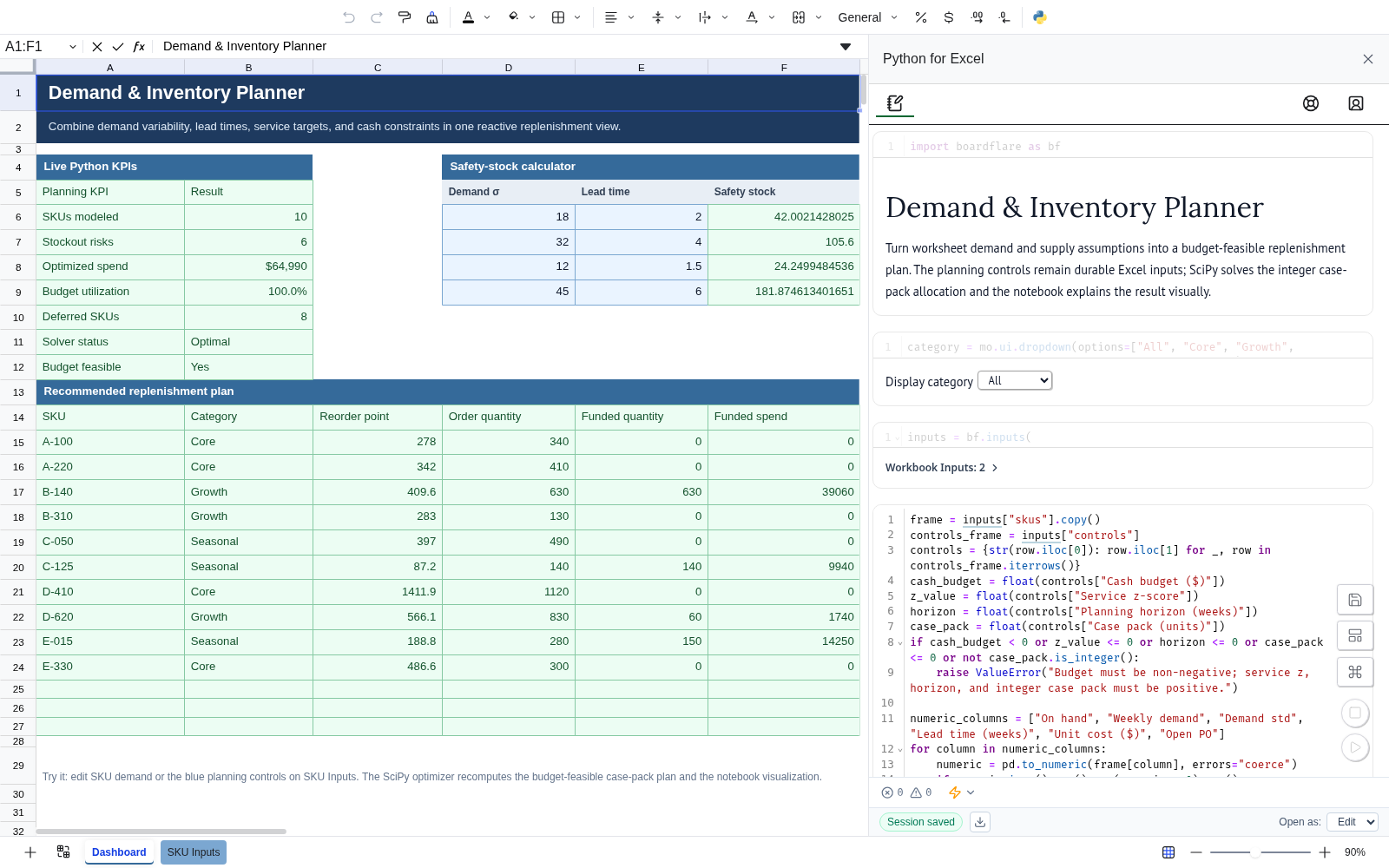
Write Python or use AI to help create it. Connect workbook data, build the interface, and test the application against the work it needs to perform.
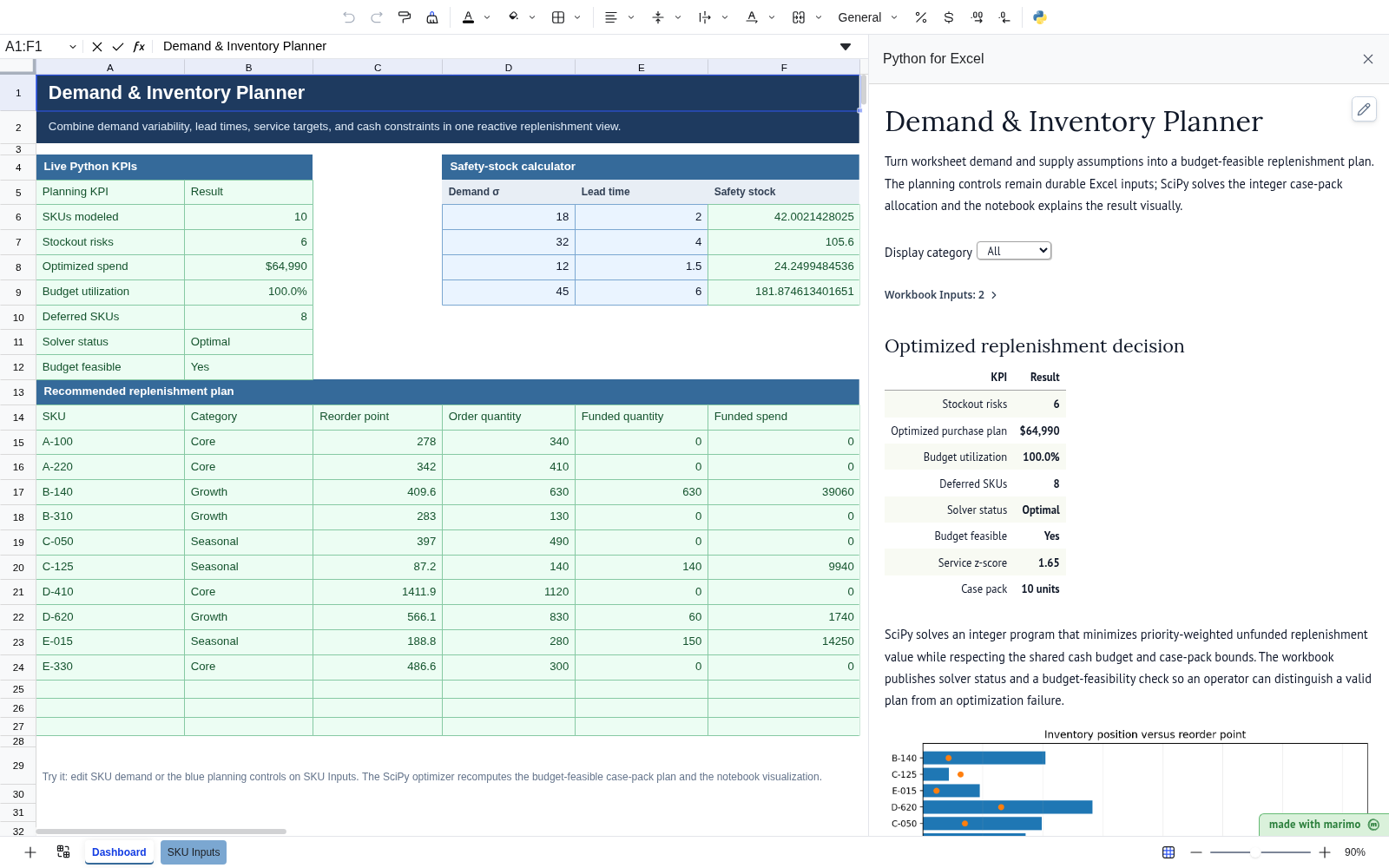
Use the controls, instructions, visualizations, results, and actions needed to complete the workflow without editing the Python implementation.
Save the application source with the workbook and share the file through OneDrive, SharePoint, or the tools your team already uses. Colleagues with the Boardflare add-in can operate it in App mode while the grid remains available for data entry, assumptions, formulas, and review.
App mode changes the presentation of the notebook. It does not restrict access to its source or change Excel workbook permissions.
Add the application.
Your workbook already contains the data, assumptions, calculations, and working context for the job. Boardflare adds Python logic and an application interface without forcing you to move that work into a separate system.
Build an estimator around an estimating workbook. Add guided review to a reconciliation. Turn an engineering model into a tool other people can operate. Keep Excel available for data entry, inspection, formulas, reporting, and review.
Keep your working context
Keep data, assumptions, formulas, results, application source, and the operator workflow associated with the workbook your team already understands.
Add what formulas cannot do well
Use Python for optimization, simulation, statistics, scientific methods, data processing, validation, and substantial business logic.
Give other people an application
Add forms, controls, actions, charts, and guided workflows so users can operate the tool without understanding its Python implementation.
Everything you need to build around the workbook.
Use Excel for the parts it already does well, Python for substantial application logic, and the task pane for a clearer operator experience.
Use Excel as application data
Use ranges, named ranges, and tables as reactive inputs so dependent Python updates automatically.
Use Python for the hard parts
Use ordinary Python functions and browser-compatible packages for modeling, optimization, statistics, data processing, validation, scientific computing, and business rules.
Build an interactive interface
Create forms, controls, tables, charts, review screens, and guided actions in the task pane. The application can respond as workbook data and controls change.
Keep Excel as a first-class output
Bring application results back into Excel for further calculations, reporting, review, and downstream workbook work. Make Python functions available in worksheet formulas when the workflow calls for them.
Like macros and forms, but the AI can build it.
People have built applications in workbooks for decades with formulas and VBA. VBA is frozen, does not run in Excel for the web, has partial support on Mac, and macros in downloaded files are blocked by default. Boardflare apps run in desktop Excel, Excel for the web, and on Mac, with Python libraries and a task-pane interface, and a clear separation between the person who builds the tool and the people who use it.
If Microsoft Python in Excel sparked your interest in Python, Boardflare gives you a way to build an application around the analysis: controls for exploring a model, business rules for a planning tool, or a guided process for reviewing exceptions.
VBA remains the better choice for applications that depend on deep Excel object-model access, native events, Office automation, COM, or desktop integration.
Build your first workbook application.
Start with a workbook your team already uses or a working Boardflare template. Add the Python logic, interface, and workflow that turn it into an application.
Have a workbook application in mind and want to discuss how to build it? Contact us →